
pc blue light reduction is mostly about using the display settings you already have, choosing the right color temperature, and being honest about when screen habits matter more than any filter.
If your eyes feel dry, you get headaches after long screen time, or you notice sleep feels “off” after nighttime scrolling, you’re not alone. Blue-leaning light can feel harsh at night, and higher brightness tends to amplify the discomfort.
This guide focuses on practical steps for Windows, macOS, iPhone, and Android, plus a simple checklist to figure out what’s actually causing your symptoms. I’ll also call out common traps, like cranking the filter to orange and then wondering why colors look wrong.
What “blue light reduction” actually does (and what it doesn’t)
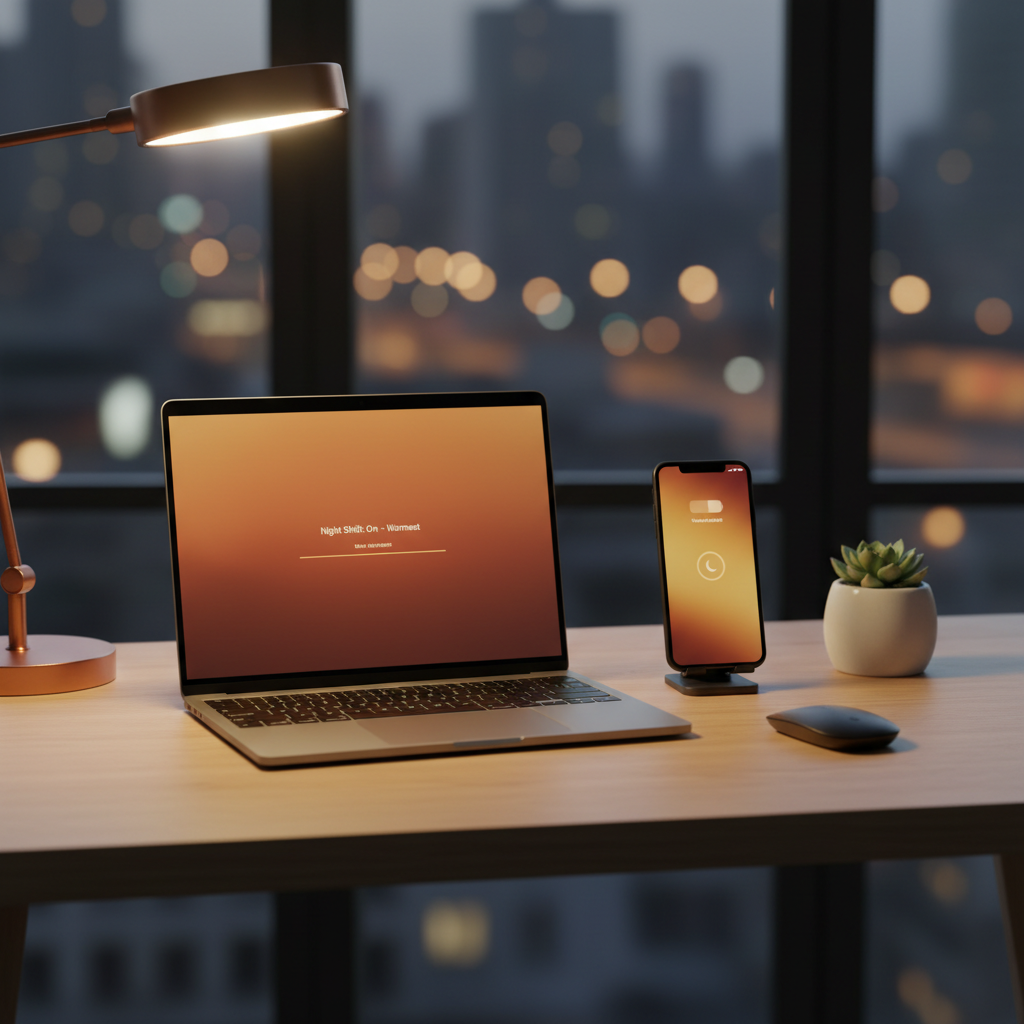
Blue light reduction tools warm the screen, shifting whites toward yellow/orange. That can make a display feel gentler in the evening, and it may help some people wind down.
According to the American Academy of Ophthalmology, blue light from digital screens has not been shown to cause eye disease, and most “digital eye strain” relates more to focusing fatigue, reduced blinking, and poor ergonomics than to blue light alone. That’s why a filter can feel helpful, but it won’t fix everything.
Also worth knowing: “blue light blocking glasses” and screen filters vary widely, and marketing claims often sound stronger than real-world results. If your main goal is comfort and better evening screen use, start with software settings and brightness control.
Quick self-check: what’s most likely causing your discomfort?
Before you change a dozen settings, spend one minute here. Most people fall into one of these buckets.
- Eyes feel tired after reading: likely focusing strain, small text, or poor contrast, not just color temperature.
- Dry, gritty eyes: often reduced blinking and airflow (fans/AC) during screen time.
- Headaches: could be brightness mismatch, glare, posture/neck strain, or needing vision correction.
- Sleep feels lighter after late screens: timing, brightness, and stimulating content can matter as much as spectrum.
If you answer “yes” to two or more below, your best win may be habit + ergonomics, with pc blue light reduction as a supporting move:
- You keep brightness high even in a dark room
- You sit close to the screen to read comfortably
- You rarely take breaks for 1–2 hours at a time
- You see reflections or glare on the display
How to reduce blue light on Windows PCs
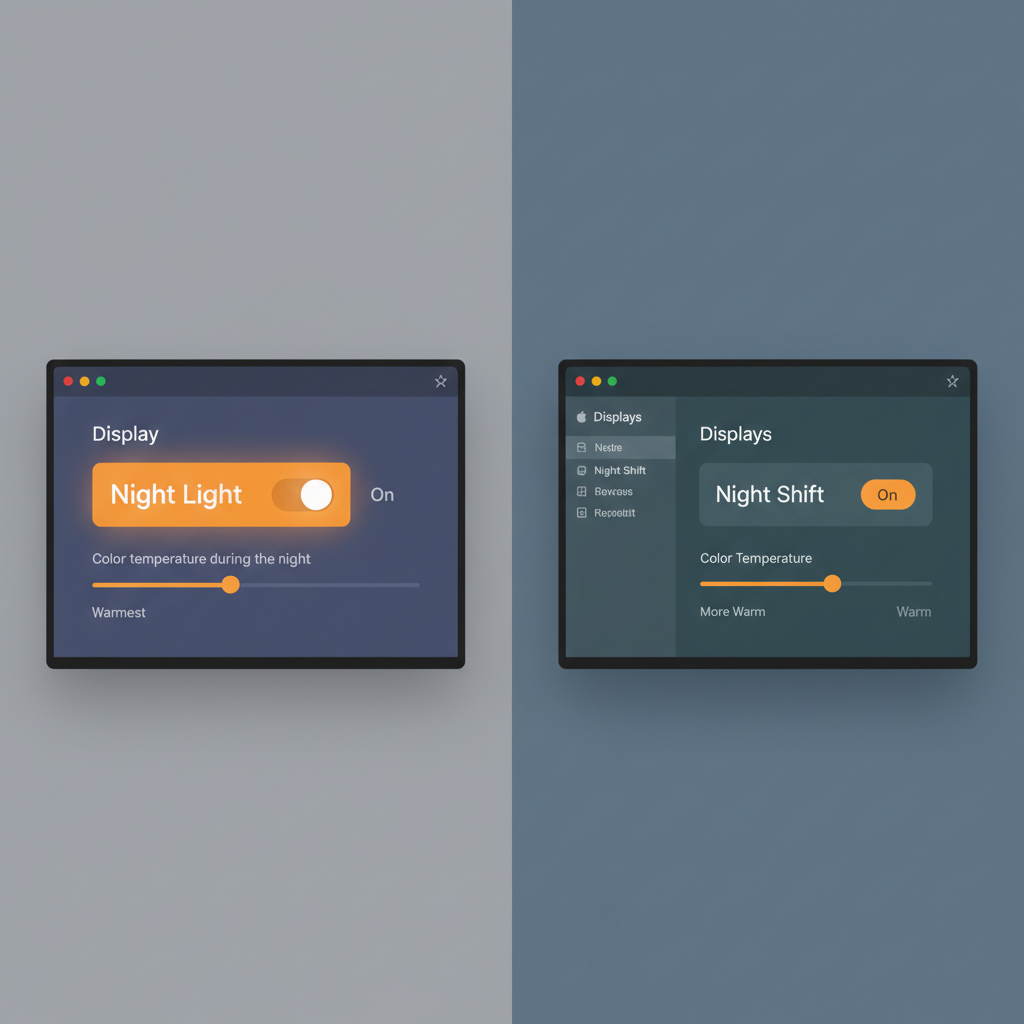
Windows has a built-in feature called Night light. It’s usually enough for most people, and it doesn’t require extra apps.
Turn on Night light (Windows 10/11)
- Open Settings → System → Display
- Find Night light and toggle it on
- Open Night light settings to adjust Strength and Schedule
Editor’s take: Avoid max strength unless you only do email and casual browsing at night. If you edit photos, design, or shop for color-sensitive items, keep it mild and schedule it for late evening only.
Two settings people forget (but feel immediately)
- Lower brightness at night: warm colors plus high brightness can still feel intense.
- Reduce glare: reposition the monitor, close a bright lamp behind you, or use matte screen protection if reflections are unavoidable.
How to reduce blue light on Mac (macOS)
On Mac, you’re looking for Night Shift. It’s stable, built-in, and easy to schedule.
Enable Night Shift
- Go to System Settings (or System Preferences) → Displays
- Find Night Shift
- Set a schedule (sunset-to-sunrise is fine, a custom schedule is better if you work late)
- Adjust Color temperature toward “More Warm” until it feels comfortable
If you use an external monitor, check the monitor’s own on-screen menu too. Many monitors have a “Low Blue Light” mode that stacks with OS settings, which can be overkill for daytime work.
How to reduce blue light on iPhone and Android
Phones tend to cause more “late-night” trouble because they’re closer to your face, and many people use them in dark rooms. Here, brightness and timing matter a lot.
iPhone (iOS): Night Shift and optional Color Filters
- Settings → Display & Brightness → Night Shift
- Schedule it, then adjust Color Temperature
If you need stronger warmth than Night Shift provides:
- Settings → Accessibility → Display & Text Size → Color Filters
Go carefully here. Strong filters can distort photos, shopping items, and even map colors.
Android: Night Light / Eye Comfort Shield (names vary)
- Settings → Display → look for Night Light, Eye Comfort, or Blue light filter
- Set intensity and schedule
On many Android phones, you can also add the toggle to Quick Settings, which makes pc blue light reduction-style adjustments feel just as fast on mobile.
A simple setup plan (by scenario) + a comparison table
Most people don’t need complicated tooling. Pick the scenario that matches your day-to-day, then apply the plan for one week before tweaking again.
Scenario plans
- Office hours + evening browsing: mild warmth after sunset, brightness down 20–40%, take short breaks.
- Late-night work sessions: schedule warmth later (so daytime color stays accurate), use a desk lamp for ambient light, raise text size.
- Gaming at night: moderate warmth can be fine, but avoid extreme orange; prioritize reducing brightness and room glare.
- Photo/video/design: keep filters off while color-critical work happens, then enable them after.
Quick comparison: built-in options
| Device | Feature name | Best use | Watch out for |
|---|---|---|---|
| Windows | Night light | Evening comfort, reading, email | Color shifts for design/photo work |
| macOS | Night Shift | Consistent warming on a schedule | External monitor settings may double-filter |
| iPhone (iOS) | Night Shift, Color Filters | Bedtime scrolling control | Over-warming can affect color recognition |
| Android | Night Light / Eye Comfort | Fast toggles, flexible schedules | Different names and locations by brand |
Common mistakes that make blue light reduction feel “useless”
A lot of frustration comes from doing one thing (turning on a filter) while leaving bigger irritants untouched.
- Leaving brightness too high: your eyes respond to intensity, not only color temperature.
- Using extreme warmth all day: it can create visual fatigue and annoy you into turning it off entirely.
- Ignoring text size and scaling: tiny fonts force more focusing effort than most people realize.
- Not addressing dry eye triggers: staring reduces blinking, so comfort drops even with perfect settings.
- Believing it “fixes sleep” by itself: if you’re watching stressful content in bed, the filter is not the main factor.
When to get extra help (and what kind)
If symptoms are frequent or disruptive, it’s reasonable to ask for help rather than endlessly tweaking sliders. Eye strain can overlap with vision issues, migraines, and dry eye conditions.
- Consider an eye exam if you squint, get headaches often, or struggle to focus at normal distance.
- Talk to a clinician if you have persistent pain, sudden vision changes, or severe light sensitivity.
- Ask about “computer glasses” if you do long sessions; many cases are about focusing distance support, not blue blocking.
According to the Centers for Disease Control and Prevention (CDC), healthy sleep habits include a consistent schedule and a good sleep environment, and many people benefit from reducing bright light exposure close to bedtime. If sleep is your main concern, combine pc blue light reduction with a calmer wind-down routine.
Conclusion: the most effective way to make screens feel easier at night
If you only do one thing, set a schedule for Night Light or Night Shift and drop brightness earlier than you think you need. That’s the fast, low-effort move that tends to feel real.
Then, tighten the basics: larger text, less glare, and short breaks. You’ll usually get more comfort from those than from chasing the “perfect” orange tint.
Key takeaways: use built-in tools first, keep warmth moderate, and treat pc blue light reduction as part of an overall comfort setup, not a cure-all.
FAQ
- Does pc blue light reduction reduce eye strain?
It can help some people feel more comfortable, especially at night, but eye strain often comes from focusing fatigue, glare, and long sessions without breaks. - What strength should I set Night Light or Night Shift to?
Most people do well with a mild to moderate setting in the evening. If colors look “muddy” or you hate the look, back it off so you’ll actually keep it on. - Is it better to use a blue light app or built-in settings?
Built-in options are usually enough and more stable. Third-party apps can offer more control, but they can also conflict with color-managed workflows. - Why do my eyes still hurt even with the filter on?
Check brightness, reflections, and text size, then consider dry-eye triggers. If headaches persist, an eye exam may be the most efficient next step. - Should I use blue light reduction during the day?
In many cases, no. Daytime warmth can distort color and feel odd. If you’re sensitive to bright screens, focus on brightness, contrast, and glare control first. - Do blue light glasses work the same as Night Mode?
They can overlap in effect, but results vary by lens and coating. Many people find software settings more flexible because you can schedule and tune intensity.
If you’re trying to make your setup more comfortable without sacrificing color accuracy, start with built-in night modes, then tune brightness and ergonomics for your room, it’s usually the cleanest path with the least guesswork.