
Smart home security tips start with one simple idea: treat every connected device like a tiny computer that needs basic protection, not like a “set it and forget it” appliance.
If you’re new to smart locks, cameras, speakers, or video doorbells, the hardest part is not buying gear, it’s knowing which settings actually matter. A few small choices, like using a password manager or updating firmware, often lower risk more than adding another camera.
This guide focuses on practical, beginner-friendly steps you can do in an afternoon, plus a quick way to judge what to fix first. I’ll also call out common traps, like relying on default router settings, or assuming a popular brand equals safe by default.
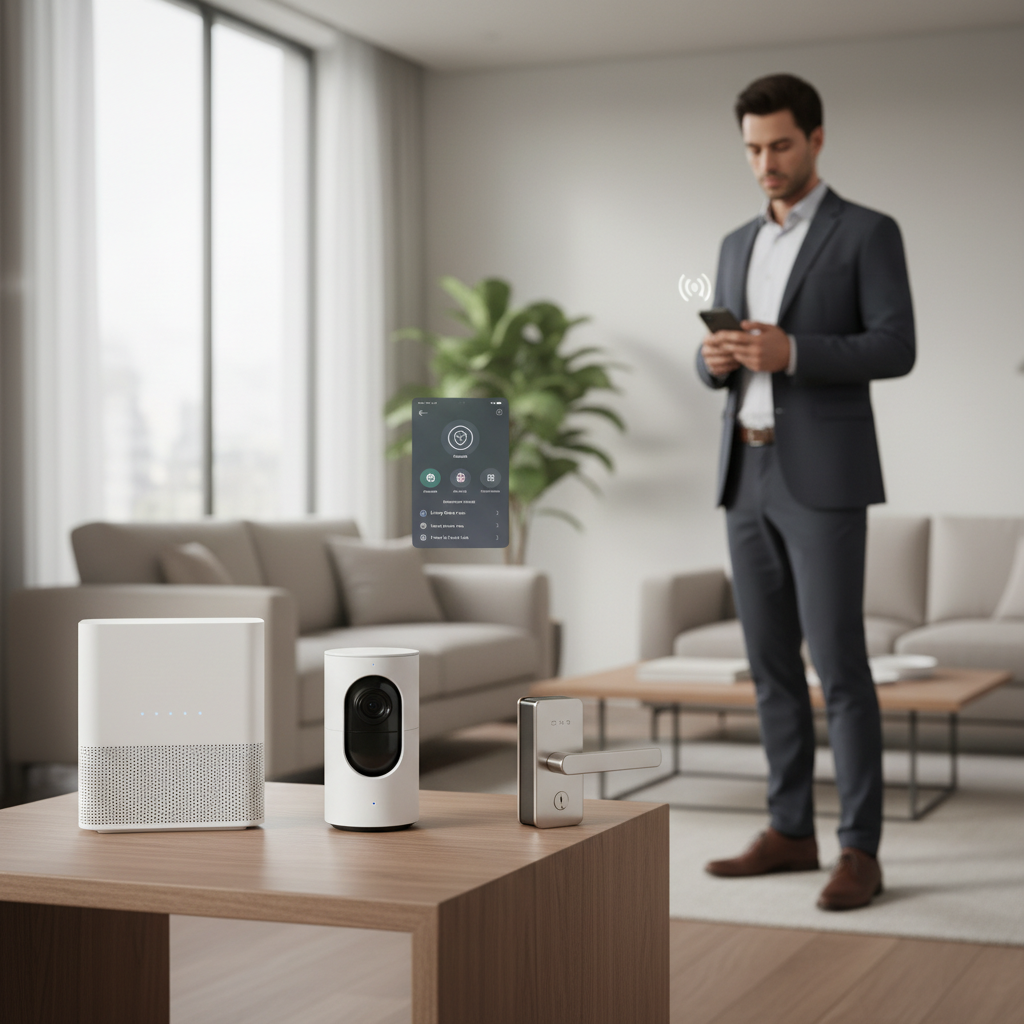
Start with a simple threat model (what you actually want to prevent)
Most beginners try to secure “everything,” then get overwhelmed. It’s easier if you decide what you’re protecting against, because the setup choices change.
- Privacy leaks: indoor cams, smart speakers, baby monitors, location history, cloud recordings.
- Account takeovers: someone resets your password, logs into your camera app, or intercepts alerts.
- Local network access: an attacker gets on your Wi‑Fi and reaches devices that never should be reachable.
- Physical break-ins: door/window sensors, smart locks, alarm routines, lighting automation.
According to CISA (Cybersecurity and Infrastructure Security Agency), using strong, unique passwords and enabling multi-factor authentication are foundational steps for protecting connected accounts and devices.
The fastest wins: accounts, passwords, and MFA
If you do nothing else, do these. They’re boring, but they stop a lot of the “easy mode” attacks.
Use a password manager and unique passwords
Reused passwords are the quiet reason many smart-home apps get compromised. A password manager helps you create long, unique logins without memorizing them.
- Create unique passwords for your camera/doorbell app, your email, and your Wi‑Fi router admin login.
- Prioritize your email account, because password resets usually start there.
Turn on multi-factor authentication (MFA)
MFA adds a second check beyond your password. In many cases, an authenticator app is more resilient than SMS, but use whatever the service supports.
- Enable MFA for your smart-home platform account (Google, Apple, Amazon) and security system account.
- Save backup codes somewhere safe (not in a notes app with no lock).
Lock down your Wi‑Fi and router (the part most people skip)
Smart devices live on your network, so your router is the real “front door.” Many smart home security tips boil down to: don’t leave the front door propped open.
According to NIST, keeping software updated and using strong authentication are core practices in reducing cybersecurity risk, and that applies to consumer routers too.
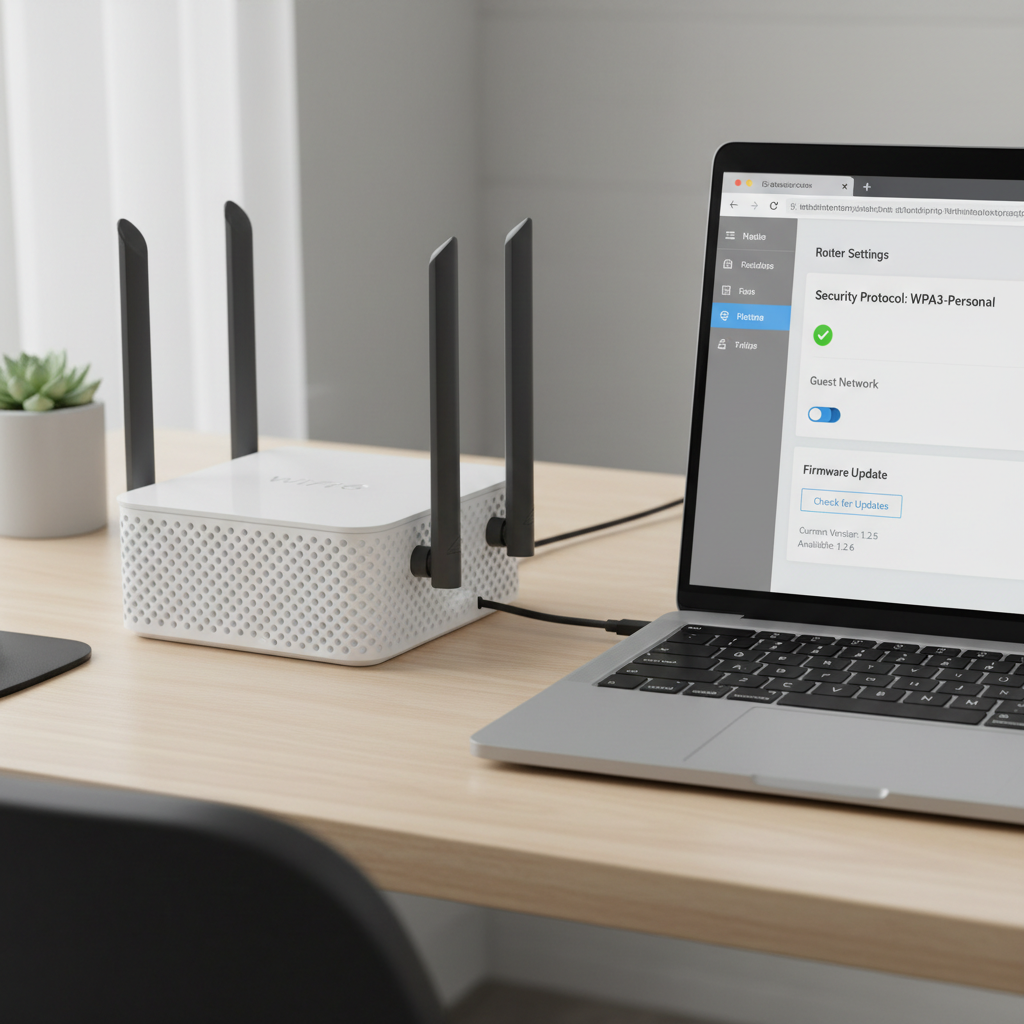
Router checklist for beginners
- Change the router admin password (not just the Wi‑Fi password).
- Use WPA3 if available, otherwise WPA2-AES. Avoid old modes like WEP.
- Turn off WPS (the push-button pairing feature) unless you truly need it.
- Update router firmware, then enable auto-updates if supported.
- Create a guest network for visitors and for “cheap smart stuff” you don’t fully trust.
Consider network segmentation (without getting nerdy)
If your router supports a guest network or an IoT network, put smart plugs, bulbs, and random gadgets there. Keep phones and laptops on your main network. That way, a compromised light bulb is less likely to expose your personal files.
Secure devices where it matters: cameras, locks, and voice assistants
Not every device needs the same level of attention. Focus on anything that sees, hears, or controls entry.
Smart cameras and video doorbells
- Disable features you won’t use, especially public sharing links or “quick share” options.
- Set camera zones carefully, avoid pointing indoor cameras at private areas when possible.
- Review cloud storage settings, retention, and who can access recordings.
- Update firmware and app permissions; remove old phones or tablets from authorized devices.
Smart locks
- Use unique PINs per person, and delete codes you no longer need (contractors, past guests).
- Enable auto-lock thoughtfully, test it for a week so it doesn’t create lockouts.
- If your lock supports activity logs, check them occasionally, not obsessively.
Voice assistants and smart speakers
- Review microphone controls and recording settings in the companion app.
- Limit voice purchasing, add a PIN, and reduce unnecessary skills/integrations.
- Place speakers away from windows/doors when possible, so commands are less likely to be heard from outside.
A quick self-check: what type of setup do you have?
Use this to decide how aggressive to be. Most households fall into one of these buckets.
- Basic: a few bulbs/plugs and one speaker. Biggest risk is account takeover, fix passwords + MFA.
- Security-focused: doorbell + outdoor cams + sensors. Biggest risk is privacy and remote access, tighten sharing and network.
- All-in: locks, cameras, thermostat, garage opener, lots of automations. Biggest risk is “one compromised account breaks everything,” focus on platform security and segmentation.
If you have indoor cameras, smart locks, or a garage controller, you’re in the group that benefits most from these smart home security tips right away.
What to fix first: a practical priority table
If you’re short on time, prioritize by impact and effort. This is where many people finally make progress.
| Priority | Task | Why it matters | Effort |
|---|---|---|---|
| 1 | Enable MFA on smart-home accounts | Stops many remote logins even if a password leaks | 10–20 min |
| 2 | Change router admin password + update firmware | Protects the whole home network at once | 15–30 min |
| 3 | Disable sharing links, audit device access | Prevents accidental public exposure and stale logins | 15–45 min |
| 4 | Move IoT devices to guest/IoT network | Limits damage if a low-cost device gets compromised | 30–90 min |
| 5 | Tighten lock PINs, remove old users | Reduces real-world entry risk | 10–30 min |
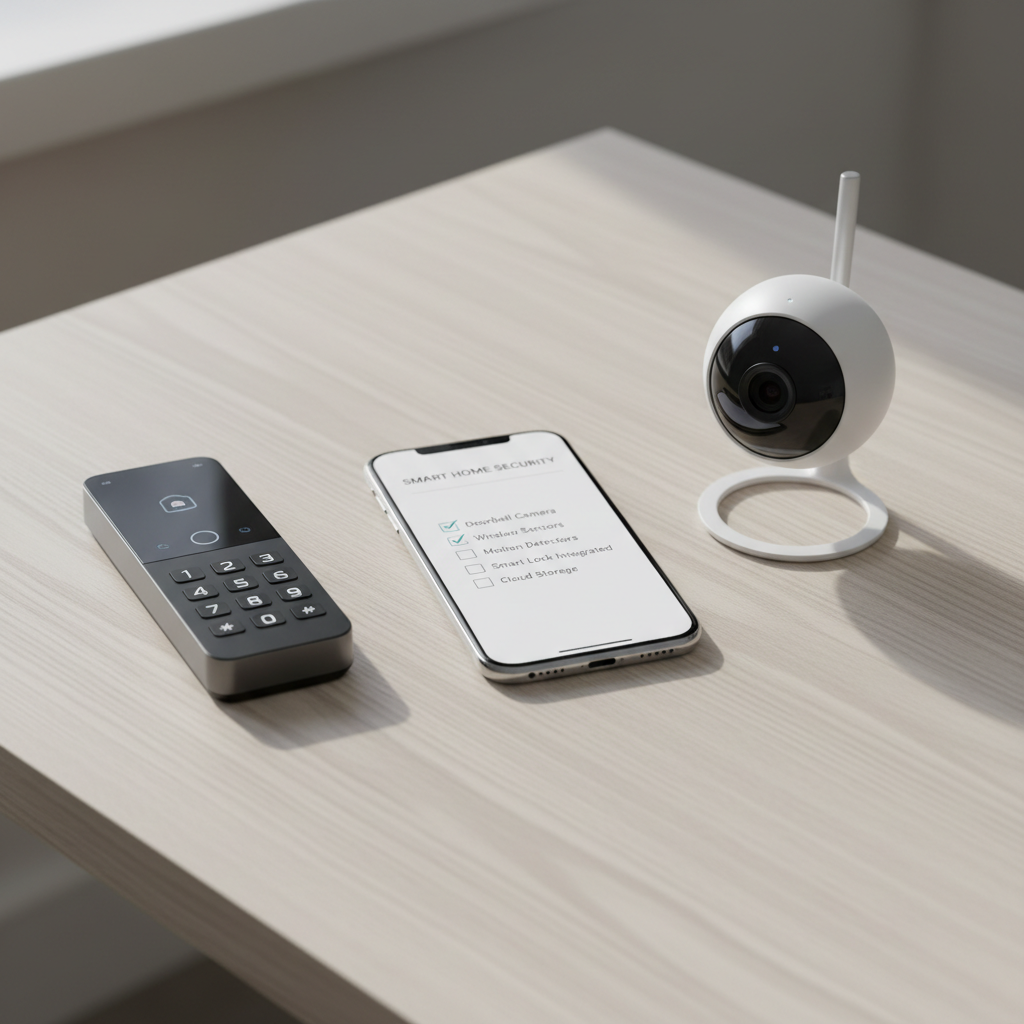
Common mistakes that waste time (or make things worse)
- Keeping default settings: default device names, default router logins, or leaving WPS on because “it’s convenient.”
- Buying more devices instead of securing accounts: more gear adds more apps, more integrations, more places to forget updates.
- Over-sharing access: giving full admin access to family members when “viewer” access would work.
- Assuming cloud equals unsafe: cloud services vary; what matters is MFA, audit logs, and how sharing is handled.
- Ignoring updates: if a device stops receiving updates, consider replacing it, especially for cameras and locks.
One more real-world gotcha: some smart home routines can reveal when you’re away, like public-facing lights on a predictable schedule. Randomized lighting patterns tend to be less obvious.
When it’s worth getting professional help
Most homes don’t need a consultant, but there are times a pro saves you from messy trial and error.
- You rent out a space or manage multiple properties and need consistent access control and logging.
- You have a complex network setup, frequent dropouts, or you suspect a device has been compromised.
- You’re integrating alarms, cameras, and locks across brands and want fewer points of failure.
If you suspect active unauthorized access, consider contacting your device vendor support and, if needed, a qualified IT/security professional. For immediate physical safety concerns, rely on local emergency services.
Conclusion: a calm, effective plan you can do this weekend
Good smart home security rarely looks dramatic, it’s mostly clean account hygiene, a well-configured router, and a quick audit of cameras and locks. If you want a short action plan, do two things today: turn on MFA wherever you can, and update and secure your router. After that, move the “misc gadgets” to a guest network and tighten sharing.
If you keep coming back to these smart home security tips once every few months for a 15-minute checkup, your setup usually stays in a good place without turning into a hobby.
FAQ
What are the most important smart home security tips for beginners?
Start with MFA on your main accounts, unique passwords in a password manager, and a secured router (admin password, updates, WPA3/WPA2-AES). Those steps reduce the most common risks quickly.
Should I put smart devices on a guest network?
In many homes, yes, especially for smart plugs, bulbs, and off-brand devices. Keeping them separate from laptops and phones can limit fallout if one device gets compromised.
Are smart locks safe compared to regular locks?
They can be safe when installed and configured well, but they add account and code-management risks. Use unique PINs, remove unused users, and keep the app account protected with MFA.
Do I need an expensive router to be secure?
Not always. A mid-range router that supports current encryption and receives regular firmware updates often beats an older “premium” router that no longer gets updates.
How often should I update smart home devices?
If auto-updates exist, enable them. Otherwise, a monthly or quarterly reminder is a realistic habit. For cameras and locks, staying current matters more than for a smart bulb.
Is it risky to use indoor security cameras?
Indoor cameras can increase privacy risk if sharing settings are loose or accounts get compromised. Limit who has access, review retention settings, and consider using privacy shutters or turning them off when home, depending on your comfort level.
What signs suggest my smart home might be compromised?
Unexpected password reset emails, new devices logged into your account, cameras moving on their own, or automations triggering at odd times are worth investigating. Change passwords, enable MFA, and contact vendor support if you can’t explain the behavior.
If you’re setting up a new system and want a more hands-off path, consider choosing fewer brands and one primary platform, then build from a short security checklist before adding more devices, it’s usually easier to keep secure as your setup grows.