
How to fix overheating on gaming laptops usually comes down to three things you can actually control: airflow, heat transfer, and workload. When any one of those goes sideways, you see the same symptoms, fans screaming, FPS dropping, random stutters, or the laptop feeling uncomfortably hot near the keyboard.
This matters because modern gaming laptops protect themselves by throttling performance when temperatures climb, and that feels like your GPU or CPU suddenly “got worse” mid-match. In reality, the machine is just pulling power back to stay within safe limits.
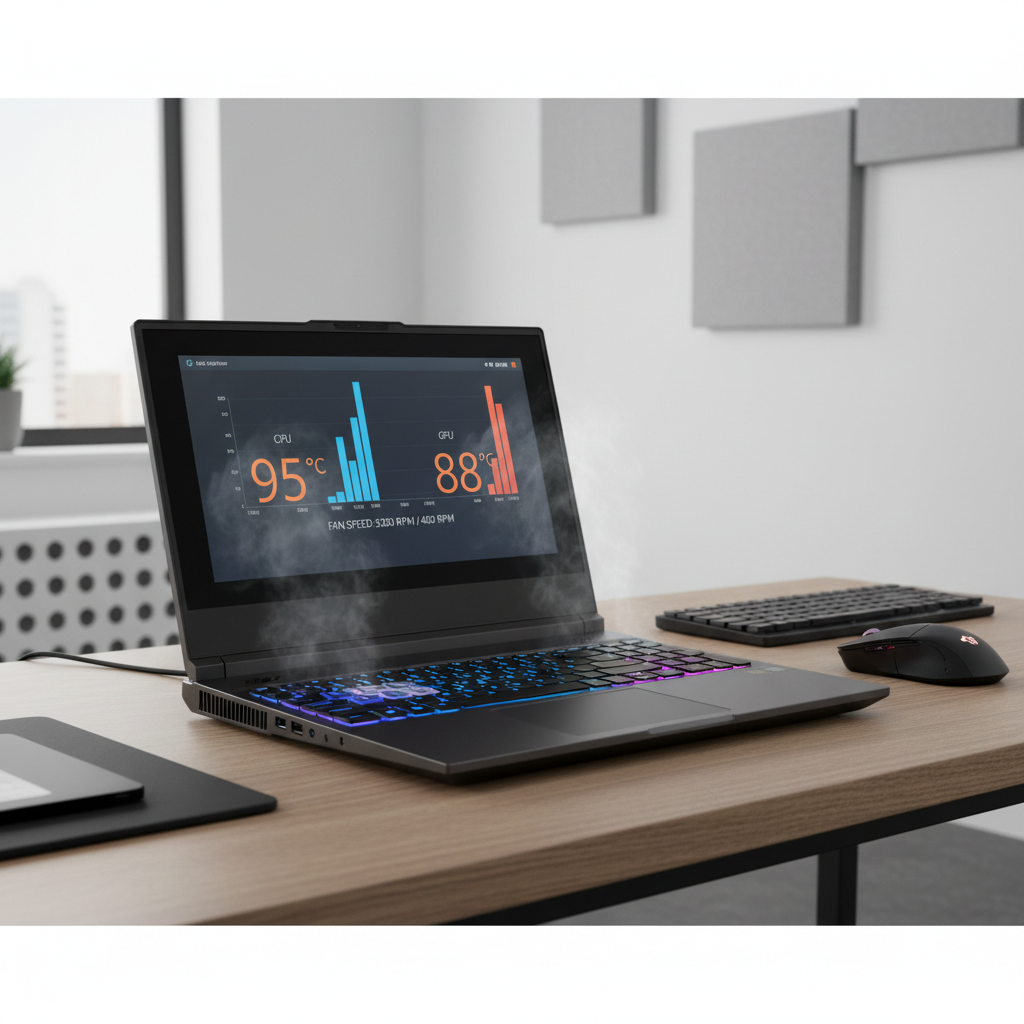
The good news is you rarely need a dramatic fix. Most cases improve fast with basic cleaning, smarter fan and power settings, and a couple of “don’t do this” habits that quietly trap heat. I’ll also call out the point where it’s safer to stop DIY and talk to a repair shop.
Why gaming laptops overheat (what’s usually happening)
Overheating almost always looks mysterious from the outside, but inside a laptop it’s pretty predictable. Heat is normal, the problem is when heat can’t leave efficiently or the system creates more heat than the cooling design can move.
- Dust and lint buildup in vents and heatsink fins reduces airflow, even if fans spin at full speed.
- Restricted intake from soft surfaces, blankets, laps, or a flat desk that blocks bottom vents.
- Old or poorly applied thermal paste weakens heat transfer between chip and heatsink, common after a few years or a bad repaste.
- High ambient temperature or direct sunlight, which shrinks your cooling “headroom.”
- Boost behavior and power limits that push the CPU to high wattage bursts, great for benchmarks, not always great for sustained gaming.
- Background tasks like launchers, overlays, recording, browser tabs, and Windows updates that raise baseline heat.
According to NVIDIA and Intel guidance on mobile GPU/CPU behavior, thermal and power limits can reduce clock speeds to protect components, which is why overheating often shows up as performance dips rather than an immediate shutdown.
Quick self-check: what type of overheating is this?
Before you change settings, you want a quick read on whether you’re dealing with airflow, workload, or a failing thermal interface. You don’t need perfect measurements, just enough to choose the right fix.
5-minute checklist
- Do temps spike instantly when a game starts, then throttle within minutes? That often points to airflow restriction or paste/contact issues.
- Do temps climb slowly over 20–40 minutes? That often points to dust buildup, warm room, or a too-high power profile.
- Are fans loud but air feels weak at the exhaust? That’s commonly clogged fins.
- Is the bottom intake blocked on a couch/bed or a flush desk surface? That’s an easy win.
- Is only the CPU hot while GPU looks normal (or the opposite)? That hints where to focus, CPU boost tuning vs GPU power/undervolt.
If you want numbers, a hardware monitor (HWInfo, MSI Afterburner, or your laptop’s control app) can help you watch CPU/GPU temps and clocks. You’re looking for a pattern: rising temps followed by clock drops.
Fast fixes that work for most people (low risk)
These are the “do this first” steps. They don’t require opening the laptop, and they usually improve thermals enough to stop throttling in many setups.
1) Improve airflow in the real world
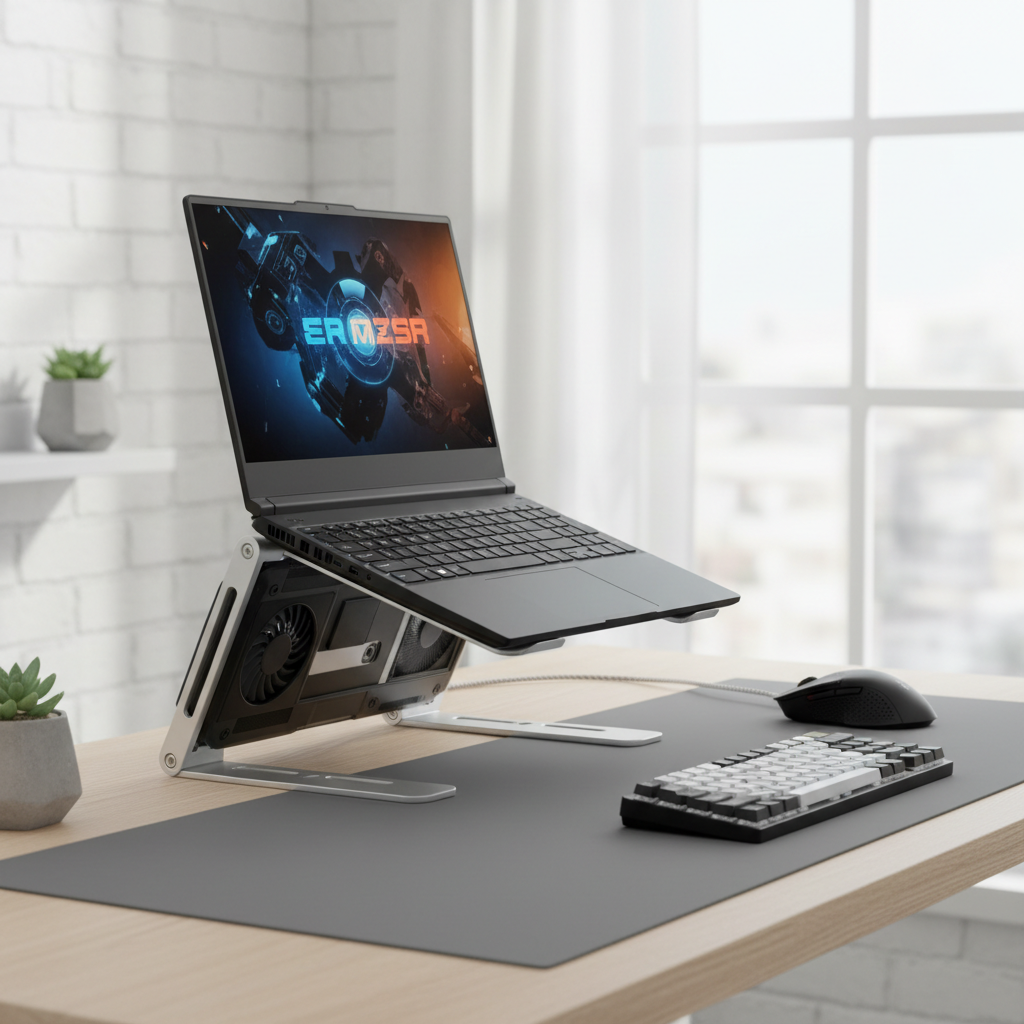
- Use a hard, flat surface and keep bottom vents unobstructed.
- Raise the rear slightly with a stand, even a small lift can help intake airflow.
- Keep exhaust areas clear of walls, pillows, and clutter.
2) Clean the vents (without opening anything)
Use short bursts of compressed air at the intake and exhaust. If you hear the fans overspin, stop and change angle, some people prefer holding fans still, but access varies by model so don’t force anything.
- Power off, unplug, let it cool.
- Blow air in short bursts, moving around the vents.
- Afterward, run a game and check whether fan noise/temps improve.
If the laptop hasn’t been cleaned in a year or more and you have pets, this step alone often makes a noticeable difference.
3) Switch to a sane power mode for gaming
On many machines, “Turbo” or “Performance” profiles chase peak watts. Try a balanced gaming profile or cap CPU boost aggressiveness if your laptop software allows it.
- Windows: set Power Mode to Balanced (or “Best performance” only if temps remain stable).
- In your OEM app (Armoury Crate, Alienware Command Center, Lenovo Vantage, OMEN Gaming Hub): pick a profile that doesn’t max CPU wattage all the time.
- Cap FPS in-game to your display refresh rate or slightly below, this reduces heat without “ruining” responsiveness.
Settings that cut heat a lot (with minimal FPS loss)
This is where most people get the best tradeoff. You’re not trying to make the laptop cold, you’re trying to stop the runaway heat that triggers throttling.
Use this table to pick your next move
| Symptom | Likely cause | Best next step | Risk level |
|---|---|---|---|
| CPU hits high temps quickly, GPU fine | CPU boost/power too aggressive | Lower CPU turbo limits or use a cooler profile | Low |
| GPU is hottest part, fans loud | High GPU power draw | Cap FPS, reduce GPU power limit (if available) | Low |
| Both CPU and GPU hot, airflow feels weak | Dust/clogged fins | Vents cleaning, consider internal clean if severe | Low to Medium |
| Temps worse than last month, same games | Dust, paste aging, fan wear | Inspect internally, consider repaste by a shop | Medium |
| Random shutdowns under load | Serious thermal issue or power fault | Stop stress testing, seek professional help | High |
In-game tweaks that reduce heat fast
- Cap FPS (in-game limiter or NVIDIA Control Panel/AMD Adrenalin) to reduce unnecessary GPU work.
- Lower resolution scale or heavy settings like ray tracing, shadows, and volumetrics.
- Use DLSS/FSR where available, often a cleaner way to lower heat than dropping resolution.
These changes sound small, but they can drop sustained power draw a lot in many titles, which means fans settle down and performance becomes steadier.
When to consider undervolting, repasting, or a cooling pad
If you’ve done the basics and you still see throttling, you’re in the “bigger levers” territory. These can work well, but pick based on your comfort level.
Undervolting (advanced, but common)
Undervolting reduces voltage while keeping similar clocks, so the chip produces less heat at the same work level. Many gaming communities use it, but support depends on your CPU/GPU and OEM locks.
- GPU undervolt is often the most accessible and predictable via MSI Afterburner.
- CPU undervolt may be locked on newer systems, and unstable settings can cause crashes.
- Change one thing at a time, test stability, and keep notes so you can revert.
Cooling pads and stands
A good stand always helps airflow; a fan-based cooling pad can help in many cases, especially if your laptop intakes from the bottom, but results vary by chassis design.
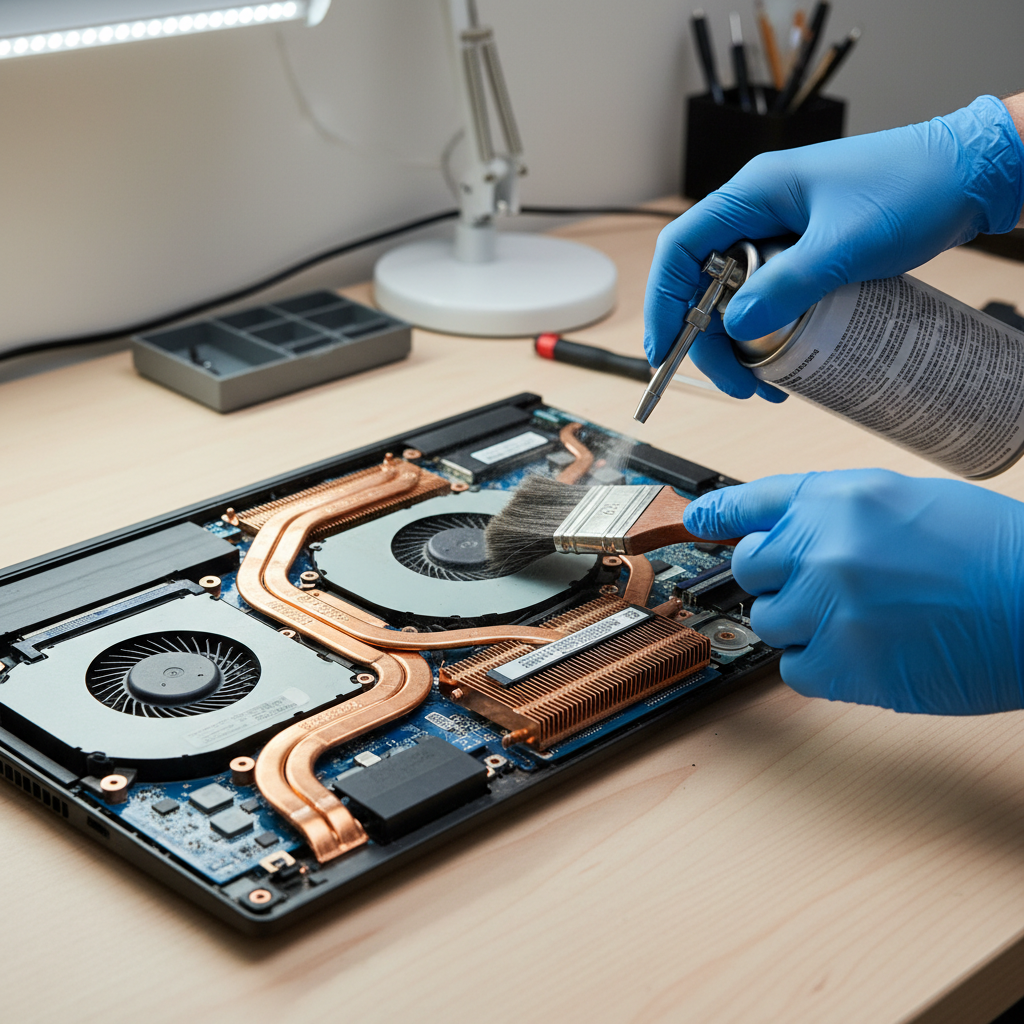
Repaste and internal cleaning
If the laptop is older, used heavily, or you see huge temp spikes, repasting may help, but it’s easy to mess up with incorrect paste amount, uneven mounting pressure, or forgetting thermal pads. If you’re not comfortable opening the chassis, having a reputable shop do it is usually the safer path.
Mistakes that keep laptops hot (even after you “fixed” it)
This is the part people hate hearing because it’s not exciting, but these habits undo a lot of work.
- Blocking vents with a bed, blanket, or your legs, even “just for one match.”
- Running Turbo mode 24/7 for games that don’t need it, heat goes up, benefit stays small.
- Ignoring background load from recorders, RGB apps, browser video, and update services.
- Using compressed air incorrectly and pushing debris deeper into the fins, short bursts and angles matter.
- Chasing the lowest temperature instead of stable clocks, a laptop can run warm and still perform well if it avoids throttling.
Key takeaway: stability beats bragging rights. If your temps are controlled enough to keep clocks steady, your gaming experience usually feels better even if the peak benchmark score looks slightly lower.
When you should stop DIY and get professional help
Some signs point to issues beyond normal heat management. In these cases, continuing to stress the laptop may risk further damage.
- It shuts down under load or smells like hot plastic or burning dust.
- Fans make grinding noises, stop spinning, or ramp erratically.
- Temperatures remain extreme even at idle, suggesting a sensor, fan, or heatsink contact problem.
- You see battery swelling, chassis bulging, or the trackpad lifting, stop using it and consult a repair professional.
According to Apple and major PC OEM safety guidance, devices showing battery swelling or abnormal heat should be inspected by qualified service providers, because puncture and heat exposure can be hazardous.
Practical “do this today” plan
If you want an order that makes sense and avoids wasted effort, run this in sequence and stop once performance becomes stable.
- Step 1: Put the laptop on a hard surface and raise the rear edge.
- Step 2: Clean vents with short compressed-air bursts.
- Step 3: Cap FPS in your main game and retest.
- Step 4: Switch from Turbo to a balanced gaming profile.
- Step 5: If needed, try a GPU undervolt, carefully and reversibly.
- Step 6: If symptoms persist, consider internal clean/repaste by a reputable shop.
Conclusion: keep temps controlled, keep performance consistent
Most overheating complaints aren’t a “bad laptop,” they’re a cooling system that can’t move heat as efficiently as it used to, or settings that push more watts than the chassis can sustain. If you take airflow seriously, reduce unnecessary workload, and use smarter power and FPS limits, you’ll usually see steadier FPS and less fan chaos.
If you want one simple action today, start by fixing airflow and adding an FPS cap, then reassess. If the machine still throttles hard or shuts down, it’s a strong hint you’re past quick tweaks and should consider professional inspection.
FAQ
How do I know if my gaming laptop is overheating or just running warm?
If performance stays consistent and you don’t see sudden clock drops or stutters, it may just be normal heat. Overheating usually shows up as throttling, loud fans with weak airflow, or instability under load.
How to fix overheating on gaming laptops without opening the case?
Focus on airflow and workload: hard surface, raise the rear, clean vents with compressed air, cap FPS, and use a balanced performance profile. Those steps solve a large share of real-world cases.
Will a cooling pad actually help a gaming laptop?
Often yes if the laptop pulls air from the bottom, but results vary. A stand that improves intake clearance is the most consistently useful, while fan pads range from modest to noticeable depending on chassis design.
Is undervolting safe for gaming laptops?
It can be safe when done conservatively and tested for stability, but an aggressive undervolt can cause crashes or strange behavior. Keep changes small, test gradually, and be ready to revert settings.
Why does my laptop overheat only in one specific game?
Some titles push CPU or GPU unusually hard, or run uncapped FPS in menus and loading screens. Try an FPS cap and check whether that game is triggering higher sustained power draw than others.
Should I replace thermal paste to fix overheating?
It can help, especially on older systems or if temps spike instantly, but it’s not always necessary. If you’re not comfortable opening the laptop, having a shop handle repasting reduces the chance of uneven mounting or pad mistakes.
Can overheating damage my gaming laptop?
Modern laptops usually throttle to protect themselves, but sustained high heat can still contribute to wear over time. If you see shutdowns, swelling, or burning smells, stop using it and consult a professional.
If you’re trying to fix overheating fast and you’d rather not guess, a simple approach is to monitor temps for one gaming session, apply one change at a time (airflow, FPS cap, power profile), and keep the settings that improve stability without making the laptop annoying to use.