
how to change language on android is usually a quick setting change, but it can feel impossible when you can’t read the menus, your keyboard keeps switching, or one app refuses to follow the system language.
\nThis guide walks you through the practical paths that work on most Android phones in the U.S., including Samsung Galaxy and Google Pixel. You’ll also see what to do when the options look different, or when your phone has multiple “language” places that sound similar but behave differently.
\n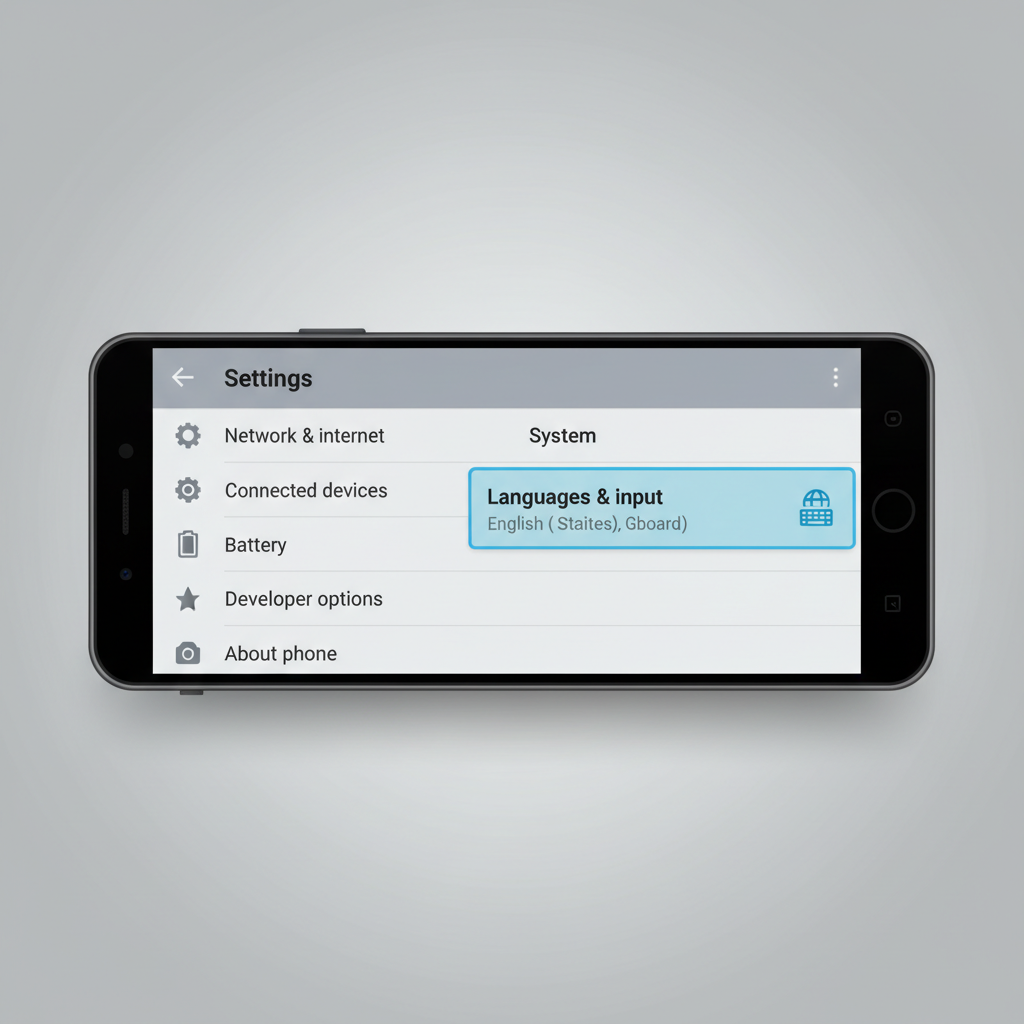 \n
\n
If you only remember one thing: Android separates system language (menus, settings, system apps) from keyboard language (what you type) and, on newer versions, per-app language (one app in Spanish while the phone stays English). Mixing these up causes most “it didn’t work” moments.
\n\nWhat “language” you’re trying to change (system, apps, or keyboard)
\nBefore tapping around, decide which “language” you actually need. Many people change the keyboard and wonder why Settings stays in the old language, or they change the system language and wonder why one app still shows the wrong text.
\n-
\n
- System language: Changes phone menus, Settings, and most built-in apps. \n
- App language (Android 13+ on many phones): Changes language for a specific app only. \n
- Keyboard language: Changes typing language, autocorrect, and layout (QWERTY vs AZERTY, etc.). \n
- Regional format: Date, time, number format, currency style, often controlled by “Region” or “Locale,” not just language. \n
Change the system language (most Android phones)
\nIf your goal is to change the whole phone interface, this is the path that matters. Menu labels vary a bit by brand, but the structure stays similar.
\nTypical steps (Android 10–14)
\n-
\n
- Open Settings \n
- Tap System (sometimes General management on Samsung) \n
- Tap Languages & input or Language \n
- Tap Languages (or Language) \n
- Choose Add a language, pick the language, then set it as default (often by dragging it to the top) \n
On some phones you must pick both a language and a region variant, for example English (United States) vs English (United Kingdom). That choice can affect spelling suggestions and formatting.
\n\nSamsung Galaxy vs Google Pixel: where the setting lives
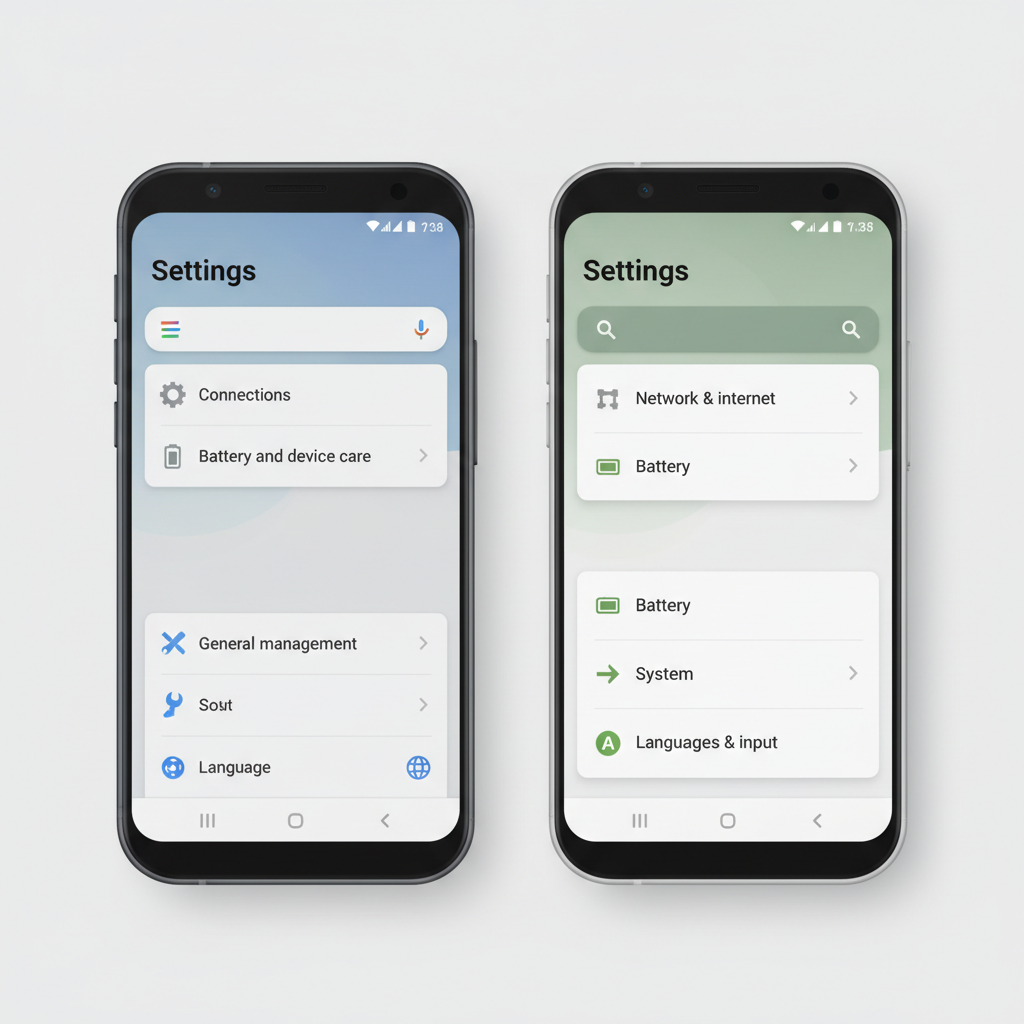
\nAndroid is “Android,” but manufacturers reorganize settings. When you search Settings for “language,” you’ll usually land in the right place.
\n| Phone type | \nCommon path | \nWhat to look for | \n
|---|---|---|
| Google Pixel | \nSettings → System → Languages → System languages | \n“System languages” and the drag-to-reorder list | \n
| Samsung Galaxy | \nSettings → General management → Language | \n“App languages” may appear here on newer models | \n
| Other Android (Motorola, OnePlus, etc.) | \nSettings → System (or Additional settings) → Languages & input | \nAnything mentioning “Languages” or “Region” | \n
 \n
\n
Key point: if you changed the system language but parts of the phone still look unchanged, you may be seeing apps that don’t fully support that language, or you may need to set the preferred language at the top of the list.
\n\nUse per-app language (Android 13 and newer, when available)
\nFor many people in the U.S., the real need is “my phone stays in English, but this one app should be in Spanish.” That’s where per-app language helps, when the phone and the app support it.
\nHow to set app-specific language
\n-
\n
- Open Settings \n
- Tap Apps \n
- Select the app \n
- Tap Language (or App language) \n
- Choose the language you want \n
If you don’t see a Language option, it usually means one of two things: your Android version doesn’t support per-app language, or the app hasn’t implemented it. In that case, check the app’s own in-app language setting.
\nAccording to Google (Android documentation and feature notes), per-app language is supported on newer Android versions, but availability can depend on device and app support.
\n\nChange keyboard language (Gboard and Samsung Keyboard)
\nKeyboard language affects what you type, autocorrect, and sometimes voice typing language. This is the fix when texting feels “wrong,” even though the phone menus look fine.
\nGboard (common on Pixel and many Android phones)
\n-
\n
- Go to Settings → System → Languages & input \n
- Tap On-screen keyboard → Gboard → Languages \n
- Add a language, choose layout (QWERTY, etc.) \n
- While typing, use the globe icon (or spacebar swipe) to switch languages \n
Samsung Keyboard
\n-
\n
- Go to Settings → General management \n
- Tap Samsung Keyboard settings → Languages and types \n
- Add languages, choose input type \n
Quick sanity check: if autocorrect suggests the “wrong” language, you likely changed the system language but not the keyboard language (or vice versa).
\n\nIf you can’t read the menus: fast ways to recover
\nWhen the phone is already stuck in an unfamiliar language, you need a method that doesn’t rely on reading every label.
\n-
\n
- Use Settings search: open Settings and tap the search bar, type “language” (typing still works even if menus look unfamiliar). \n
- Use Google Assistant: many phones allow “Hey Google, open language settings.” Results vary by model and permissions. \n
- Use the icon pattern: Settings app icon → scroll to sections near the bottom where System/General management typically lives. \n
If you’re traveling and only need a temporary fix, adding a second system language and moving it to the top is often easier than replacing the only language on the phone.
\n\nTroubleshooting: when the language won’t change (or keeps reverting)
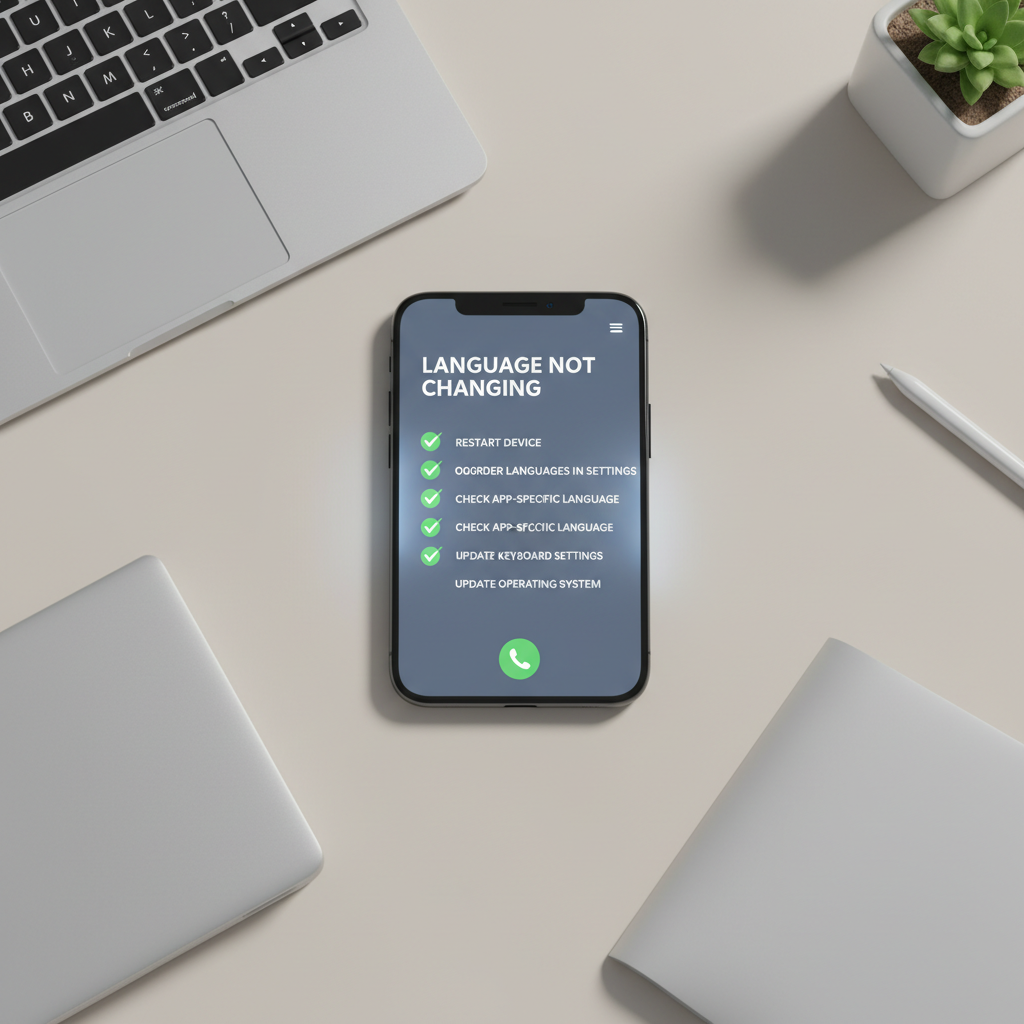
\nThis is where people get annoyed, because it feels like Android ignored the change. Usually, it’s one of these practical issues.
\n-
\n
- Multiple languages added but wrong priority: put your preferred language at the top of the list, not just “added.” \n
- Work profile or managed device: a company policy may restrict language changes. Ask IT if it’s a work phone. \n
- App has its own language setting: many apps override system language inside the app’s settings. \n
- Device launcher/widgets not updating: restart the phone after changing system language. \n
- Partially translated interface: some languages display mixed content if a translation is incomplete. \n
 \n
\n
If the issue appears right after a major update, wait for app updates too. Some apps lag behind Android changes, then “snap back” once updated.
\n\nPractical checklist (2 minutes) before you stop trying
\nThis quick list helps you identify which setting you actually need, and prevents the classic loop of changing the wrong “language” area.
\n-
\n
- Do you want menus to change? Change system language. \n
- Only one app is wrong? Try per-app language or the app’s own settings. \n
- Typing feels wrong? Change keyboard language and layout. \n
- Dates and numbers look odd? Look for Region/Locale settings. \n
- Still inconsistent? Restart and confirm language priority order. \n
Conclusion: the simplest way to get your Android back to normal
\nhow to change language on android comes down to picking the correct layer: system language for menus, per-app language for a single app, keyboard language for typing. Once you treat them as separate switches, the process gets much less frustrating.
\nIf you want the fastest next step, open Settings search and type language, confirm your preferred language is at the top, then check your keyboard settings if typing still feels off.
\n","tags":["Android Settings","Language & Input","Gboard Keyboard","Samsung Galaxy Tips","Android 13 Features"]}