
how to fix no internet access but connected usually comes down to one of three culprits: your device, your router/modem, or your internet provider, and you can narrow it down in minutes with the right checks.
If you’re seeing “Connected, no internet” (or your Wi‑Fi icon looks normal but nothing loads), it’s frustrating because it feels like the network is working, just… not actually doing its job. The good news is most causes are predictable: a bad IP address, DNS trouble, a captive portal, a router glitch, or an ISP outage.
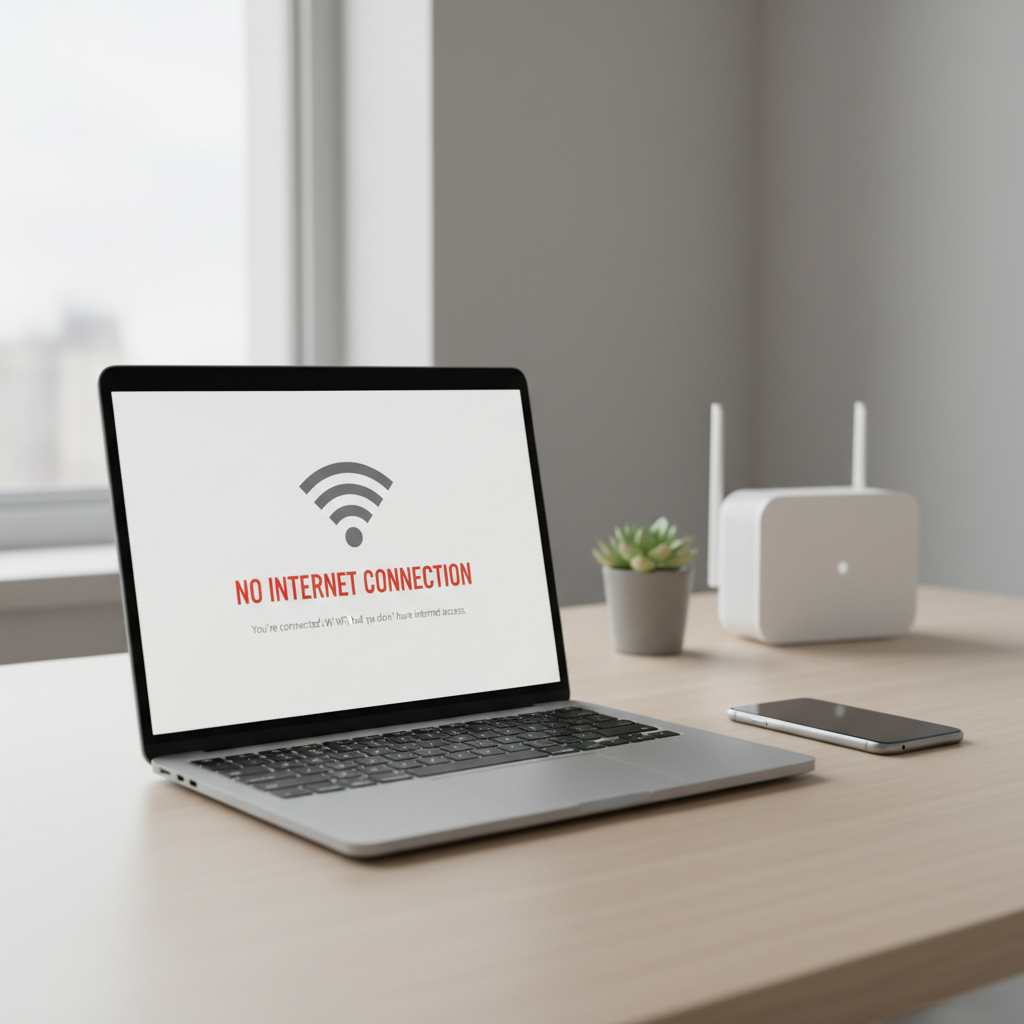
This guide walks you through a fast diagnosis first, then fixes that match what you find, so you don’t waste time rebooting everything five times. I’ll also call out the common traps, like “it works on one app but not the browser,” which often points to DNS rather than Wi‑Fi.
Quick diagnosis: is it your device, router, or ISP?
Before changing settings, figure out where the break happens. This saves time and avoids making things worse.
- Test another device on the same Wi‑Fi (phone, tablet, smart TV). If nothing works, suspect router/modem or ISP.
- Test cellular data on your phone (turn Wi‑Fi off). If sites load on cellular, your ISP might be fine and the issue is local Wi‑Fi/router.
- Try one “known good” site like example.com. If nothing loads anywhere, it’s likely network-level (DNS, IP, gateway).
- Check the modem/router lights. “Internet” or “WAN” light off/red often signals upstream trouble.
According to the Federal Communications Commission (FCC), outages and service disruptions can happen for many reasons, and checking whether it’s isolated to one device versus all devices is a practical first step before escalating.
Fast self-check list (2 minutes, no tech deep dive)
Use this as a quick sorter. Your answer points to the most likely fix.
| What you notice | Likely cause | What to try next |
|---|---|---|
| Only one device has the issue | Device IP/DNS/VPN settings | Forget network, renew IP, disable VPN |
| All devices show connected but no internet | Router/modem glitch or ISP issue | Power-cycle modem/router, check outage |
| Browser says “Sign in to network” | Captive portal (hotel, apartment, public Wi‑Fi) | Open captive portal login page |
| Some apps work, websites don’t | DNS problem | Switch DNS to 1.1.1.1 or 8.8.8.8 |
| Works on Ethernet but not Wi‑Fi | Wi‑Fi radio/channel/security setting | Restart router, change band, update firmware |
| Internet drops at the same time daily | Interference, scheduling, ISP maintenance | Check router schedules, move router, call ISP |
Fixes on your device (Windows, macOS, iPhone, Android)
If other devices are fine, keep your focus on the problem device. This is where how to fix no internet access but connected becomes pretty straightforward.
1) Toggle Wi‑Fi and Airplane Mode (yes, it matters)
- Turn Wi‑Fi off for 10 seconds, then on.
- If that fails, enable Airplane Mode for 10 seconds, then disable it.
It forces a clean re-association with the access point and can shake loose a stuck DHCP lease.
2) “Forget” the network and reconnect
- iPhone: Settings → Wi‑Fi → (i) → Forget This Network
- Android: Settings → Network & internet → Internet → Saved networks → Forget
- Windows: Settings → Network & internet → Wi‑Fi → Manage known networks → Forget
- macOS: System Settings → Wi‑Fi → Details → Forget This Network
Re-enter the password and test again. If you recently changed the router password or security mode, this often fixes silent mismatches.

3) Disable VPN, proxy, and “security” network filters
VPNs and some security apps can leave behind a route or DNS policy that blocks browsing even though Wi‑Fi looks connected.
- Disconnect VPN, then fully quit the VPN app.
- On Windows, check Settings → Network & internet → Proxy, and turn off manual proxy if you didn’t set it.
If the internet instantly returns, you’ve found the culprit. Then you can re-enable the VPN and adjust server, protocol, or split tunneling.
4) Renew IP / reset network stack (when it’s “stuck”)
- Windows: open Command Prompt as admin, run: ipconfig /release, then ipconfig /renew; if still broken, run netsh winsock reset and reboot.
- macOS: toggle Wi‑Fi off/on, or renew DHCP lease in Wi‑Fi details (varies by version).
- iPhone/Android: “Reset Network Settings” can help, but it will remove saved Wi‑Fi passwords, so only do it if easier steps fail.
Router/modem fixes (when multiple devices can’t get online)
If everything is connected to Wi‑Fi but nothing reaches the internet, you’re usually dealing with the router’s WAN link, DNS, or a modem handshake issue. This is the heart of how to fix no internet access but connected for most households.
1) Power-cycle the right way (order matters)
- Unplug modem and router (or your combo gateway).
- Wait 60 seconds.
- Plug in the modem first. Wait until it’s fully online (often 2–5 minutes).
- Plug in the router. Wait another 1–2 minutes, then test.
This forces a fresh ISP session and can clear a WAN IP issue that a quick reboot misses.
2) Check captive portals (it’s not just for coffee shops)
Some apartment buildings, campus networks, and managed ISPs use sign-in pages. If your router is behind another network, you might be “connected” but blocked until you authenticate.
- Open a browser and visit http://neverssl.com (often triggers the login page).
- If a sign-in page appears, complete it and retry normal sites.
3) Change DNS (safe, reversible, often effective)
If your ISP DNS is flaky, you can be online but unable to resolve website names. Try setting router DNS to a public resolver.
- Cloudflare: 1.1.1.1 and 1.0.0.1
- Google: 8.8.8.8 and 8.8.4.4
According to Cloudflare, 1.1.1.1 is a public DNS resolver designed to improve DNS performance and privacy characteristics compared to some default resolvers.
4) Check WAN/Internet status in the router admin page
If you’re comfortable logging in to your router, look for:
- WAN IP address shows 0.0.0.0 or blank: the router may not be getting an address from the modem/ISP.
- DNS servers empty or weird values: try setting manual DNS.
- Firmware update available: apply when you have time, since updates can reboot and occasionally reset settings.
When the issue is your ISP (and what you can do right now)
Sometimes there’s nothing “wrong” in your home network. The modem has sync issues, the neighborhood node is down, or the account needs a refresh on the provider side.
- Check the provider outage page in your account app, if available.
- Inspect coax/fiber cables for looseness, kinks, or damage. If you see physical damage, avoid DIY repairs and contact the provider.
- Bypass the router (if you can): connect a laptop to the modem via Ethernet and test. If that fails too, it strongly points to ISP-side trouble.
According to the FCC, consumers can document outages and contact their provider when service is interrupted, and escalating with clear symptoms (no WAN IP, modem online light behavior) often speeds support.
Common mistakes that waste time (or make it worse)
A lot of “fixes” online technically work, but they’re overkill unless you’re sure about the cause.
- Factory-resetting the router too early: you may lose ISP credentials, custom Wi‑Fi settings, or mesh pairing, and still have the same ISP outage.
- Changing five settings at once: if it starts working, you won’t know what solved it, and it can break again later.
- Ignoring VPN/proxy: this is the sneaky one, especially on work laptops.
- Assuming “Wi‑Fi connected” means “internet available”: Wi‑Fi is just the local link; the internet path is separate.
Practical step-by-step: a clean, repeatable troubleshooting flow
If you want a simple routine you can reuse anytime, follow this order. It’s designed to solve most cases of how to fix no internet access but connected without guessing.
- Step 1: Check if other devices work on the same Wi‑Fi.
- Step 2: If only one device fails, forget the network, disable VPN/proxy, then renew IP.
- Step 3: If all devices fail, power-cycle modem then router (full 60 seconds unplugged).
- Step 4: Trigger captive portal (neverssl.com) if you’re on managed or public-style networks.
- Step 5: Change DNS on the router to 1.1.1.1 or 8.8.8.8.
- Step 6: Test Ethernet-to-modem; if it fails, contact ISP with details.
Key takeaway: you’re not trying random tricks, you’re isolating the failure point, then applying one targeted fix.
When to contact IT or a networking professional
If this is a work device, your company may enforce policies that make “no internet” look like a Wi‑Fi issue when it’s actually certificate, VPN, or endpoint security. In these cases, it’s usually faster to ask IT rather than keep resetting things.
- You see repeated disconnects across days even after firmware updates and DNS changes.
- The router shows WAN connected but nothing routes, and you’re not comfortable checking logs.
- You suspect hardware failure (overheating router, bulging power adapter, burning smell). For safety, unplug and consult a professional.
For ISP lines (coax/fiber), if you suspect wiring damage or unsafe conditions, it’s smart to stop troubleshooting and request a technician.
Conclusion: Most “connected but no internet” situations are fixable once you decide whether the problem lives on the device, inside the router, or upstream with the ISP. Start with the quick diagnosis, apply one change at a time, and you’ll usually get back online without a full reset.
If you want one action right now, try the modem-then-router power cycle, then switch DNS if the issue persists. If Ethernet direct to the modem still fails, save your time and call the provider with that result.
FAQ
- Why does my Wi‑Fi say connected but I have no internet?
Because Wi‑Fi only confirms your device can talk to the router. Internet access also needs a working WAN connection, valid IP settings, and functioning DNS. - How do I fix “Connected, no internet” on Windows 11?
Forget the network, disable VPN/proxy, then run ipconfig release/renew. If it still fails, reset Winsock and reboot, and test again. - What if only my phone has no internet on Wi‑Fi?
That usually points to the phone’s saved network profile, DNS, or VPN. Forget the network, reconnect, and check if any VPN or private DNS setting is enabled. - Does changing DNS really help?
In many cases, yes, especially when apps partially work but websites fail to load by name. It won’t fix a true ISP outage, but it can bypass unstable ISP DNS. - How long should I unplug my router to reset it?
A quick unplug sometimes works, but waiting about 60 seconds is more reliable, and powering the modem first often matters for a clean WAN session. - Should I factory reset my router?
Only after simpler steps fail and you’re sure you can reconfigure it. A factory reset can erase ISP-specific settings and create more downtime. - How can I tell if my ISP is down?
If all devices fail, the modem shows trouble lights, and Ethernet direct to the modem also fails, it’s very likely upstream. Checking the provider app or status page can confirm.
If you’re dealing with repeated “connected but no internet” events and want a more hands-off path, it may help to document what you’ve tried (DNS, power cycle order, Ethernet test) and share it with your ISP or IT team, that context often leads to faster, more targeted support.