
How to backup photos to google photos is mostly about setting the right sync settings once, then letting your phone quietly handle the rest, even when you forget.
If you have thousands of photos, the real pain is not the first upload, it’s the “ongoing” part, new screenshots, videos, WhatsApp images, and random camera bursts that never make it to a safe place until the day you need them.
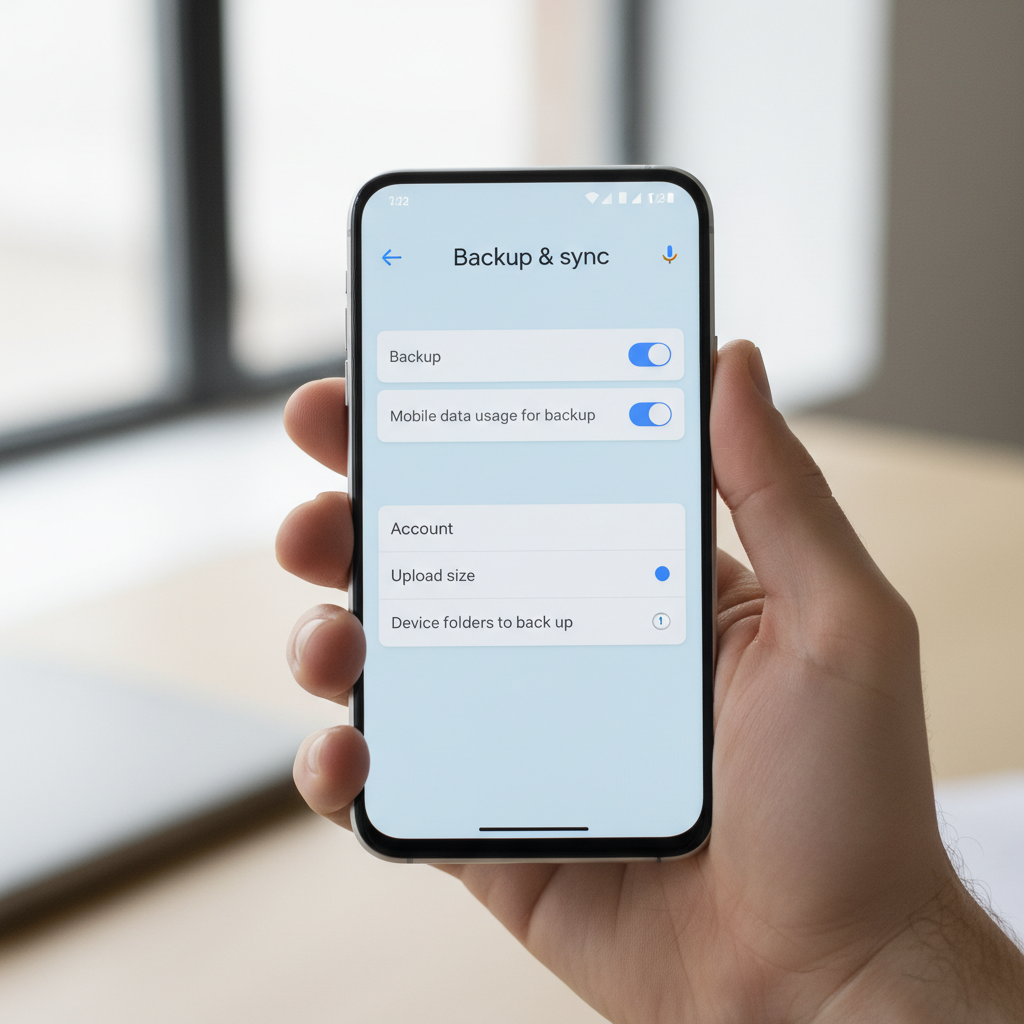
This guide focuses on the practical setup for iPhone and Android, what to expect with Wi‑Fi vs cellular, how to include folders like WhatsApp, and what to check when backups stall. I’ll also point out a few “gotchas” that waste time, like battery optimization and storage confusion.
Before you start: a quick reality check on Google Photos backup
Google Photos can back up your camera roll automatically, but your results depend on a few choices you make early, especially account selection, network rules, and what counts as “a photo folder.”
- You need a Google Account signed in inside Google Photos, and it must be the same account you expect to see photos on later.
- Backups run in the background, but phones may pause it to save battery or data.
- Photos vs folders matters: Camera is usually included by default, other apps often require extra toggles.
According to Google Support, Google Photos backup is controlled from the app’s Backup settings, and you can choose to use cellular data and include device folders as needed. If your setup differs, trust what the app shows on your phone, Google changes UI labels from time to time.
Set up automatic backup on iPhone (iOS)
On iPhone, automatic backup works well, but it’s sensitive to iOS permission settings. If you deny Photos access or restrict background activity, uploads can look “stuck” even though nothing is broken.
Step-by-step (iPhone)
- Install Google Photos from the App Store, open it, sign in to the correct Google Account.
- Tap your profile icon > Photos settings > Backup.
- Turn Backup on.
- When prompted, allow Photos access. If you want everything backed up, choose All Photos, not “Selected Photos.”
- Optional: enable Use cellular data if you want backup away from Wi‑Fi, but be realistic about large videos.
Tip: If you use multiple Google accounts for work and personal, double-check the account switcher in the top-right profile menu. A lot of “missing photos” reports are just uploading to the wrong account.
Set up automatic backup on Android
Android tends to give Google Photos more freedom to run in the background, but the trade-off is OEM battery features, Samsung, Pixel, OnePlus, all have their own “helpful” power controls that sometimes hurt syncing.
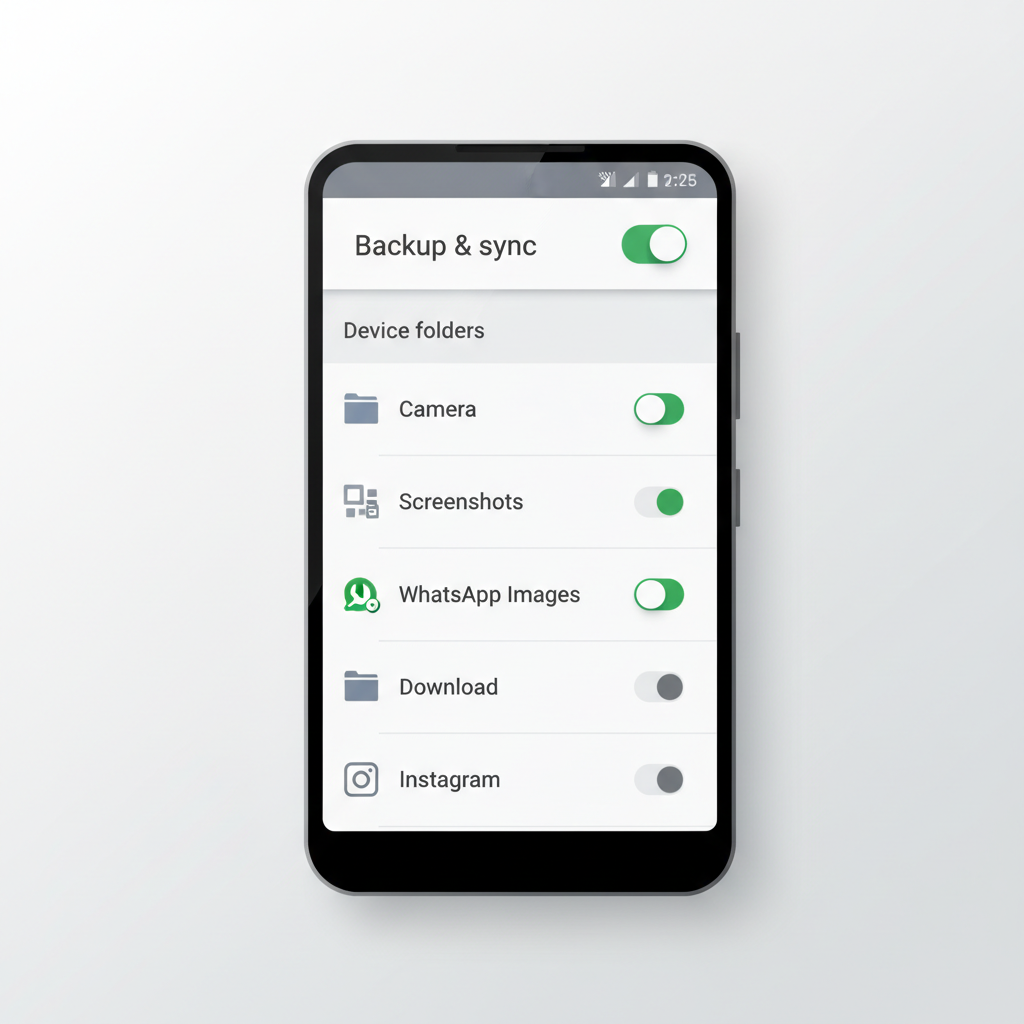
Step-by-step (Android)
- Open Google Photos, sign in to the Google Account you want to use.
- Tap your profile icon > Photos settings > Backup.
- Turn Backup on.
- Choose whether to back up via Wi‑Fi only or include cellular data.
- Go to Backup > Back up device folders and enable folders you care about (WhatsApp Images, Screenshots, Downloads, etc.).
If you’re trying to figure out how to backup photos to google photos from more than just the camera, this “device folders” screen is the part most people miss.
Choose the right backup settings (quality, cellular, folders)
Most backup headaches come from picking settings that don’t match real life, like insisting on Wi‑Fi only when you rarely charge at home, or backing up every meme from Downloads then running out of storage.
Key settings you should decide on
- Backup quality: Google Photos offers quality/storage choices that can affect file size and account storage use. Choose what matches your priorities, originals for maximum fidelity, storage-saving if you prefer efficiency.
- Cellular backup: Great for travelers, risky for limited plans. Consider enabling cellular for photos but not videos when that option is available.
- Device folders: Turn on only the folders you truly want, Screenshots and WhatsApp are common, but Downloads can become chaos fast.
Quick decision table
| Situation | Recommended approach | Why it works |
|---|---|---|
| Limited data plan | Wi‑Fi only, restrict videos | Keeps surprise data usage down |
| Traveling often | Allow cellular for photos, Wi‑Fi for videos | New photos stay protected without huge uploads |
| Need WhatsApp/Telegram images backed up | Enable those device folders | Camera roll alone won’t catch them reliably |
| Storage running low in Google Account | Audit folders, reduce video backup, consider storage plan | Stops backups failing mid-stream |
Make it truly automatic: keep backups running in the background
Turning on backup is step one, keeping it running is where people get annoyed. Background limits are normal behavior on modern phones, so you’re not “doing it wrong,” you just need to nudge the system.
Checklist to keep backups consistent
- Leave the app open during the first big upload when possible, the initial backlog is the hardest.
- Charge and use Wi‑Fi for a while, many phones throttle background work when battery is low.
- Disable battery optimization for Google Photos if your phone aggressively kills background apps.
- Allow background app refresh on iOS for Google Photos, otherwise it may wait until you open the app.
- Keep Google Photos updated, older builds sometimes misbehave with newer OS versions.
According to Apple Support, iOS app permissions and Background App Refresh can affect whether apps update content in the background, so it’s worth checking those settings when uploads only happen while the app is open.
Troubleshooting: when Google Photos backup is stuck or missing pictures
If you’ve set everything up and it still doesn’t work, don’t jump straight to reinstalling. Most issues fall into a few repeatable patterns that you can confirm in minutes.
Fast triage questions
- Are you signed into the right Google Account? Check profile icon and switch accounts if needed.
- Is Backup actually on? Some people turn it off temporarily and forget.
- Are you on Wi‑Fi only? If you’re on cellular and Wi‑Fi only is enabled, it will wait.
- Is your Google storage full? Backups may pause or fail if the account has no space.
- Is the photo in a folder you didn’t enable? Think Screenshots, Downloads, messaging apps.
Common fixes that usually work
- Open Google Photos and leave it on-screen for a few minutes, especially after a reboot.
- Plug into power and connect to stable Wi‑Fi, then wait. Background processes often resume.
- Check app permissions (Photos access on iOS, storage/media permissions on Android).
- Review “Back up device folders” and enable the missing source folder.
- Update the app, then restart the phone if it still won’t move.
If you’re still stuck, Google’s in-app help usually shows a plain-language status message for backup. That message is often more useful than guessing.
Practical habits that prevent future backup surprises
Once you know how to backup photos to google photos automatically, the next win is reducing the noise so backups stay reliable and your library stays easy to search.
- Trim “Back up device folders” quarterly, you’ll catch folders that turned into junk drawers.
- Be selective with videos, short clips are fine, 4K videos eat storage quickly.
- Do one monthly spot-check: open Google Photos on desktop, confirm new photos appear, and verify the date range.
- Keep a second copy for critical memories, many families export yearly archives to an external drive or another cloud, because no single service is perfect for every risk scenario.
Key takeaways and next step
Automatic backup is less about “finding the right button” and more about choosing settings that match your routine, then clearing the usual blockers, permissions, battery limits, storage space, and missing device folders.
If you want one simple action today, open Google Photos, confirm Backup is on, then check device folders so your non-camera photos don’t silently get skipped. After that, let the phone sit on Wi‑Fi and power for a bit, the first upload is the slowest part.
FAQ
- How do I know if Google Photos is backing up automatically?
Open Google Photos and check the backup status in settings or the profile menu. If it shows a recent backup time and no errors, it’s typically working. - Can I backup photos to Google Photos automatically on Wi‑Fi only?
Yes. Enable backup, then set it to Wi‑Fi only. Just remember it won’t upload new photos when you’re away from Wi‑Fi, so backups may lag behind. - Why are my screenshots not showing up in Google Photos?
Usually they live in a separate folder. On Android, enable the Screenshots folder under “Back up device folders.” On iPhone, screenshots are part of Photos but can still be delayed by permissions or background limits. - Does Google Photos backup include WhatsApp photos automatically?
Often not by default. Many Android phones store WhatsApp images in their own folder, which you need to toggle on. If the folder isn’t enabled, those images stay local. - What happens when my Google storage is full?
Backups may pause or fail until you free space or add storage. Check your Google Account storage, then decide whether to delete large items, reduce video backups, or upgrade. - Is there a way to backup only when charging?
Some phones behave that way automatically due to power management, but the exact control varies by device. If you need strict behavior, you may have to rely on your phone’s battery optimization settings rather than Google Photos alone. - If I delete photos from my phone, will Google Photos keep them?
It depends on how you delete and whether sync is enabled. In many cases, deleting inside Google Photos can remove the cloud copy too. If you want to clean device storage, use the app’s “Free up space” feature carefully and confirm what it removes.
If you’re managing photos for a family, a small business, or just multiple devices, it can help to map out which folders should back up, which account owns the library, and what your storage plan looks like, then set it once and stop thinking about it every week.