
How to block ads on android phone without root usually comes down to two levers you can control safely: where your phone resolves internet requests (DNS) and which apps or browsers are allowed to show or load ads.
If you feel like ads have gotten louder lately, you’re not imagining it, many apps now blend banners, full-screen interstitials, and “reward” prompts into normal flows. Blocking them the right way can mean fewer distractions, less data usage, and in some cases fewer tracking scripts loading in the background.

One quick reality check: some ads are delivered inside the app itself, so there’s no single switch that removes everything. What you can do is reduce a big chunk of network-based ads, stop notification spam, and prevent the most annoying pop-ups, without rooting or installing sketchy “booster” apps.
What “no-root” ad blocking can and can’t do
Before you change settings, it helps to know what success looks like. On Android without root, you can typically block or reduce:
- Browser ads (especially intrusive pop-ups and auto-play ads)
- In-app ads served from common ad networks (varies by app)
- Tracking domains that many ads rely on
- Ad-like notifications (spammy “offers” from apps)
What often remains:
- “Built-in” ads where the app hosts the content itself (for example, a feed of sponsored posts inside the app)
- YouTube in-app ads in the official app (a common limitation for non-root methods)
- Paywalled experiences where ads are the trade-off for a free tier
According to Google, Android’s app sandboxing and permission model is designed to limit what apps can modify system-wide, and that’s why non-root ad blocking relies on DNS, VPN-based filtering, or browser-level controls rather than editing system files.
Quick self-check: which ad problem do you actually have?
A lot of “ad blocking” frustration comes from fixing the wrong thing. Use this quick checklist to pinpoint your main issue.
- Pop-ups mostly in Chrome or another browser → browser settings + an ad-blocking browser/extension approach
- Full-screen ads inside one specific free game/app → DNS filtering can help, but some apps embed ads directly
- Spam notifications (“deal alerts”, “news”, “bonus”) → notification channel cleanup
- Ads appear even when not using the phone → suspicious app, overlay permission, or adware-like behavior
- Home screen shortcuts or random tabs opening → browser hijack behavior, reset site permissions
Method 1: Use Private DNS (simple, system-wide, no extra app)
For many people, Private DNS is the cleanest way to reduce ads across apps and browsers because it works at the name-resolution layer. Translation: your phone may stop connecting to known ad and tracking domains.
Steps (Android varies slightly by brand):
- Open Settings → Network & Internet (or Connections)
- Tap Private DNS
- Select Private DNS provider hostname
- Enter a reputable DNS provider hostname that supports filtering, then save
What to expect: fewer ads in many apps, less tracking, and fewer sketchy redirects. What might break: some apps that rely on ad domains for login flows, embedded content, or “free with ads” unlocking.
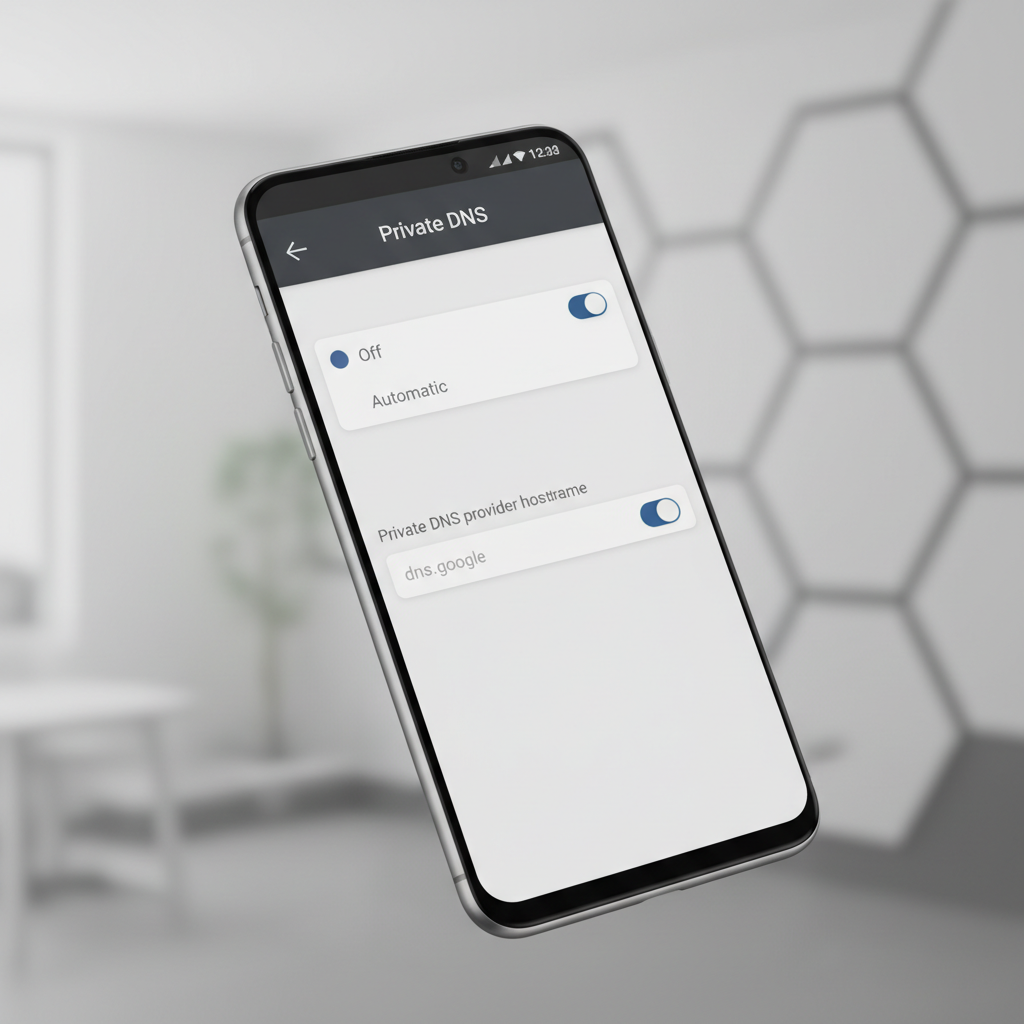
Key point: If your goal is “how to block ads on android phone” with minimal fuss, Private DNS is often the first thing worth trying because it’s reversible and doesn’t require granting broad permissions to a third-party app.
Method 2: Use a reputable VPN-based ad blocker (more control, more moving parts)
Some ad blockers create a local VPN on your device to filter traffic. It’s not routing your data to a company “VPN server” in the privacy-marketing sense, it’s usually a local tunnel used to inspect and block requests. Still, you’re granting a powerful capability, so pick carefully.
When this method makes sense:
- You want custom blocklists or per-app controls
- Private DNS helps but misses too much
- You need logging to see what gets blocked (use sparingly)
Practical setup tips:
- Download only from Google Play, and skim reviews for patterns like “breaks banking apps” or “kills Wi‑Fi calling”
- Check whether the app clearly explains what data it collects and whether filtering happens locally
- Test essentials after enabling: banking, work apps, rideshare, streaming
According to FTC guidance on mobile security, it’s smart to be cautious with apps requesting broad access or promising unrealistic results, especially when the app sits between you and the internet.
Method 3: Fix browser-based ads (Chrome, pop-ups, and site permissions)
If the worst ads show up while browsing, you can often get big wins without touching DNS. This is also the least disruptive approach when you only care about web browsing.
Stop pop-ups and redirects in Chrome
- Chrome → Settings → Site settings → Pop-ups and redirects → block
- Chrome → Site settings → Ads → block intrusive ads (where available)
Reset sketchy site permissions
If one site keeps nagging you, it often abused notifications or redirects.
- Chrome → Settings → Site settings → All sites
- Find the site → clear permissions and stored data
Optional but effective: consider a privacy-focused browser that supports content blocking. This tends to reduce clutter fast, but it’s a change in habit, which is why many people don’t stick with it.
Method 4: Kill ad spam at the source (notifications, overlays, and “special access”)
A surprising amount of “ads” are really notifications or overlays that apps push once you’ve tapped “Allow” one too many times.
Turn off promotional notification channels
- Long-press the notification → tap Turn off or Settings
- Disable channels like Promotions, Offers, Recommendations
Check “Appear on top” and install sources
If ads appear above other apps, look for overlay permission abuse.
- Settings → Apps → Special access → Display over other apps
- Disable it for apps that don’t clearly need it
- Settings → Security → confirm unknown app installs are off for random apps
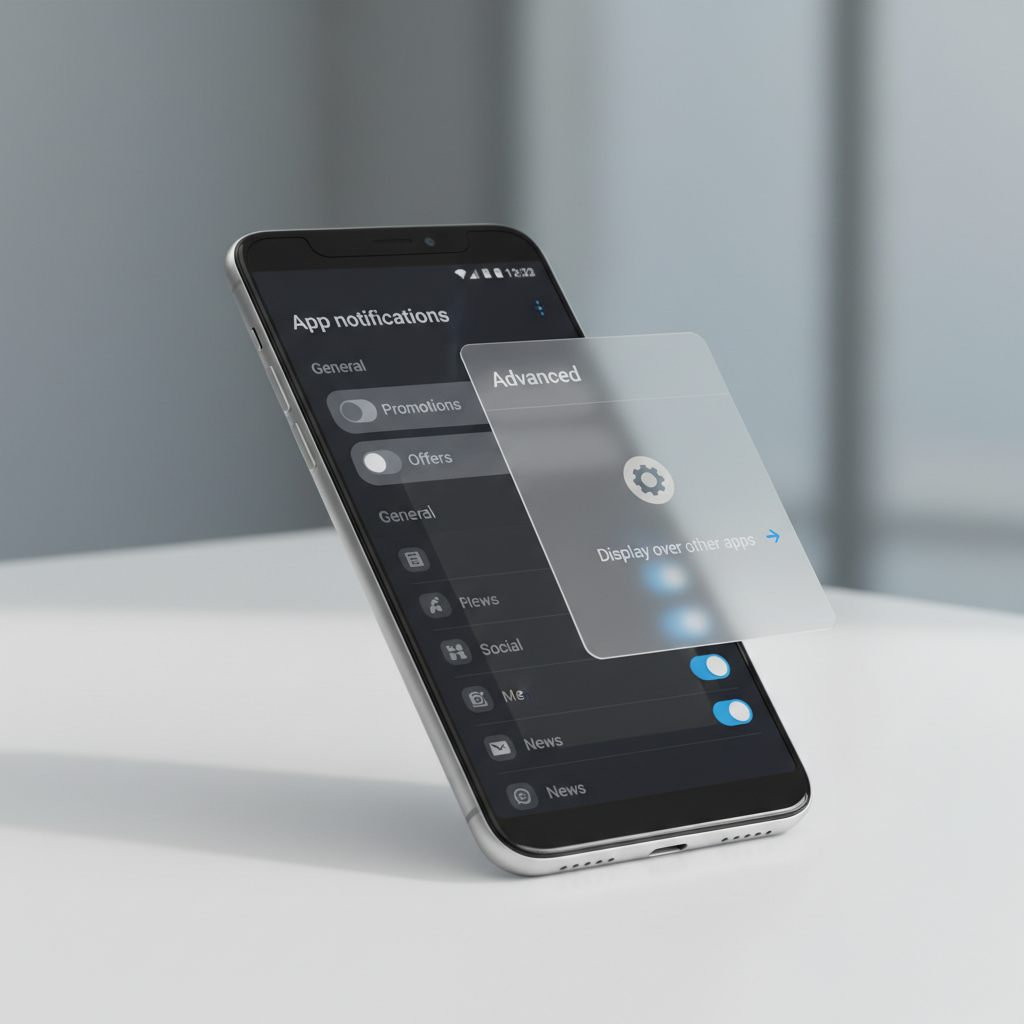
If you’re dealing with persistent junk, uninstalling the offending app is often the most honest fix. Blocking symptoms while keeping the cause rarely feels “solved.”
Which option should you pick? A practical comparison
Here’s a quick table to choose based on your day-to-day use.
| Approach | Best for | Pros | Tradeoffs |
|---|---|---|---|
| Private DNS filtering | System-wide reduction with minimal setup | Fast, reversible, no extra app | Some apps may break; not all in-app ads blocked |
| VPN-based ad blocker | More control and per-app filtering | Flexible, can block more domains | Needs trust; may affect battery or connectivity |
| Browser settings + blocker | Web browsing cleanup | Low risk, targeted | Does little for in-app ads |
| Notification/overlay cleanup | Spam “ads” and adware-like behavior | Stops the most annoying interruptions | Requires a bit of detective work |
Hands-on setup: a sane 20-minute plan (most people only need this)
If you want a straightforward path that fits most phones, try this sequence and stop once you’re happy.
- Set Private DNS, then use your phone normally for a day
- Clean browser permissions for any site that sent notifications or redirects
- Disable promo notification channels for your noisiest apps
- If ads persist in one app, decide: pay for ad-free, replace the app, or consider a reputable VPN-based blocker
Key takeaways you can keep in mind:
- DNS-based blocking is a strong baseline for how to block ads on android phone without root
- Browser pop-ups are often permission problems, not “mysterious malware”
- When one app is the problem, the cleanest fix is often to remove or replace it
Common mistakes that make ad blocking feel “broken”
- Expecting one tool to block everything, some ads are first-party content
- Installing random APKs that promise “100% ad-free,” this can create bigger security issues
- Blocking too aggressively and then blaming Android when logins, maps, or media embeds fail
- Ignoring notification channels, which is where many “ads” live now
- Not testing on cellular and Wi‑Fi, results can differ depending on your network
When to seek extra help (or take stronger steps)
If you see ads even on your lock screen, your phone opens random apps by itself, or you can’t keep a browser tab from redirecting, it may be more than normal advertising. In that case:
- Run a trusted mobile security scan from a well-known vendor
- Review recently installed apps, uninstall anything you don’t recognize
- Back up essentials and consider a factory reset if behavior persists
If the device is managed by an employer or school, ask your IT admin before changing DNS or VPN settings, many organizations enforce network policies and security tools.
Conclusion: the realistic way to reduce ads without root
If your goal is how to block ads on android phone without root, start with Private DNS and basic browser cleanup, then only add a VPN-based blocker if you still need more control. You’ll rarely get “zero ads” everywhere, but you can usually cut the most disruptive stuff fast, without risking your device warranty or stability.
Pick one change, test for a day, and keep what improves your experience. That simple loop beats stacking five tools and guessing what broke your apps.