
how to check windows 11 activation status is usually a two-minute task, but it gets confusing fast when you see messages like “Windows is activated with a digital license” and you’re not sure what that really means.
This matters more than people expect, activation affects personalization options, can trigger persistent watermarks, and sometimes blocks certain updates or causes licensing headaches after a hardware change.
In this guide, you’ll get a few reliable ways to confirm activation, what each status line actually implies, and what to do if Windows 11 says it’s not activated or the license looks “wrong.”
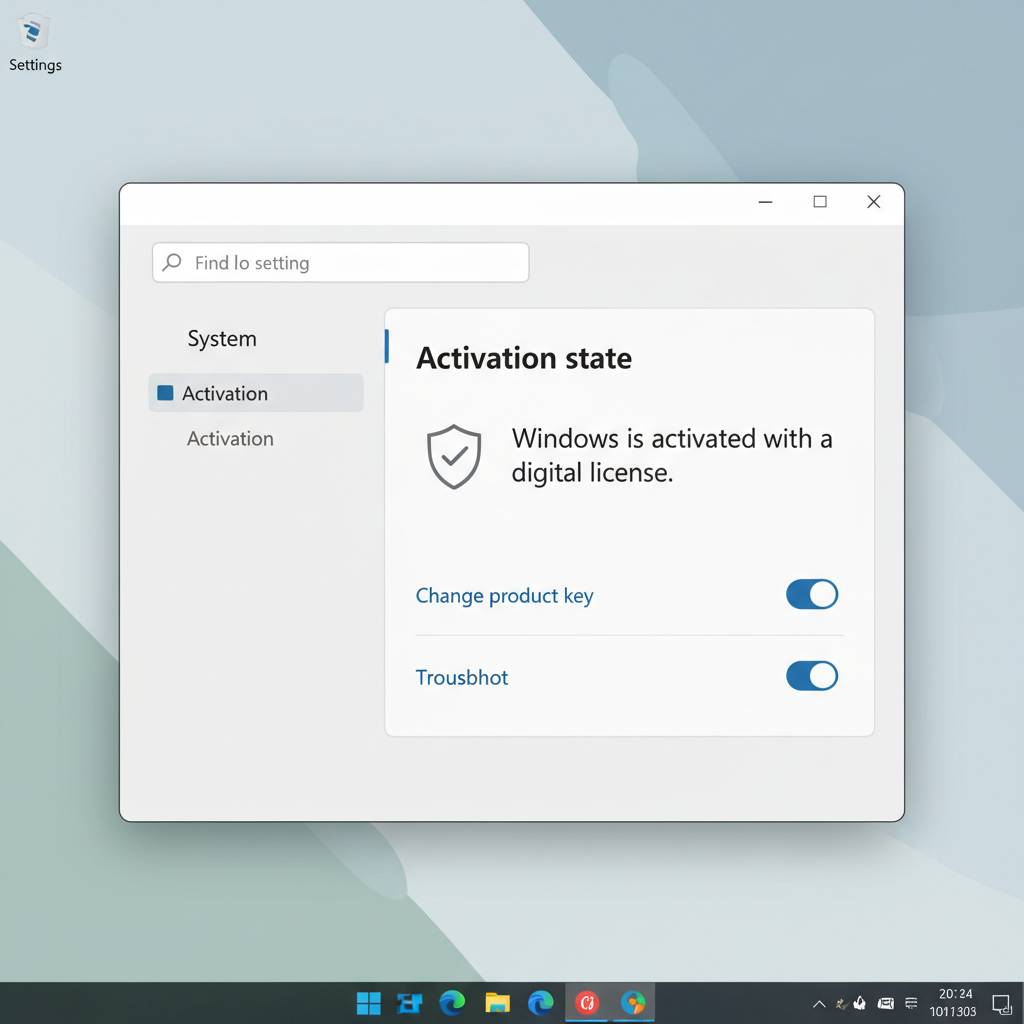
Quick check in Settings (most people should start here)
The fastest way to confirm activation is inside Windows Settings. It’s also the best place to see the exact wording Microsoft uses for your license type.
- Open Settings
- Go to System → Activation
- Look at Activation state and Activation details
If you see Active (or “Windows is activated”), you’re typically fine. The details line is what you use to understand what kind of activation you have, not just whether it’s on.
What the common activation messages usually mean
Windows 11 uses a few recurring phrases. The wording can vary a bit by build and device vendor, but these are the ones you’ll see most often.
| Message you see | What it usually indicates | What to do next |
|---|---|---|
| Windows is activated | Activation is valid on this device | No action needed, still keep your Microsoft account info handy |
| Activated with a digital license | License tied to this hardware (often after upgrade or OEM install) | Consider linking to a Microsoft account if not already linked |
| Activated with a digital license linked to your Microsoft account | License tied to hardware and your Microsoft account | This is helpful after hardware changes, keep account access secure |
| Not active / Not activated | Windows can’t validate the license right now | Run Activation troubleshooter, confirm edition and key type |
| Action required | Windows detected a licensing issue or needs sign-in | Open Activation for the specific prompt, then troubleshoot |
Deeper verification with Command Prompt and PowerShell
Settings is convenient, but when you need a more “yes/no” confirmation or a clearer license channel, built-in commands are often cleaner. This is especially handy if you’re helping someone remotely.
According to Microsoft, activation helps verify that your copy of Windows is genuine and hasn’t been used on more devices than the license allows, which is why these checks exist in the first place.

Use slmgr to confirm activation and expiration
Open Windows Terminal or Command Prompt as Administrator, then run:
- slmgr /xpr → shows whether Windows is permanently activated
- slmgr /dli → shows basic license info (useful quick view)
- slmgr /dlv → shows more detailed licensing info
For most home users, slmgr /xpr is the key one. If it reports “The machine is permanently activated,” that’s a strong confirmation even if Settings feels vague.
PowerShell option (when you prefer a scriptable check)
Many IT teams prefer a command that can be repeated in a standardized way. One common approach is to check license state via WMI/CIM. In an elevated PowerShell window:
- Get-CimInstance -ClassName SoftwareLicensingProduct | where {$_.PartialProductKey} | select Name, LicenseStatus
LicenseStatus values can be technical and vary by context, so treat this as a supporting signal, not the only source of truth. If you’re unsure, confirm with Settings and slmgr /xpr.
How to tell if your Windows 11 license matches your edition
A surprisingly common reason people keep searching how to check windows 11 activation status is that they’re activated, but on a different edition than they expected, or activation fails because the key doesn’t match the installed edition.
- Go to Settings → System → About
- Check Windows specifications → Edition (Home, Pro, etc.)
If you have a Windows 11 Pro key but the device runs Home, activation may not work until you switch editions. The reverse also happens, for example when a refurbished PC has an unexpected Pro install but a Home entitlement.
Self-check checklist: which situation are you in?
If you want a quick diagnosis before touching anything, walk through this list. It helps avoid random fixes that waste time.
- Settings shows Active but you still see warnings → check date/time, sign-in status, and whether you’re in a work/school environment
- Not activated right after a clean install → confirm you installed the right edition, then connect to the internet and retry
- Activation broke after hardware change (motherboard, major repairs) → you likely need the troubleshooter and Microsoft account link
- Device is managed by employer/school → activation may come from organization licensing, not your personal key
- You bought a key online and activation is unstable → double-check seller legitimacy and key type, issues are common with gray-market keys
Fixes that usually work (by scenario)
When activation fails, the best fix depends on why it failed. The steps below stay on the safe side, no risky registry edits, no sketchy tools.
Scenario A: “Not activated” but you recently installed Windows 11
- Confirm internet access (activation typically needs to contact Microsoft)
- Go to Settings → System → Activation → Troubleshoot
- If you have a valid product key, select Change product key and enter it carefully
If you installed without a key, Windows may activate automatically later if a digital license exists for the hardware.
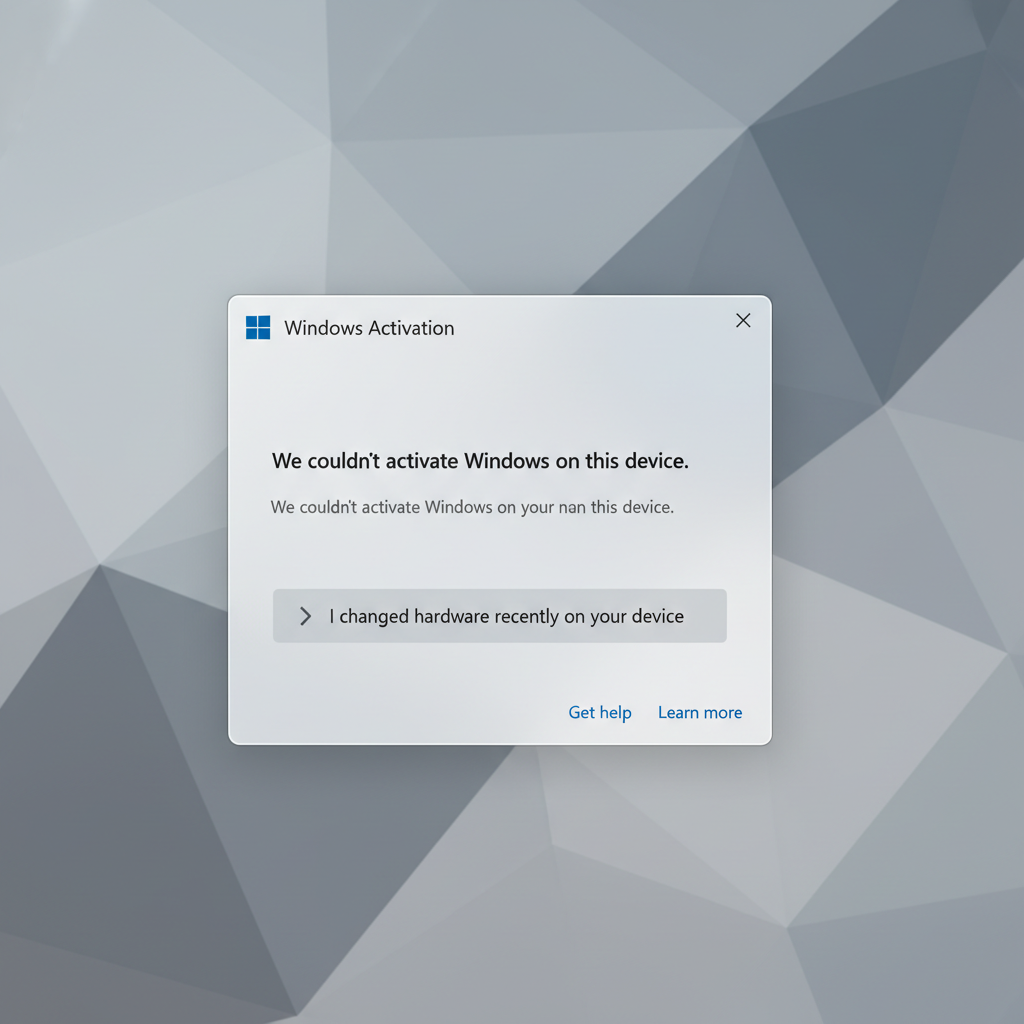
Scenario B: Activation broke after hardware changes
- Sign in with the Microsoft account that previously had the license linked
- Open Activation → Troubleshoot
- Look for “I changed hardware on this device recently” and follow prompts
Some hardware swaps, especially motherboards, can look like a new PC to licensing systems, so this is where the account link matters most.
Scenario C: You see “Organization” or work/school activation
If your Activation page references an organization, the device may use volume licensing (like KMS or subscription-based activation). That isn’t inherently “bad,” but it changes what you can do.
- If it’s a company laptop, check with IT before making changes
- If it’s your personal PC, verify you’re not signed into a work account under Settings → Accounts
Switching licensing channels can be messy, so don’t guess, confirm ownership and intent first.
Common mistakes that keep activation stuck
Most activation loops come from a few avoidable missteps. If you’re troubleshooting, check these before you spend money or reinstall Windows.
- Wrong edition installed: a Home key won’t activate Pro, and vice versa
- Copy-pasted keys with hidden characters: retype carefully, especially with O/0 and B/8
- Using “activator” tools: these can add malware risk and create licensing instability later
- Assuming a cheap key is always legitimate: some keys work briefly, then get revoked or blocked
- Not linking to a Microsoft account when you plan hardware upgrades
Also, don’t ignore basic system issues. Incorrect system time, VPN interference, or restrictive firewall rules can prevent contact with activation servers in some setups.
Key takeaways (save this)
- Settings → System → Activation is the fastest check, but slmgr /xpr is the clearest confirmation
- “Digital license linked to your Microsoft account” makes hardware changes easier to recover from
- If Windows 11 won’t activate, verify edition match before trying advanced fixes
- For work/school devices, activation may be managed centrally, and DIY changes can backfire
When to seek extra help (and who to ask)
If you’re still stuck after confirming the edition and running the troubleshooter, it’s reasonable to get help rather than cycling through random advice.
- If you bought Windows from Microsoft or a major retailer, contact Microsoft Support with proof of purchase
- If the PC came from an OEM (Dell/HP/Lenovo, etc.), their support may clarify whether the device shipped with an embedded license
- If this is a business device, your IT admin should handle volume activation methods
According to Microsoft, genuine Windows is activated using a digital license or a product key, so if you can’t trace either source, treat it as a sign to pause and verify what you actually purchased.
Conclusion: confirm, document, then move on
Once you know how to check windows 11 activation status using Settings and slmgr, the uncertainty disappears, you can tell whether you’re activated, what kind of license you have, and why a failure might be happening.
Your next best move is simple: confirm activation in Settings, run slmgr /xpr for a second opinion, then screenshot the Activation page for your records, especially before hardware upgrades or a reinstall.
FAQ
- How do I check Windows 11 activation status without a product key?
Open Settings → System → Activation and look for “Active” plus the digital license message. Many PCs activate automatically using a digital entitlement tied to hardware. - How to check windows 11 activation status from Command Prompt?
Run slmgr /xpr in an elevated Command Prompt or Windows Terminal. It typically gives the most direct “permanently activated” answer. - Why does Windows 11 say it’s activated but I still see an “Activate Windows” watermark?
This can happen after updates, account changes, or temporary activation server issues. Reboot, verify date/time, and run the Activation troubleshooter if the status looks inconsistent. - What does “digital license linked to your Microsoft account” mean?
It usually means the license can be re-associated after certain hardware changes when you sign back into the same Microsoft account, which reduces recovery friction. - Can I transfer my Windows 11 license to another PC?
It depends on license type. Retail licenses are often transferable, OEM licenses are often tied to the original device. If you’re unsure, check your purchase source and Microsoft licensing terms. - Why won’t my Windows 11 Pro key activate on my PC?
Common causes include the PC running Windows 11 Home, a mistyped key, or a blocked key. Confirm the installed edition under Settings → System → About, then try again. - Is it safe to use third-party “Windows activators”?
Usually not. Besides licensing violations, they can introduce security risks and instability. If activation fails, use Microsoft’s built-in tools and support channels.
If you’re trying to confirm activation for a fleet of PCs, or you’d rather not bounce between Settings and command tools, using a lightweight IT checklist or a managed device inventory workflow can be a more low-friction way to keep Windows licensing status visible over time.