
how to schedule shutdown windows 11 is usually about one simple goal: you want your PC to turn off at a specific time without you babysitting it.
Maybe you fall asleep with downloads running, you share a family PC and want it off by midnight, or you just want a clean “end of day” routine that saves energy and keeps updates from interrupting you at the worst moment.
The good news is Windows 11 already gives you a few solid ways to do this, and the “best” option depends on whether you want a one-time shutdown, a repeating schedule, or something you can trigger with one click.

Key takeaway: if you need a reliable repeating schedule, Task Scheduler is typically the most dependable built-in approach. If you just need “shut down in 2 hours,” a single command is faster.
Pick the right method (quick comparison)
Before you build anything, decide what “schedule” means in your case. People often waste time setting up Task Scheduler when they really needed a one-off timer.
| What you want | Best method | Why it fits |
|---|---|---|
| Shutdown once after X minutes | Shutdown command | Fast, no setup, easy to cancel |
| Shutdown every night at a set time | Task Scheduler | Repeats reliably, can wake/run with conditions |
| One-click “shut down later” button | Desktop shortcut | Simple for non-technical users |
| Shutdown after updates or scripts | Task Scheduler + conditions | More control, fewer surprises |
One-time scheduled shutdown (fastest way)
If you want a simple timer, use the built-in shutdown command. This is the quickest way to “schedule” a shutdown without creating a recurring task.
Schedule the shutdown
- Press Win + R to open Run
- Type: shutdown /s /t 3600
- Press Enter
That example shuts down in 3600 seconds (1 hour). Swap the number for your preferred delay.
Cancel it (important)
- Press Win + R
- Type: shutdown /a
- Press Enter
If you’re testing how to schedule shutdown windows 11, practice canceling once so you don’t panic later.
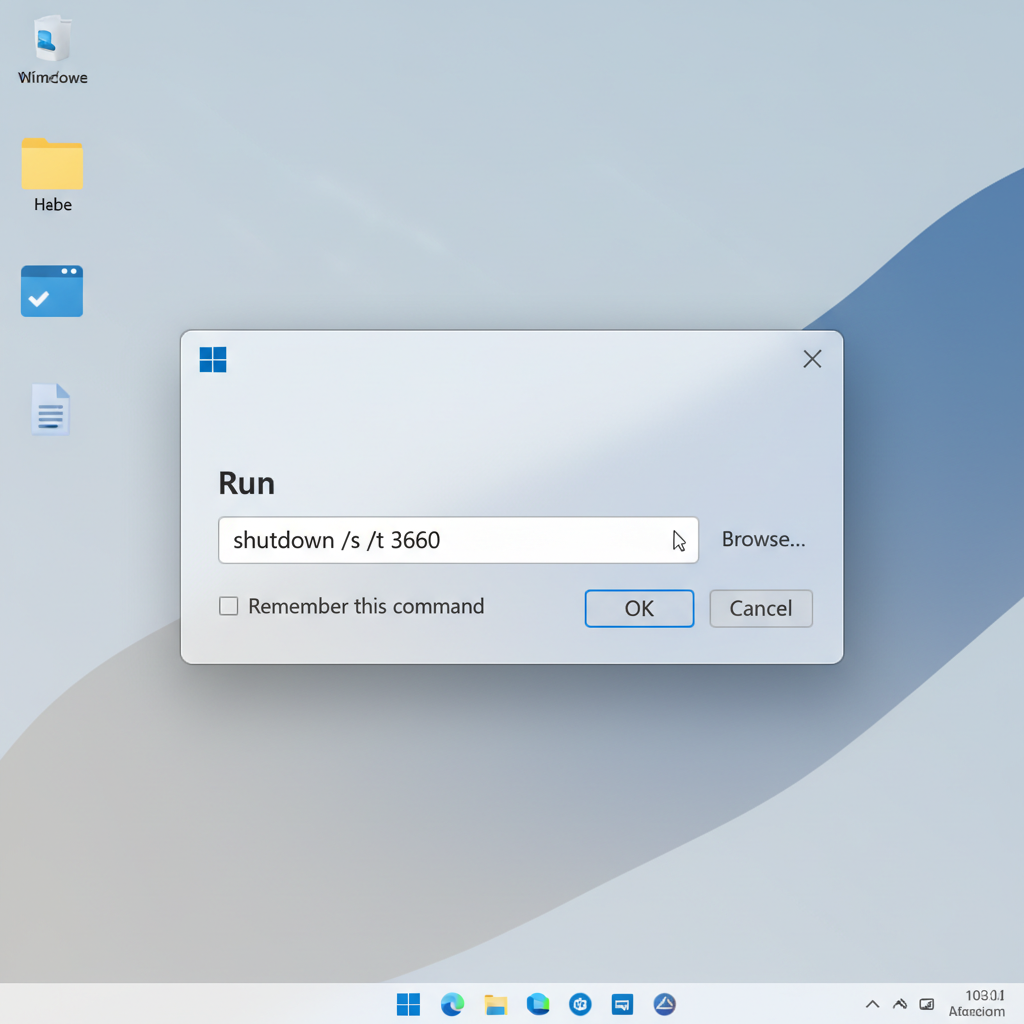
Small reality check: a timed shutdown can be blocked by some apps prompting to save work. Many times Windows will still force close apps near the end of the timer, so don’t use this if you routinely leave unsaved documents open.
Recurring shutdown with Task Scheduler (most reliable)
For a daily or weekly routine, Task Scheduler is the core Windows tool. It looks a bit “IT-ish,” but once you set it, it tends to run quietly in the background.
According to Microsoft Support, Task Scheduler can run tasks automatically based on triggers like a schedule or sign-in, which is exactly what you need for repeating shutdown routines.
Create a nightly shutdown task
- Open Start, search Task Scheduler, open it
- Click Create Basic Task…
- Name it something clear like Nightly Shutdown
- Choose a trigger: Daily (or Weekly)
- Set the time you want the shutdown to happen
- Action: Start a program
- Program/script: shutdown
- Add arguments: /s /f
- Finish
What “/f” does: it forces apps to close. That improves reliability, but it can cause data loss if someone is working. If the PC is shared, consider skipping /f and accept that some sessions might prevent shutdown.
Make it run even when nobody is logged in (optional)
This step helps on shared PCs or machines left at the login screen.
- In Task Scheduler, find your task, right-click, choose Properties
- On General: choose Run whether user is logged on or not
- Check Run with highest privileges if you hit permission issues
Windows may ask for your password to store credentials for background execution.
Conditions that prevent shutdown (the “why didn’t it run?” checklist)
When a scheduled shutdown fails, it’s often not the command, it’s the task conditions. This is where many people get stuck and assume Windows 11 “doesn’t support it.” It does, but it’s picky.
- Power source: On laptops, tasks can be set to run only on AC power
- Sleep/hibernation: If the device is asleep, the task might not run unless allowed to wake the PC
- User sessions: A different user logged in can change what apps are open and whether forced close is safe
- Missed start: If the PC was off at the scheduled time, you may want “run as soon as possible after a missed start”
Recommended Task Scheduler settings for most home users
- Settings tab: check “Run task as soon as possible after a scheduled start is missed”
- Conditions tab: consider unchecking “Start the task only if the computer is on AC power” (if you trust battery state)
- Conditions tab: enable “Wake the computer to run this task” if you want it to work during sleep
If you enable wake, be honest about the tradeoff: your PC might wake at night just to shut itself down, which is fine for some people and annoying for others.
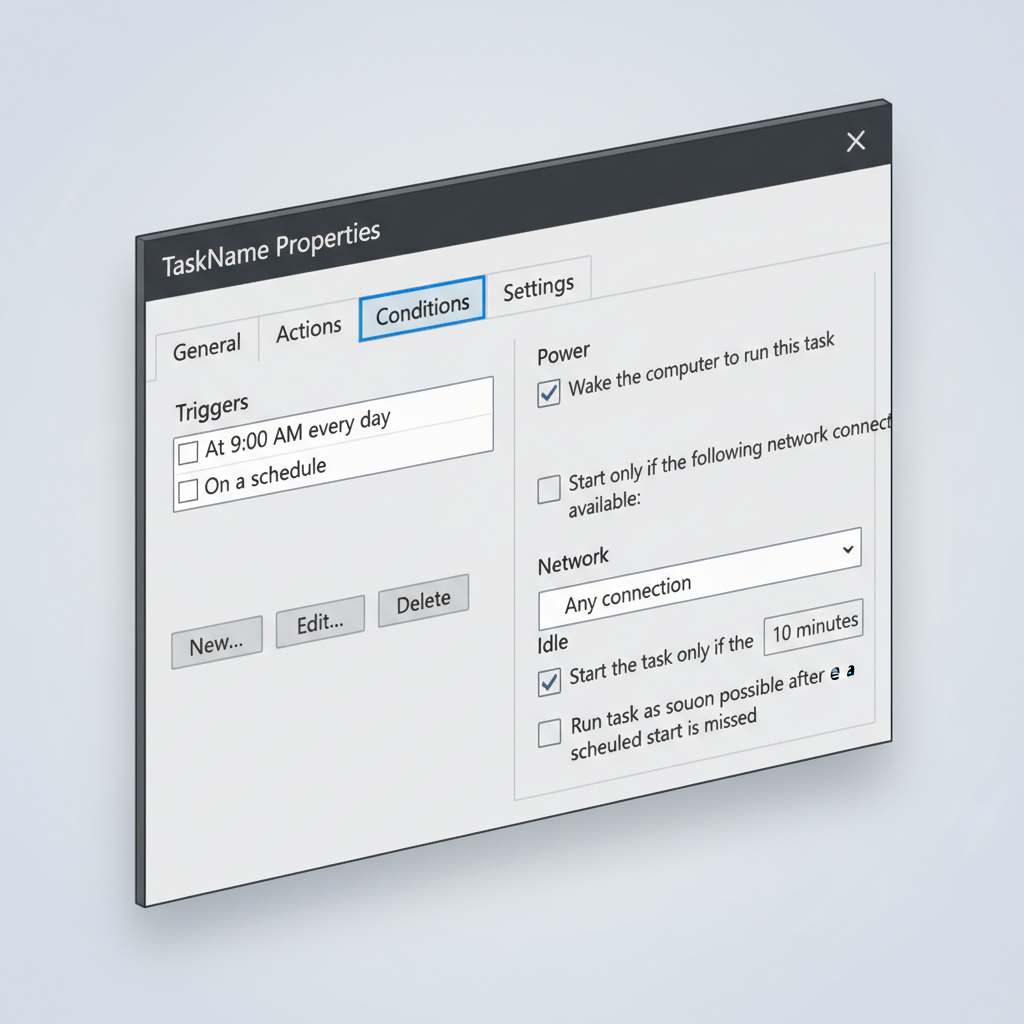
Quick test tip: set the trigger for 2–3 minutes from now and watch it run, then change it back to your real time. This saves you from waiting until midnight to find out something is off.
Create a desktop shortcut (easiest for families)
If your goal is usability, a shortcut is hard to beat. It’s also a nice companion to Task Scheduler: schedule nightly shutdown, but keep a manual “shutdown in 30 minutes” button.
Make a “shutdown in 30 minutes” shortcut
- Right-click the desktop, choose New > Shortcut
- Location: shutdown /s /t 1800
- Name it: Shutdown in 30 minutes
Make a “cancel shutdown” shortcut
- Create another shortcut with: shutdown /a
- Name it: Cancel Shutdown
For clarity, change icons so nobody clicks the wrong one, right-click shortcut, Properties > Change Icon.
Practical safeguards (avoid losing work)
Scheduling shutdown is easy, avoiding frustration takes a bit more thought. The risk isn’t “Windows breaks,” it’s someone losing a document at 11:59 PM.
- Use a warning first: schedule a reminder 10 minutes earlier (Calendar notification, Focus assist, or a simple pop-up script)
- Avoid /f on shared PCs: forcing apps closed is convenient, but it’s a blunt tool
- Pick a realistic time: if updates often run late at night, choose a time when the PC is usually idle
- Know what “sleep” means for you: if you mainly want energy savings, sleep may be enough, shutdown is more final
According to U.S. Department of Energy guidance on computers and electronics, powering down equipment when not in use can help reduce energy consumption, though the best approach depends on your usage and needs.
Troubleshooting if your scheduled shutdown still won’t happen
When people search how to schedule shutdown windows 11, they often already tried once and it “did nothing.” Here are the checks that resolve most cases.
Checklist
- Confirm the task ran: Task Scheduler > your task > check Last Run Time and Last Run Result
- Run it manually: right-click the task, choose Run
- Check permissions: enable “Run with highest privileges” if needed
- Look for sleep/hibernation: enable wake, or schedule for when the device is awake
- Battery rules: laptop power plan settings can block background work when on battery
If the task “runs” but the PC stays on, an open app prompt may be blocking it, or Windows policy settings (common on work-managed devices) may restrict shutdown behavior.
Conclusion: the simplest setup that actually sticks
If you want a one-off timer, the shutdown command is the cleanest move and takes seconds. If you want the computer to power off every night without reminders, Task Scheduler is usually the option that holds up long-term, especially once you adjust conditions and test it during the day.
Your next step is straightforward: pick one use case, set it up, then do a quick trial run. A scheduled shutdown should feel boring, that’s when you know it works.
FAQ
Can I schedule a shutdown in Windows 11 without installing anything?
Yes. The built-in shutdown command handles one-time timers, and Task Scheduler covers recurring schedules, so you can do this without third-party tools.
What’s the easiest way to shut down my PC at a specific time every day?
Task Scheduler with a Daily trigger is typically the most consistent approach. It’s also easier to audit later because you can see the run history.
How do I cancel a scheduled shutdown on Windows 11?
Use shutdown /a from Run, Command Prompt, or a shortcut. It only cancels a pending timer, it won’t remove a Task Scheduler job.
Will a scheduled shutdown close my apps automatically?
It depends on how you configured it. With /f, Windows forces apps closed, which can risk unsaved work. Without it, some apps may block shutdown to let you save.
Why didn’t my scheduled shutdown run while my PC was sleeping?
Many times the task won’t execute during sleep unless you enable “Wake the computer to run this task.” If you don’t want the PC waking at night, schedule a time when it’s usually awake.
Can I schedule shutdown for a laptop running on battery?
Usually yes, but Task Scheduler may be set to run only on AC power. Check the Conditions tab and your power plan behavior if it keeps skipping runs.
Is it safe to force shutdown with /f every night?
It can be fine for a personal machine that’s idle at that time, but it’s risky on a shared PC or a device with overnight work. If you’re unsure, skip /f and add a reminder earlier.
If you’re trying to automate a whole “end of day” routine, like closing apps, saving files to cloud storage, then shutting down on a schedule, a small scripted workflow can be more dependable than stacking random shortcuts, and it’s worth asking an IT pro if the PC is managed by your workplace.