
how to fix laptop overheating while gaming usually comes down to three things: airflow, workload, and heat transfer, and the good news is you can improve all three without buying a new machine.
If your laptop gets hot enough to throttle, you feel it fast: FPS dips, stutters, loud fans, and sometimes a surprise shutdown right when the match gets intense. Heat is normal, but sustained high temps are what shorten component life and ruin performance.
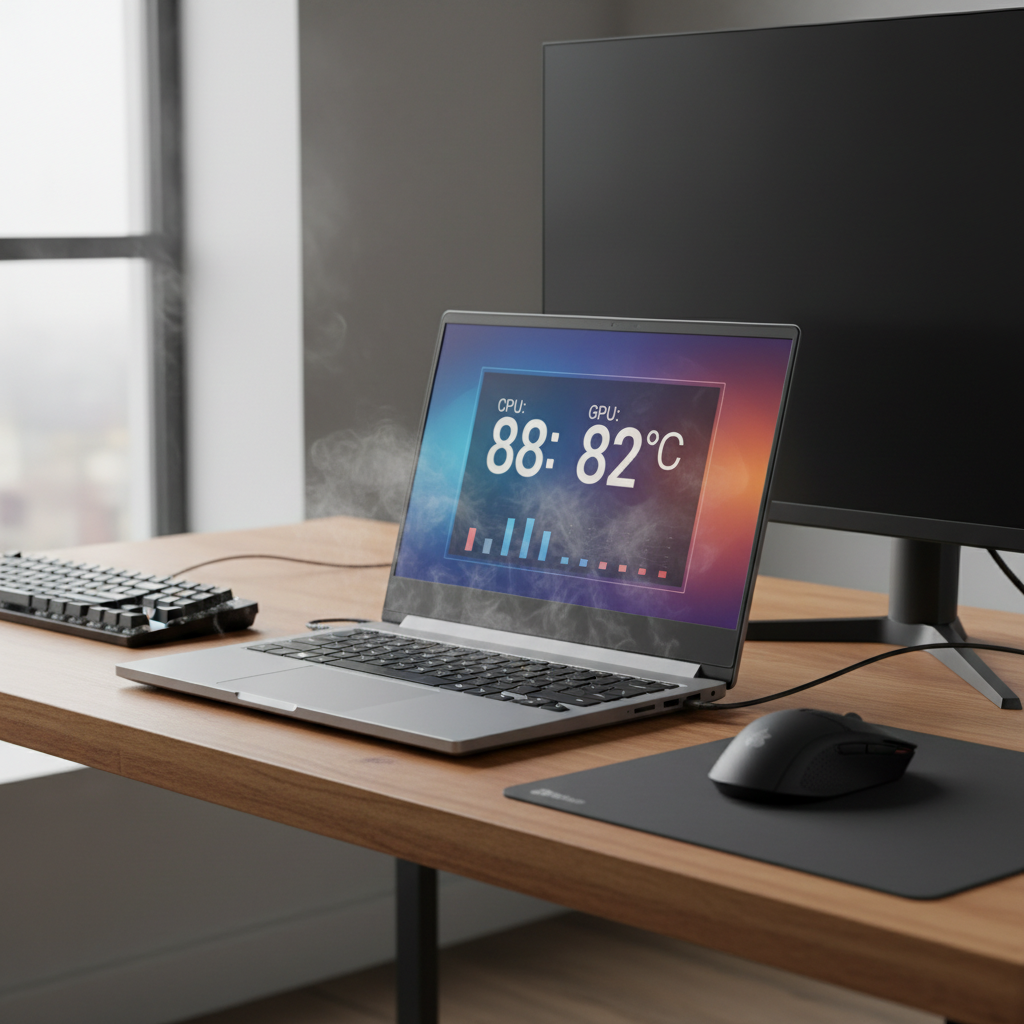
This guide focuses on simple, low-risk steps first, then moves into deeper fixes if you still run hot. I will also point out common traps, like “max fan all the time” or “undervolt everything,” which can backfire depending on your laptop.
Why laptops overheat during gaming (what is actually happening)
Gaming is one of the few workloads that pushes both CPU and GPU for long stretches, and a thin chassis has limited room to move heat out.
- Restricted airflow: vents blocked by a blanket, couch cushion, dust buildup, or even a tight laptop stand that covers intake areas.
- High combined load: many games hit CPU spikes (simulation, open-world streaming, competitive titles with high FPS) while the GPU stays near max.
- Heat transfer degradation: thermal paste can dry out over time, and thermal pads can shift, especially after years of heat cycles.
- Aggressive power limits: some laptops ship with turbo settings that chase short-term speed and accept high temperatures as “normal.”
- Room temperature and placement: a warm room, direct sun, or poor desk airflow can be the difference between stable and throttling.
According to NVIDIA, modern GPUs are designed to manage clock speeds dynamically to stay within safe temperature and power limits, which is why you often see performance drop instead of immediate failure when things get too hot.
Quick self-check: are you throttling or just “running warm”?
Before you change settings, take five minutes to confirm what kind of overheating you have. This avoids random tweaks that do nothing.
Simple signs that heat is hurting performance
- FPS drops after 10–20 minutes, then recovers when you pause or alt-tab
- CPU or GPU clock speed falls while usage stays high
- Fans already loud, yet temps keep climbing
- Game crashes or the laptop shuts down under load
What to measure (basic, not obsessive)
- GPU temperature while gaming
- CPU package temperature and whether it hits sustained peaks
- CPU/GPU clock behavior over time, not just a single spike
If you do not have a tool yet, use what you already have. Windows Task Manager helps with utilization, and many gaming laptops include an OEM utility for fan mode and temps. The exact “too hot” number varies by model, so treat this as trend-watching: sustained high temps plus clock drops equals throttling in many cases.
Fast fixes you can do in 10–20 minutes
If you want the simplest answer to how to fix laptop overheating while gaming, start here. These steps solve a surprising share of real-world cases.
1) Fix airflow and placement
- Put the laptop on a hard, flat surface, not fabric.
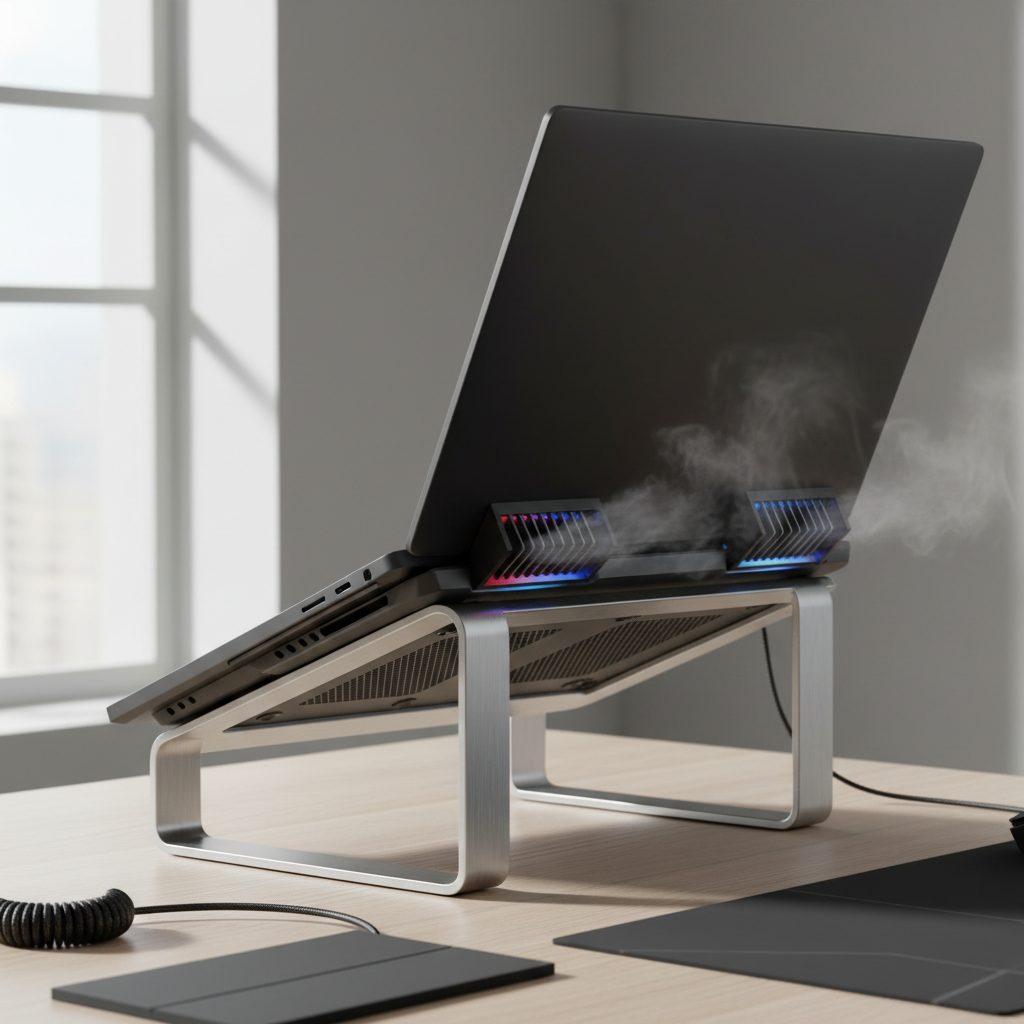
- Lift the rear slightly to improve intake, even a small stand helps.
- Check that rear and side exhaust vents are not pushed against a wall.
2) Clean the easy stuff (no disassembly)
- Power off, unplug, let it cool.
- Use compressed air in short bursts on vents to push dust out. Do not “sandblast” it.
- If you can see lint mats at the vent edges, gently remove what you can reach.
If the fans make a harsh buzzing or scraping sound, stop and consider professional service. Forcing airflow through a failing fan can make a small problem bigger.
3) Set a sensible power mode for gaming
- In Windows, try “Balanced” instead of the most aggressive performance mode, then test.
- In your laptop control app, choose a gaming mode that prioritizes cooling, not silent.
Counterintuitive point: some laptops run hotter in “max performance” because the CPU stays boosted even when the game does not need it.
Game and GPU settings that cut heat without killing FPS
Most heat comes from wasted frames and unnecessary voltage. A few settings typically deliver big temperature wins with minimal visual cost.
Cap FPS (the most underrated fix)
- Set an in-game frame cap to your screen refresh rate (60/120/144) or slightly below.
- If your game lacks a cap, use the GPU control panel or a trusted overlay tool.
When you let a game run at 200+ FPS on a 144 Hz screen, your laptop still pays the heat bill for those extra frames.
Lower the settings that spike CPU/GPU the most
- Shadows and volumetrics often run hot for the FPS you get back.
- Ray tracing can add a large thermal load on laptops; consider off or reduced.
- Resolution scale or DLSS/FSR can cut GPU power draw significantly.
Use an efficient display mode
- Fullscreen exclusive can behave better on some titles than borderless windowed.
- Enable VRR (G-SYNC/FreeSync) if supported, then pair with an FPS cap.
When you need deeper fixes: cooling, paste, and fan curves
If you already did the basics and still see throttling, you are probably dealing with sustained thermal saturation: the cooling system cannot move heat out fast enough.
Cooling pad vs. stand: what usually helps
| Option | Best for | Limitations |
|---|---|---|
| Simple stand | Improving intake airflow with minimal noise | Does not add active cooling |
| Cooling pad (fans) | Laptops with bottom intakes that respond to extra airflow | Quality varies, extra noise, not always a big temp drop |
| External keyboard + raised laptop | Keeping hands away from heat, improving comfort | Desk space required |
Fan curve tuning (if your laptop supports it)
- Use a slightly more aggressive curve before temps spike, not after.
- Avoid constant 100% fan unless you are troubleshooting; it can be loud and may wear fans faster.
Repasting and internal cleaning (high impact, higher risk)
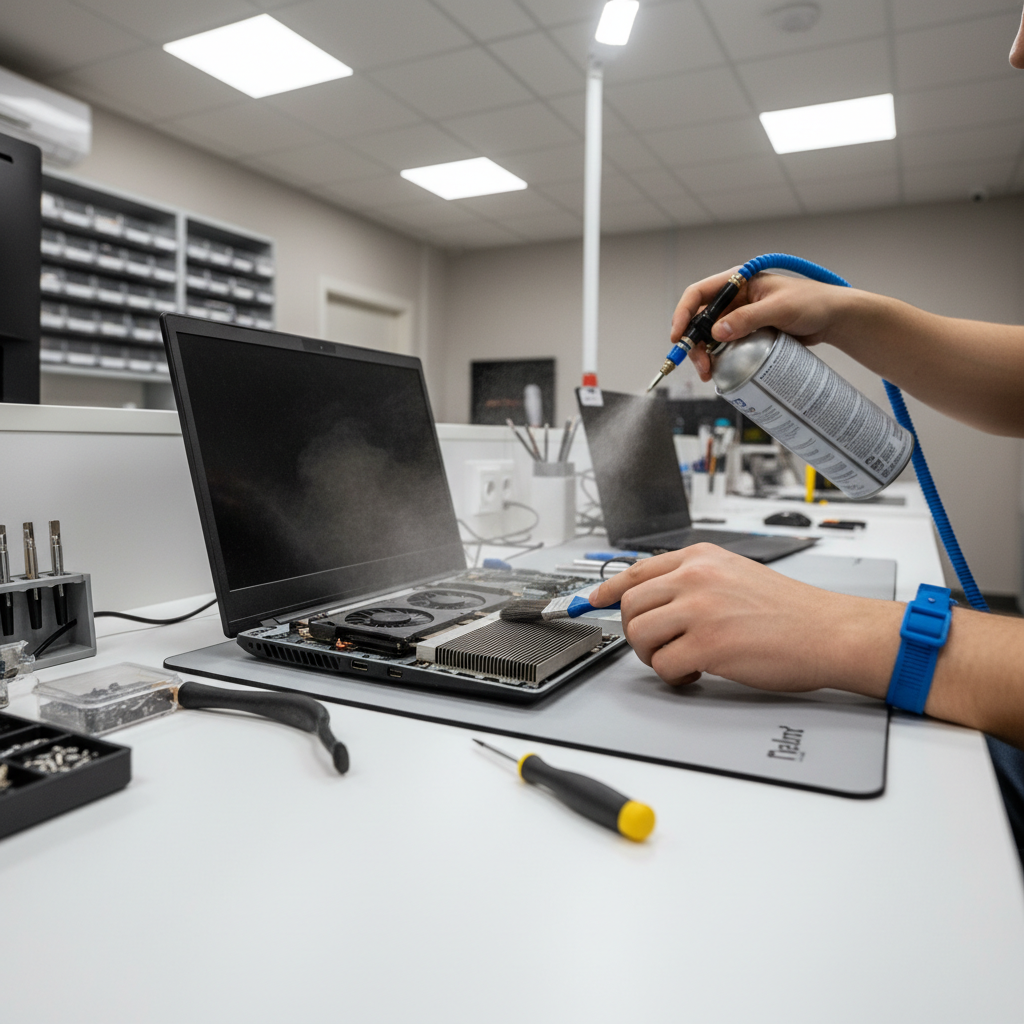
Thermal paste replacement and heatsink cleaning can help a lot, especially on laptops a few years old, but it is easy to strip screws or mis-seat a heatsink. If you are not comfortable opening your laptop, a reputable repair shop is usually the safer path.
According to iFixit, using the right tools and following a device-specific teardown guide matters because laptop internals are delicate and screw lengths can vary.
Software and driver checks that people skip (but matter)
Not every “overheating” complaint is purely a cooling problem. Sometimes the laptop is doing extra work in the background.
- Update GPU drivers from the GPU vendor or laptop OEM if your model needs customized drivers.
- Check background apps: game launchers, browsers with hardware acceleration, recording tools, and RGB utilities can add load.
- Scan for malware if you see high CPU usage when idle.
- BIOS/firmware updates sometimes adjust fan behavior and power limits, but read release notes and follow OEM instructions carefully.
According to Microsoft, Windows Security provides built-in protection tools and security scanning, which is a reasonable first stop if your system behaves strangely under load.
Common mistakes that make gaming temps worse
- Blocking vents with “soft comfort” setups: it feels cozy, it cooks the intake.
- Chasing ultra settings at uncapped FPS: you pay heat for frames you do not see.
- Mixing too many tuning tools: OEM utility plus third-party fan control plus GPU tweaking can fight each other.
- Assuming hot air means failure: strong hot exhaust can be a sign heat is actually leaving the chassis.
- Ignoring battery swelling: if the bottom case bulges or the trackpad feels odd, stop using it and get it checked.
When to get professional help (and what to ask for)
If your laptop shuts down repeatedly, smells like hot plastic, shows artifacts on screen, or runs extremely hot even in light games, professional diagnostics are a smart move. Heat issues can overlap with failing fans, poor heatsink contact, or power delivery problems.
- Ask for internal dust cleaning and fan inspection.
- Ask whether repasting is appropriate for your model and age.
- If it is under warranty, start with the manufacturer, because opening the chassis yourself can affect coverage.
This is also where safety matters: if you suspect battery damage or liquid exposure, do not keep stress-testing with long gaming sessions, a technician can advise on next steps.
Practical wrap-up: a simple plan that usually works
Most people fix overheating by stacking a few small wins: improve airflow, cap FPS, trim the heaviest graphics settings, and keep the cooling path clean. If that still does not stabilize temps, the next level is fan tuning, a quality stand or cooling pad, and potentially repasting through a trusted shop.
If you want a clean checklist for your next gaming session, do this: raise the laptop, cap FPS, run a cooling-focused power mode, then retest for 20 minutes and watch whether clocks stay stable. That routine answers how to fix laptop overheating while gaming for a lot of setups without turning it into a weekend project.
FAQ
How do I know if my laptop is overheating or just loud?
Loud fans alone do not prove overheating. Look for performance drops over time, clock speed dips, crashes, or shutdowns, those are more meaningful than noise.
Does a cooling pad actually work for gaming laptops?
Many laptops benefit if they pull air from the bottom, but the improvement varies by design. A simple stand sometimes delivers similar gains with less noise, so test before you commit.
What is the easiest way to reduce heat without losing much performance?
Cap FPS to your display refresh rate and reduce shadows or ray tracing. Those changes often cut power draw quickly while keeping the game feeling smooth.
Should I undervolt my CPU or GPU to fix overheating?
Undervolting can help on supported hardware, but it is not universal and some laptops lock it down. If you are not comfortable stress-testing for stability, stick to FPS caps and power modes first.
Is it safe to game when the laptop feels very hot?
It depends on how hot and whether it throttles or shuts down. If you see repeated shutdowns, smell unusual odors, or notice bulging, stop and consider a professional inspection.
Why does my laptop overheat only in certain games?
Different engines stress hardware differently. Some titles hammer the CPU, others max the GPU, and a few do both while also compiling shaders in the background, which spikes heat.
Can old thermal paste cause sudden overheating?
It can contribute, especially after years of heat cycles. Usually it shows up as higher sustained temps and faster throttling, but dust buildup and blocked vents are more common culprits.
If you are trying to fix heat fast but would rather not guess, a simple approach is to note your in-game temps, FPS, and fan mode, then change one variable at a time. If you need a more hands-off solution, a local repair shop can usually confirm whether the issue is airflow, failing fans, or worn thermal material without you opening the laptop.