
how to fix low volume on android phone usually comes down to a few repeat offenders: a hidden volume limit, the wrong audio route (Bluetooth), app-specific volume, or something physically blocking the speaker.
If you’ve ever turned the slider up to max and still couldn’t hear calls, videos, or alarms, you already know how frustrating this feels, and it can be a real problem when you rely on your phone for work, navigation, or accessibility.
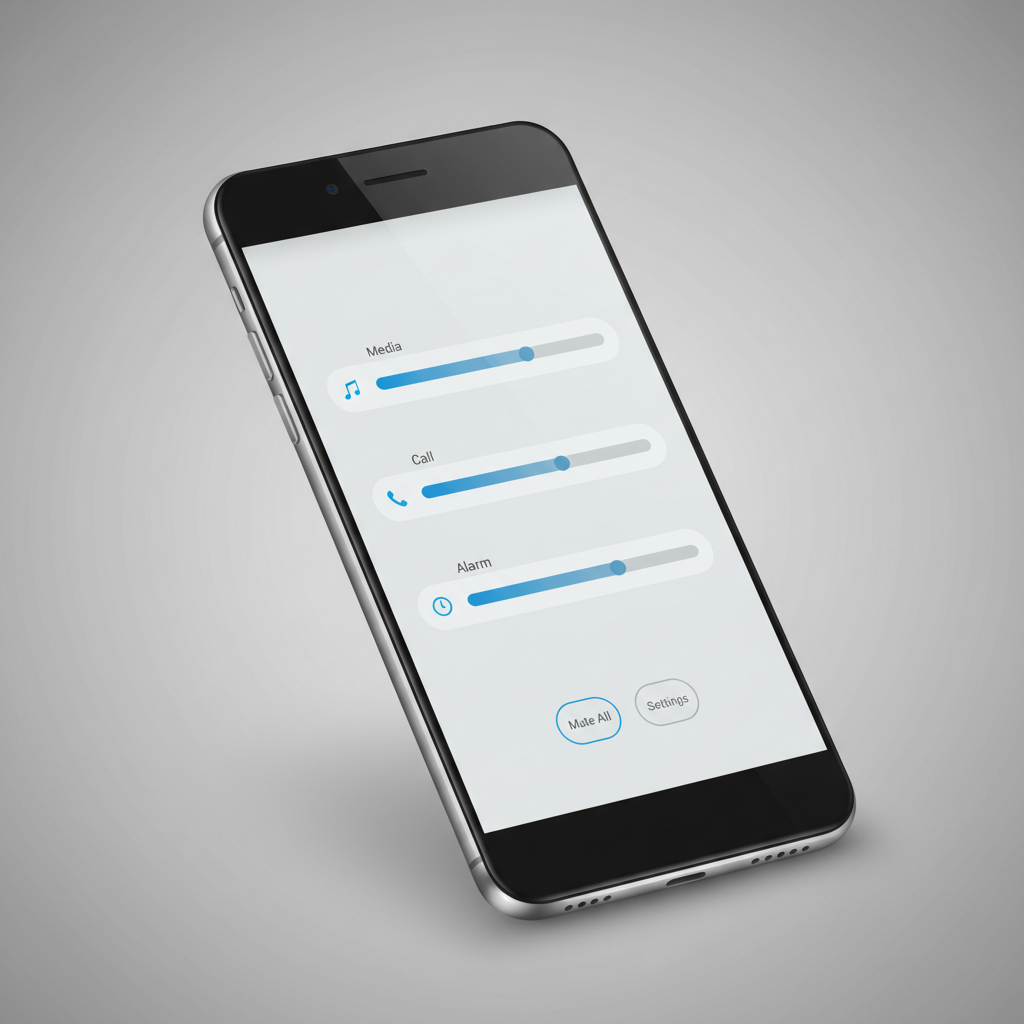
This guide focuses on practical fixes you can do in minutes, plus a few “less obvious” checks people miss, like per-app volume, Do Not Disturb behavior, and debris in the speaker grille. When something looks like hardware, I’ll call that out too.
Quick diagnosis: where is the volume low?
Before you change a bunch of settings, pin down which audio type is affected, because Android controls them separately.
- Media: YouTube, Spotify, TikTok, games
- Call: phone calls, speakerphone, VoIP calls
- Ringtone/notifications: incoming calls, texts, app alerts
- Alarm: Clock alarms, some reminders
A fast test: play a YouTube video (media), then make a quick call to voicemail (call), then preview a ringtone (ringtone). If only one category is quiet, the fix is usually a setting or app behavior, not the speaker itself.
Fix the common settings that cap or reroute audio
This is where most “my Android is suddenly quiet” problems get solved. Don’t overthink it, just check the basics in this order.
1) Use the right volume slider (and expand the panel)
Press a volume button, then tap the three dots or the slider expansion (varies by brand). Make sure Media is up when you’re watching videos, and Call is up while you’re on an actual call.
2) Turn off Bluetooth (or switch the audio output)
Low volume often isn’t low, it’s playing through earbuds in a bag or a car stereo you forgot about. Toggle Bluetooth off, or open the media player output picker and select Phone speaker.
3) Check Do Not Disturb and Focus modes
Some DND configurations silence or reduce ringtone/notification volume, and a few OEM skins also reduce “interruptions” in ways that feel like low sound. Confirm DND is off, or review which sounds are allowed.
4) Disable Volume Limit / Safe headset volume
Many Android builds include a hearing-safety limit, especially for headphones. If your issue is mainly with earbuds, look for settings like Media volume limit or Safe headphone volume and adjust it.
According to CDC, long exposure to loud sounds can damage hearing, so if you raise limits, do it thoughtfully and take breaks at higher volumes.
Clean, unblock, and re-seat: the “physical” fixes that actually work
If the sound is muffled, tinny, or crackly, it’s often physical obstruction rather than a software bug.
- Remove the case: some rugged cases partially cover speaker ports or create resonance that makes audio seem weaker.
- Inspect the speaker grille: lint and pocket debris are common, especially on phones kept in jeans pockets.
- Clean gently: use a soft, dry brush or a small puff of air. Avoid liquids, and avoid pushing debris deeper with sharp tools.
- Check protective films: a poorly placed screen protector can cover the earpiece slit and make calls sound quiet.
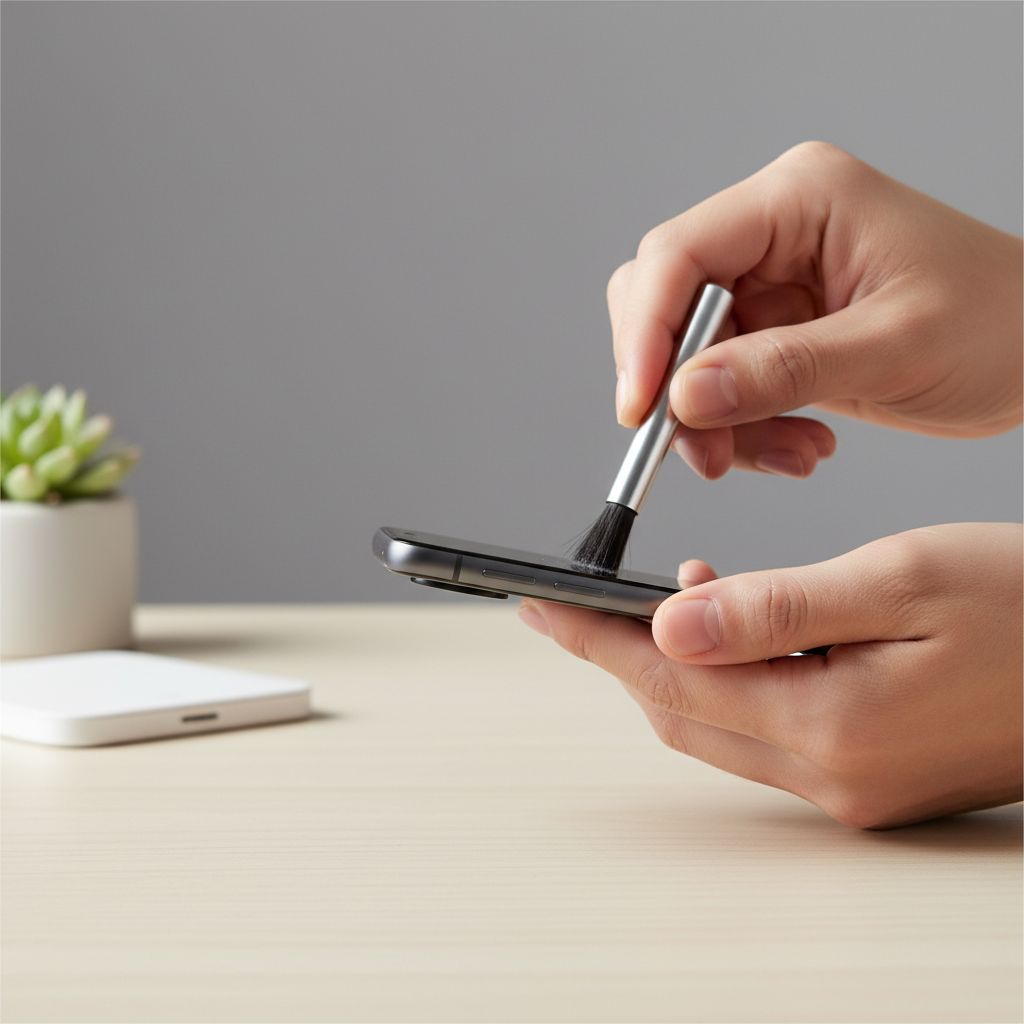
If the phone got wet recently, volume drops can happen even after it “seems dry.” In that case, powering it down and letting it dry in a well-ventilated area may help, but outcomes vary by device and exposure, and you may want a repair shop to inspect it if sound stays distorted.
App-specific volume, equalizers, and “quiet” content
Sometimes the phone is fine, but one app (or one type of content) is just quieter.
Check per-app volume controls
Streaming apps often have their own volume, normalization, or loudness settings. Look for:
- Volume normalization / Loudness normalization
- Equalizer presets (some reduce perceived loudness)
- In-app player volume (especially in social apps)
Disable third-party EQ and “sound booster” apps (temporarily)
EQ apps can lower output if they reduce certain frequency bands, and some “boosters” add compression or distortion that makes things feel quieter. Turn them off, restart, then test again.
Don’t ignore the content itself
Lots of modern videos are mixed quietly to avoid clipping, while ads and older content can be much louder. If only certain creators or channels sound low, that’s a content mix issue, not your phone.
Step-by-step: what to do depending on your situation (table)
If you want the shortest path, match your symptom to the likely cause and the next action.
| Symptom | Likely cause | What to try next |
|---|---|---|
| Media is quiet, calls are fine | Media slider low, Bluetooth output, app settings | Expand volume panel, switch output to phone speaker, check app normalization/EQ |
| Calls are quiet at the earpiece | Earpiece grille blocked, call volume low, screen protector misaligned | Increase call volume during a call, remove case/film, gently clean earpiece slit |
| Speakerphone is weak or muffled | Debris, water exposure, damaged speaker | Clean speaker grille, test in Safe Mode, consider repair if distortion persists |
| Notifications/ringtone too low | DND/Focus rules, ringtone slider low, per-app notification settings | Disable DND, raise ringtone volume, review app notification channels |
| Headphones are quiet | Volume limit, dirty connector, low Bluetooth absolute volume | Adjust volume limit, clean port, try different earbuds, review Bluetooth audio settings |
Deeper troubleshooting: Safe Mode, updates, and resets
If you’ve done the obvious steps and the problem still sticks, you’re probably dealing with a buggy app, a setting conflict, or an OS issue.
Boot into Safe Mode to rule out apps
Safe Mode loads Android with core system apps only. If volume is normal in Safe Mode, a downloaded app (often EQ/booster, accessibility overlays, or call recorders) is the likely cause. Remove recent audio-related installs first.
Safe Mode entry varies by device brand, so follow your manufacturer’s steps.
Update Android and affected apps
Audio bugs do get patched. Update the OS (Settings → System → Software update) and update media/calling apps. If the issue started right after an update, check if there’s a follow-up patch, or test with a different audio app.
Reset network settings (when Bluetooth/calls are the issue)
If Bluetooth output is inconsistent or calls are quiet only on certain connections, a network settings reset can help. It will remove saved Wi‑Fi and Bluetooth pairings, so plan to reconnect after.
Factory reset as a last resort
If you’re still searching for how to fix low volume on android phone after Safe Mode and updates, a factory reset can confirm whether you’re facing software corruption. Back up first, and test volume before restoring all apps, so you don’t reintroduce the same conflict.
Key takeaways before you give up
- Match the fix to the audio type: media, call, alarm, ringtone behave differently.
- Bluetooth routing causes “mystery low volume” more often than people expect.
- Muffled sound usually has a physical reason: case fit, debris, water exposure.
- Safe Mode is the fastest way to catch app conflicts without guessing.
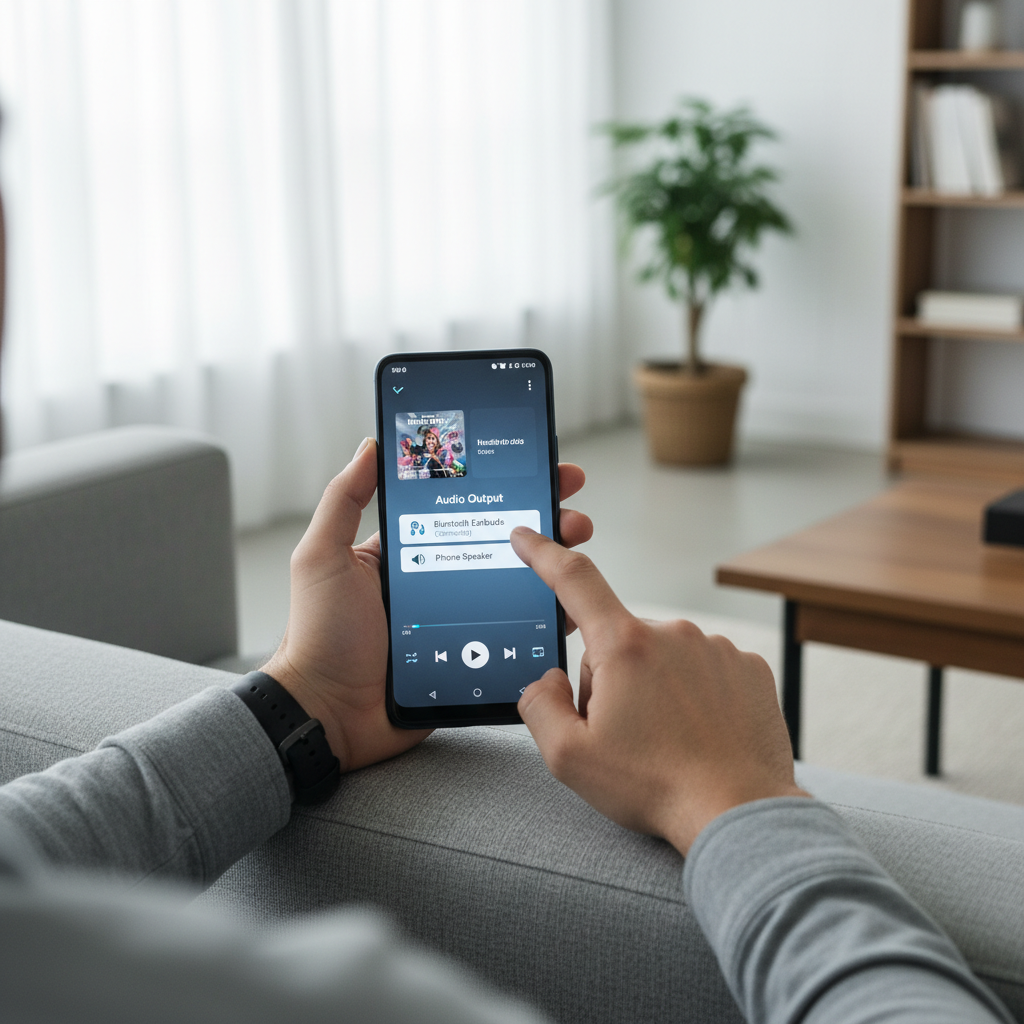
If your phone becomes loud again after switching output, cleaning the grille, or adjusting the right slider, you’re done. If it’s still quiet in Safe Mode and after a restart, treat it as potentially hardware-related and skip the endless setting toggles.
Conclusion: get your volume back with the least drama
Most fixes for low Android volume are boring on purpose: confirm the correct slider, stop accidental Bluetooth routing, check DND, and remove anything that blocks the speaker. When those don’t move the needle, Safe Mode and a careful reset help separate app issues from deeper system or hardware problems.
If you want one next step, do this: turn off Bluetooth, expand the volume panel, and test media + calls. It takes under a minute and answers more than you’d think.
FAQ
Why is my Android volume low even at maximum?
Most of the time it’s either the wrong slider (media vs call), audio playing through Bluetooth, or an app setting like normalization/EQ. If it’s muffled across everything, check the speaker grille for blockage.
How do I fix low call volume on Android?
Raise call volume while you’re on an active call, then check if an earpiece slit is covered by a screen protector or debris. If only one calling app is affected, review that app’s audio settings and permissions.
How do I fix low media volume on Android (YouTube/Spotify)?
Confirm media volume specifically, then check your output device in the player. After that, look for loudness normalization and any equalizer settings, those can reduce perceived loudness depending on the preset.
Can a phone case cause low speaker volume?
Yes, especially thicker cases that partially cover speaker ports or change how sound reflects off surfaces. A quick test is removing the case and replaying the same clip at the same volume.
My Bluetooth headphones are too quiet on Android—what should I do?
Check for a media volume limit, then try raising volume on both the phone and the headphones themselves. If it’s still low, re-pair the device and test another headset to rule out a hardware issue with the earbuds.
Will cleaning the speaker really help?
If the issue is muffling from lint or dust, gentle cleaning can make an immediate difference. If you hear distortion or crackling that doesn’t change after cleaning, it may be water damage or a failing speaker, and a technician assessment may be smarter.
When should I take my Android phone in for repair?
If volume stays low in Safe Mode, the phone has been dropped or exposed to moisture, or audio is distorted at any level, it’s reasonable to consult the manufacturer or a reputable repair shop for diagnosis.
If you’re trying to fix this quickly for a specific use case, like louder calls in noisy places or clearer video audio, it can help to share your phone model, Android version, and whether the problem happens on speaker, earpiece, or Bluetooth, that context usually points to the right fix faster.