
how to fix distorted audio on windows pc usually comes down to a small handful of things: the wrong output device, an audio “enhancement” misbehaving, a driver glitch, or a connection issue that only shows up under load.
Distortion is sneaky because it can sound different depending on the cause, crackling in games, robotic voices on Zoom, or music that feels “blown out” even at moderate volume. The upside is you can often isolate it in under 15 minutes if you test in the right order.
This guide focuses on quick wins first, then moves into deeper fixes only if you need them. You will also get a short checklist to figure out whether the issue is Windows, your device, or a specific app.
Fast triage: confirm it is really distortion (not just “bad audio”)
Before you change settings, spend two minutes verifying the symptom. This saves you from chasing the wrong fix, especially when only one app is affected.
- Test with two sources: play a YouTube video and also a local file (or Spotify). If only one source distorts, focus on that app.
- Switch output devices: try speakers vs headphones vs a Bluetooth device. If only one device distorts, Windows may be fine.
- Try another port/cable: a loose 3.5mm jack or flaky USB cable can mimic “driver problems.”
- Note the pattern: distortion only at high volume often points to clipping or “enhancements,” while random crackles often point to drivers, latency, or power/USB issues.
Key takeaway: if distortion follows one physical device, fix the device path; if it follows Windows output regardless of device, fix settings/drivers.
Common causes (and what they sound like)
Most cases fall into a few buckets. Knowing the “sound signature” helps you pick the right fix instead of trying everything.
| What you hear | Most likely cause | Best first move |
|---|---|---|
| Crackling/popping under load (games, calls) | Driver glitch, DPC latency, USB power issues | Update/reinstall driver, change USB port, disable exclusive mode |
| Muffled or “underwater” sound | Wrong device profile, enhancements, bad sample rate match | Disable enhancements, set a standard format (48 kHz) |
| Robotic voice in meetings | Bluetooth codec/profile switching, mic monitoring, app processing | Force correct input/output device, avoid Hands-Free profile if possible |
| Distortion only at higher volume | Clipping, boost settings, amp overload | Lower app volume, disable loudness equalization, reduce gain/boost |
| Only one app distorts | App audio engine, exclusive access, in-app effects | Reset app audio settings, disable exclusive mode, update the app |
Windows settings that fix distortion surprisingly often
This is where many “mystery distortion” issues get resolved, because Windows audio effects and format mismatches can stack up.
1) Select the correct output and reset per-app routing
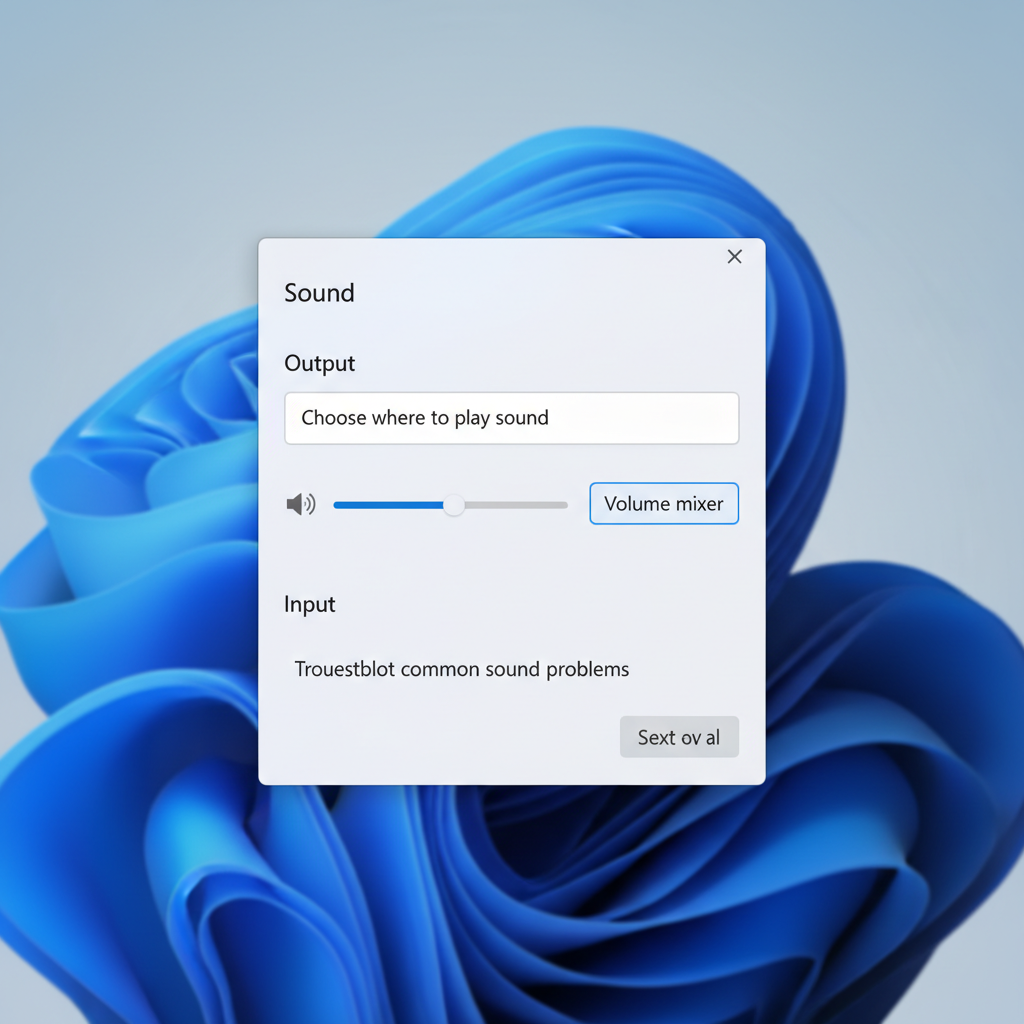
Go to Settings → System → Sound, confirm the intended output is selected. Then check Volume mixer and ensure your app is not routed to an unexpected device.
- If you recently used a USB headset or dock, Windows may still route certain apps there.
- For meeting apps, double-check both input and output inside the app.
2) Disable audio enhancements (they can backfire)
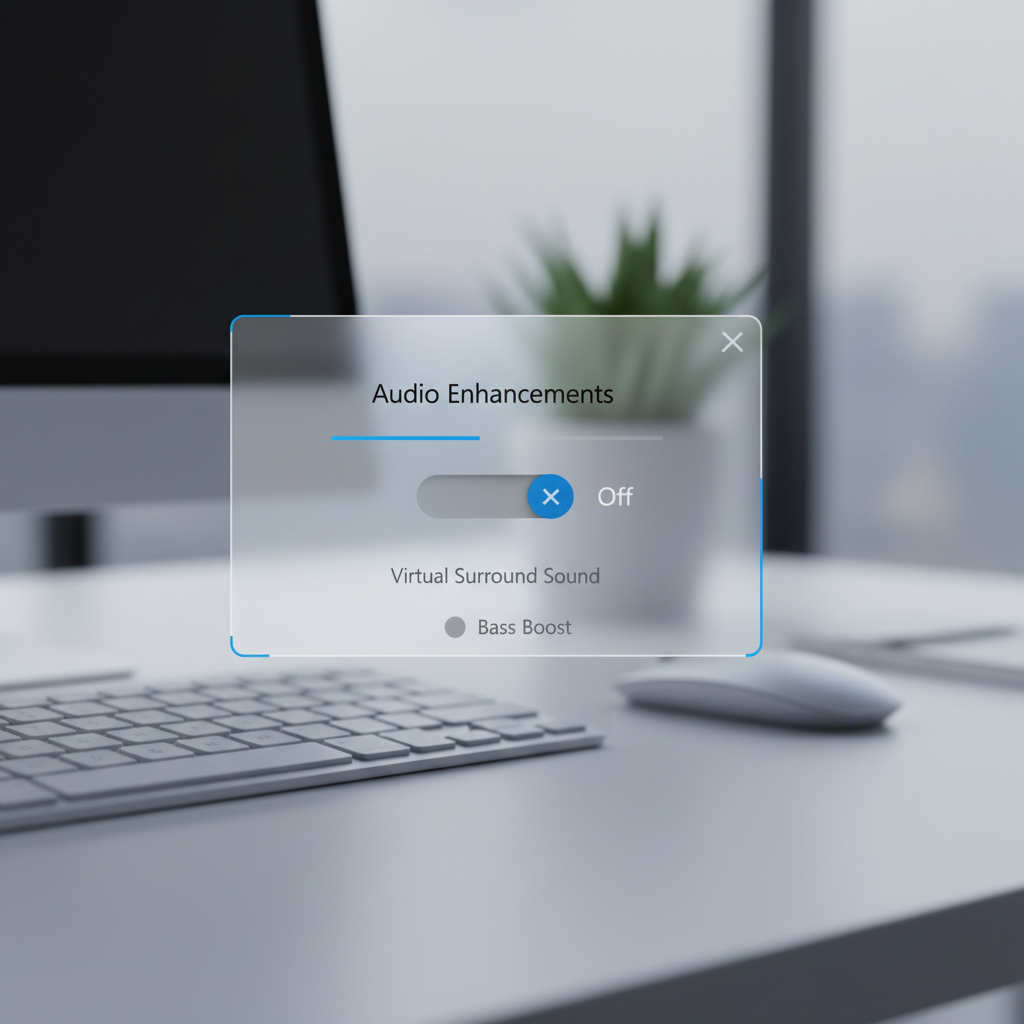
In Settings → System → Sound → (your output device) → Audio enhancements, turn enhancements off. Many PCs ship with vendor effects that “improve” sound but sometimes add distortion or crackles.
According to Microsoft support guidance on audio issues, enhancements can contribute to playback problems, and disabling them is a common troubleshooting step.
If your device has a vendor control panel (Realtek Audio Console, Dolby Access, DTS, Nahimic), also disable effects there temporarily. The goal is “clean baseline audio.”
3) Set a stable sample rate and bit depth
Go to Control Panel → Sound → Playback → Properties → Advanced. Set Default Format to a common option like 24-bit, 48000 Hz (or 16-bit, 48000 Hz if you want maximum compatibility).
- Mismatched formats across apps and device drivers can cause resampling artifacts or instability.
- If you use studio gear, choose the rate your interface expects, then keep it consistent.
4) Turn off Exclusive Mode (when one app “hijacks” audio)
In the same Advanced tab, uncheck:
- Allow applications to take exclusive control of this device
- Give exclusive mode applications priority
This often helps when distortion only happens in one app or when switching between apps triggers crackles.
Driver and device fixes (when settings are not enough)
If you tried the basics and the distortion persists, the next most common root cause is the audio driver stack, especially after a Windows update or a vendor utility update.
Update the right driver (not just any driver)
- Windows Update: Settings → Windows Update → Advanced options → Optional updates (look for audio drivers).
- Device maker site: for laptops and prebuilt desktops, the OEM driver package often behaves better than a generic one.
- Audio chip vendor: Realtek/Intel/AMD/NVIDIA (HDMI audio) drivers may be relevant depending on your output path.
According to Microsoft documentation on Device Manager, uninstalling and reinstalling a device can help Windows rebuild driver configuration after corruption or conflicts.
Clean reinstall the audio device in Device Manager
- Open Device Manager → Sound, video and game controllers.
- Right-click your device (Realtek, USB headset, etc.) → Uninstall device.
- If you see an option to remove driver software, use it only if you already have the OEM driver ready.
- Restart the PC, then reinstall/update the driver.
If distortion happens over HDMI/DisplayPort (monitor speakers), repeat this for NVIDIA/AMD/Intel Display Audio as well.
USB and Bluetooth reality check
For USB headsets and DACs, try a different port, ideally a port on the PC itself instead of a hub. Power saving and flaky hubs can add crackles.
For Bluetooth, distorted audio in calls often comes from the headset switching to a lower-bandwidth hands-free profile. In practice, a wired headset or a USB dongle headset can be more stable for meetings when this keeps happening.
App-specific fixes (Zoom, Teams, games, browsers)
When only one program is affected, it is usually not “Windows audio” in general. It is that app’s processing, output selection, or exclusive access.
Meeting apps (Zoom/Teams/Meet)
- Pick the correct mic and speaker inside the app, do not rely on “Same as system” if you often switch devices.
- Disable app features that add processing (noise suppression/echo cancellation) if voices sound metallic, then re-enable one by one.
- If you use Bluetooth, test with a wired option to confirm whether the issue is profile switching.
Games and real-time audio
- Set the in-game output to your intended device, and turn off any “surround virtualization” you are stacking on top of Windows/vendor effects.
- Reduce CPU spikes by closing overlays and background capture tools if crackling only appears during heavy scenes.
- If you run an external DAC/interface, keep the sample rate consistent between Windows and your interface panel.
Browsers can be their own category. If distortion happens only in Chrome/Edge, test another browser, disable audio-related extensions, and update the browser itself.
A quick self-checklist (find your “bucket” in 60 seconds)
- Distortion in every app and every device → start with enhancements off, sample rate, exclusive mode, then driver reinstall.
- Only one headset/speaker distorts → check cable/port, try another PC/phone, then device firmware or replacement.
- Only in meetings → check Bluetooth hands-free profile behavior, app device selection, and processing features.
- Only at higher volume → reduce app volume, disable loudness/boost, avoid “double amplification.”
- Only after sleep/dock/undock → switch output device back and forth, restart Windows Audio service, update dock/USB drivers.
Common mistakes that waste time
- Stacking multiple enhancements (Windows + vendor + app) and hoping it sounds “richer,” then wondering why it distorts.
- Ignoring the simple hardware path: a half-inserted 3.5mm plug can cause nasty fuzz that looks like a software bug.
- Blind driver tools: third-party “driver updater” apps can install mismatched packages; OEM sources are usually safer.
- Chasing volume: if you max Windows volume and also max the app volume, you can push the chain into clipping.
When to seek deeper help (or replace gear)
If you still cannot fix it after settings and driver steps, it may be a hardware fault or a more complex latency conflict. Consider extra help if:
- Distortion appears in BIOS/boot audio or on another operating system, which suggests hardware issues.
- Your USB audio drops and crackles across multiple ports and cables, especially with a dock.
- You work with professional audio interfaces and need low-latency stability, a local audio technician or the interface vendor support can save hours.
If you suspect hearing discomfort from loud distortion, keep volume low and consider asking a qualified professional for guidance, since hearing sensitivity varies.
Practical “do this now” plan (10–15 minutes)
- Minute 1–3: confirm the issue across two apps and two devices.
- Minute 3–7: turn off enhancements, set default format to 48 kHz, disable exclusive mode.
- Minute 7–12: update driver from OEM or optional updates, restart.
- Minute 12–15: if USB/Bluetooth, switch ports or test wired to isolate the transport layer.
If you do those in order, you usually get a clear answer: Windows setting, driver, app, or hardware.
Conclusion
how to fix distorted audio on windows pc is mostly about narrowing the problem fast, then applying the one or two changes that match your situation, not flipping every toggle you can find. Start by disabling enhancements and stabilizing the audio format, then move to a clean driver reinstall if the distortion keeps returning.
If you want a simple next step, pick one test track or one meeting call, change only one variable at a time, and write down what improves or worsens the sound. That small bit of discipline beats hours of random tinkering.
FAQ
Why is my Windows PC audio crackling only in games?
That pattern often points to driver stability or latency under load. Try disabling exclusive mode, turning off enhancements, closing overlays, and updating the audio and GPU HDMI/DP audio drivers if you use monitor audio.
How do I fix distorted audio on Windows 11 after an update?
Start with enhancements off and reset the default format to 48 kHz, then reinstall the audio device in Device Manager. Many post-update issues are configuration conflicts that a reinstall clears.
My headphones sound distorted only on this PC, not on my phone. What does that mean?
It usually suggests a PC-side issue: the jack/port, a USB controller quirk, or Windows settings. Test another port/cable and disable enhancements before assuming the headphones are failing.
Does turning off audio enhancements reduce sound quality?
Sometimes it makes audio sound less “processed,” which can feel flatter, but it also removes a common distortion source. Once your audio is stable, you can re-enable effects one at a time to see what your system tolerates.
What sample rate should I use to stop distortion?
48 kHz is a safe default for many Windows setups and video content. If you use a dedicated audio interface, matching the interface control panel and Windows format often prevents resampling glitches.
Why does Bluetooth audio get distorted during calls?
Many Bluetooth headsets switch to a hands-free profile for the microphone, which reduces audio bandwidth for output. If that is the cause, using a wired headset or a USB headset for calls tends to be more consistent.
Should I uninstall Realtek audio drivers to fix distortion?
Uninstalling and rebooting can help when the driver configuration is corrupted, but it is smarter to have the OEM driver package ready. If you are unsure, updating via Windows optional updates is a lower-risk first step.
Can distorted audio be a sign my speakers are blown?
It can be, especially if distortion happens only at higher volume and follows the same speaker across devices. Testing the speaker with another source at moderate volume is a quick way to sanity-check.
If you are still stuck and you would rather not spend another evening toggling settings, a lightweight approach is to document your device model, Windows version, and where distortion happens, then get targeted help or use a known-stable USB headset/DAC as a workaround while you troubleshoot.