
How to fix laptop black screen on startup usually comes down to one of three buckets: the laptop is on but not showing video, it cannot finish booting, or power is unstable and it shuts down before anything appears. The good news is you can often narrow it down in 10 minutes without tools.
If you rely on your laptop for work or school, a black screen at startup feels urgent because it blocks everything, including backups and troubleshooting apps. In practice, many “dead” laptops are just stuck on the wrong display output, a drained battery, or a corrupted startup handoff.
This guide walks from “no-risk checks” to “more technical fixes,” and it also tells you when to stop and seek repair help. You’ll see a quick decision table, a short checklist, and a few Windows-specific and hardware-specific steps that cover most real-world cases.
Quick diagnosis: what the black screen is telling you
Before you change settings, look for small signals. They often point to the right fix faster than guessing.
- Power light on, fan spins, no logo ever appears: likely display/output issue, RAM seating, or firmware hang.
- Logo appears, then black screen: often Windows sign-in/display driver issue, fast startup/hibernation bug, or corrupted system files.
- Backlight glow but no image: could be brightness hotkeys, external display mode, or (less commonly) panel/backlight hardware.
- Beeps/blinking codes: vendor hardware diagnostic codes (varies by Dell/HP/Lenovo).
Fast decision table (start here)
| What you observe | Most likely cause | First thing to try |
|---|---|---|
| Caps Lock key toggles on/off | System is running, display not showing | External monitor test + display key combo |
| No keyboard response, stuck black | Firmware hang / power issue | Hard reset (power drain) |
| Windows login sound but black | Display driver or wrong output | Win+Ctrl+Shift+B, Safe Mode |
| Black screen after update | Driver/update conflict | Windows Recovery: uninstall update |
| Shows logo then loops | Boot files / disk errors | Startup Repair / CHKDSK (Recovery) |
Safety-first checks (no tools, low risk)
These steps sound basic, but they fix a surprising number of cases because they remove variables.
- Check brightness and display mode: try your laptop’s display toggle (often Fn + a key with a monitor icon). Also raise brightness to rule out a dimmed panel.
- Disconnect everything: unplug USB devices, docks, external drives, and external monitors. A bad peripheral can stall boot.
- Confirm the charger and outlet: try a different wall outlet, and verify the charging light behavior if your model has one.
- Listen and look: fan noise, keyboard backlight, and status LEDs help distinguish “no power” from “no display.”
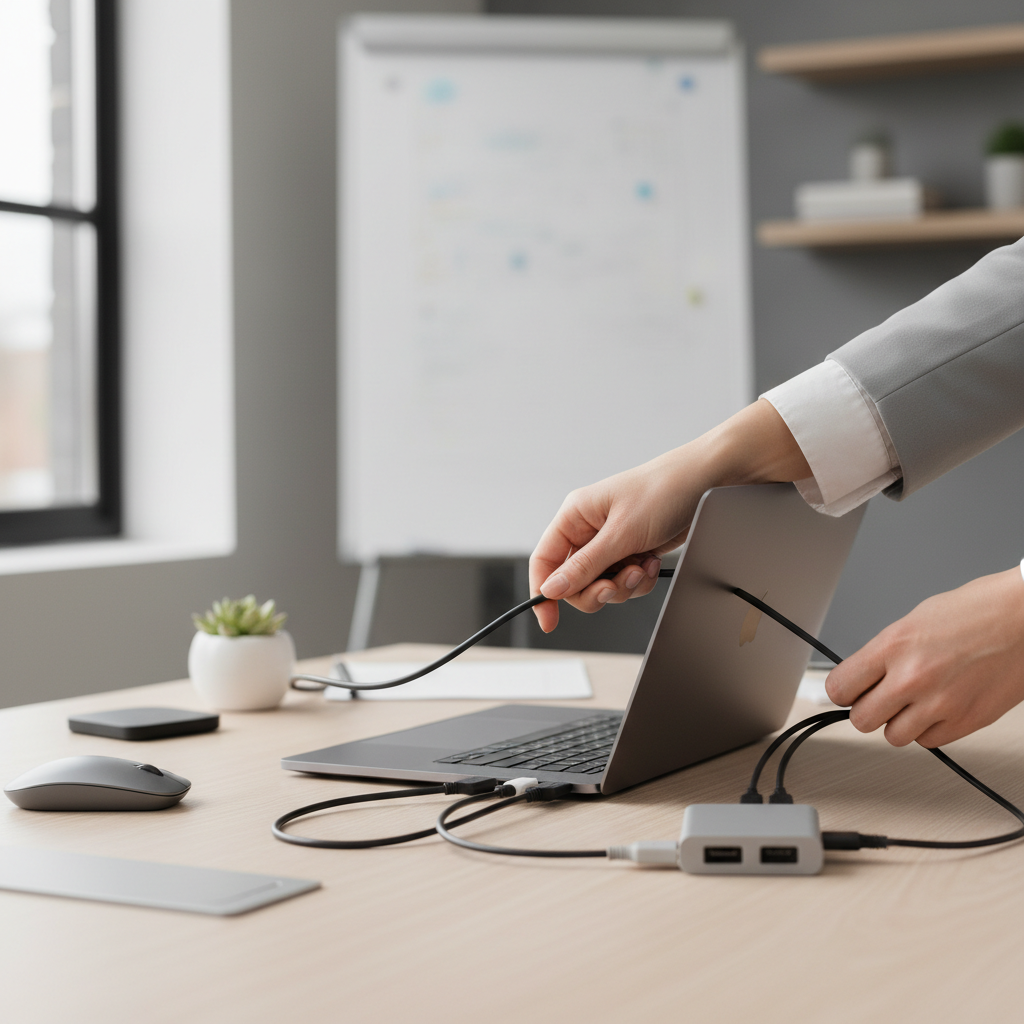
Key point: if the laptop shows any sign of life, treat it as a display/boot problem first, not a “dead computer.” That mindset avoids unnecessary teardown.
Hard reset and power drain (works more often than people expect)
If your laptop is “on” but stuck, a hard reset clears temporary power states that can trap the system before it shows video.
Steps
- Hold the power button for 10–15 seconds until the laptop fully shuts down.
- Unplug the charger, and remove external devices.
- If your model has a removable battery, remove it (if not, skip this).
- Hold the power button again for 15–30 seconds to drain residual power.
- Reconnect the charger only, then power on.
If you get the logo back after this, you likely hit a stuck sleep/hibernate state or firmware hiccup. If the issue repeats, you’ll want to check Windows power settings later.
Rule out a display problem with an external monitor
This step quickly tells you whether the laptop is booting normally but the built-in screen is not showing the picture. Borrow any HDMI monitor or TV if needed.
What to do
- Connect HDMI (or USB-C video) to an external display.
- Power on the laptop, wait up to 60 seconds.
- Use the display switch shortcut (often Fn + F4/F5/F7/F8 depending on brand).
If the external display works: Windows may be set to “second screen only,” or the laptop panel/cable/backlight may have a fault. In many cases it’s just an output mode setting you can change inside Windows once you see the desktop.
If neither display works: focus on boot/firmware and hardware checks below.
Windows-specific fixes when the logo appears then goes black
This is where many “how to fix laptop black screen on startup” searches end up, because the laptop powers on, but Windows never shows the desktop.
Try the graphics driver reset shortcut
When Windows is running but the display pipeline is stuck, this shortcut can refresh the graphics driver.
- Press Win + Ctrl + Shift + B.
- You may hear a beep or see the screen flash.
Boot into Windows Recovery (WinRE) and use Startup Repair
If you can’t reach the login screen, you may need WinRE. According to Microsoft official support guidance, Windows Recovery Environment provides tools like Startup Repair and Safe Mode to troubleshoot boot issues.
- Power on, then force shutdown during boot (hold power button) and repeat 2–3 times until you see recovery options.
- Select Troubleshoot → Advanced options → Startup Repair.
Safe Mode: remove a bad display driver or recent update
- In WinRE: Troubleshoot → Advanced options → Startup Settings → Restart.
- Choose Safe Mode (or Safe Mode with Networking).
- In Device Manager, consider rolling back or uninstalling the display adapter driver if the black screen started after an update.
- If the issue began right after Windows Update, try Uninstall Updates inside Advanced options.
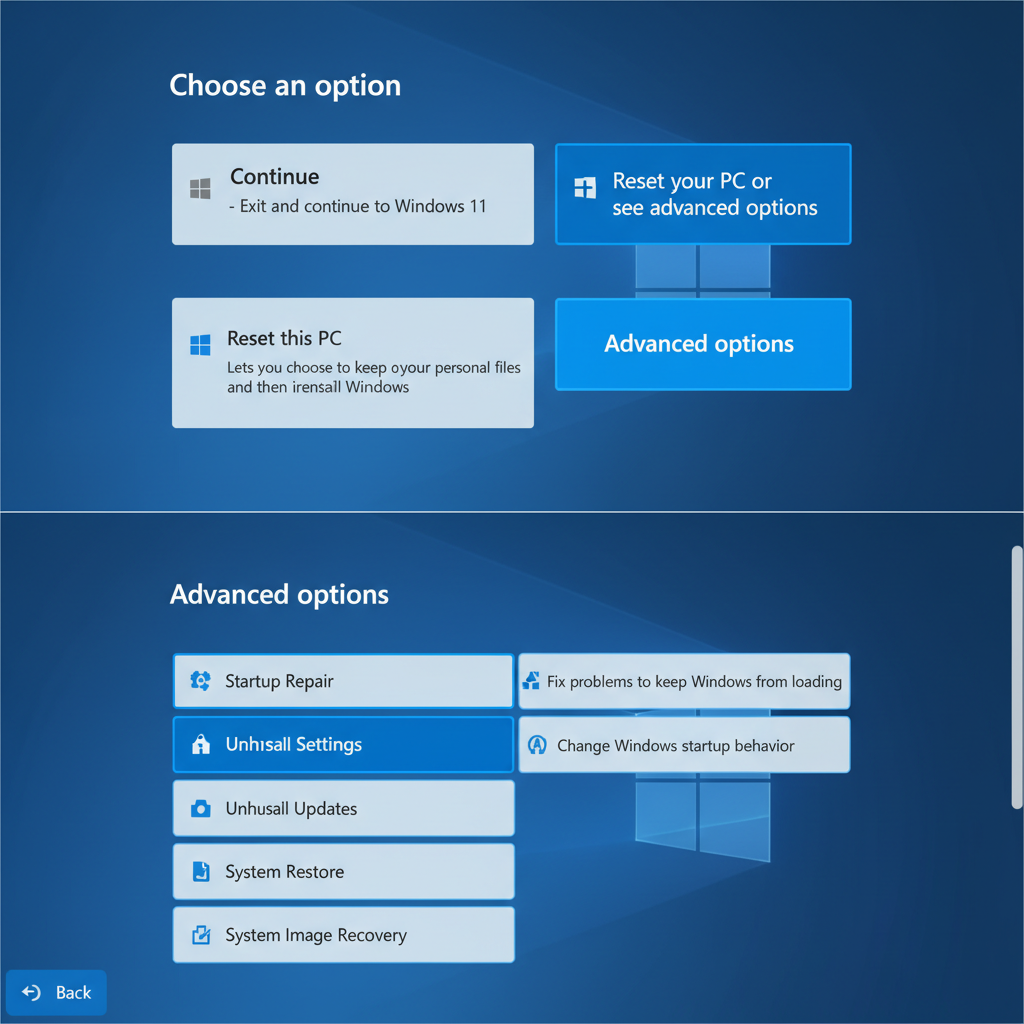
Practical note: if you reach Safe Mode but normal boot stays black, the problem is often a GPU driver, a display scaling setting, or a third-party startup app. Don’t reinstall everything immediately; remove the most recent changes first.
Firmware and hardware checks (when nothing shows, even before Windows)
If you never see the manufacturer logo, Windows may not be the main issue. You’re dealing with firmware startup, memory, or storage detection.
BIOS/UEFI reset (low to medium risk)
- Try entering BIOS/UEFI (common keys: F2, Del, Esc, F10; varies by brand).
- If you can get in, load Setup Defaults, save, reboot.
If BIOS won’t display either, skip software fixes and keep narrowing hardware.
Memory (RAM) seating and internal connections (medium risk)
On some laptops, slightly unseated RAM can cause a black screen with fans spinning. If your laptop is under warranty, opening the bottom cover can affect coverage, so consider that before proceeding.
- Power off completely and unplug.
- If accessible, remove and reseat RAM modules, then boot again.
If you’re not comfortable opening the laptop, this is a good stopping point for a repair shop.
Self-check checklist: figure out which path fits your situation
- I see the logo: focus on WinRE, Safe Mode, updates, and drivers.
- No logo, but keyboard reacts (Caps Lock works): external monitor test, output mode, possible panel issue.
- No reactions at all: charger/outlet check, hard reset, then hardware diagnostics.
- It started after a drop or liquid: treat as potential hardware damage, avoid repeated power cycles.
Key takeaway: “black screen” is a symptom, not a single failure. The fastest fix comes from matching the symptom timing (before logo vs after logo) to the right tools.
Common mistakes that waste time (or make things worse)
- Forcing random key combos for 30 minutes: pick one path, test, then move on.
- Repeated hard shutdowns during updates: sometimes necessary to reach recovery, but doing it many times can corrupt files.
- Assuming the screen is dead without an external monitor test: output mode issues are common, especially with docks.
- Jumping to a factory reset too early: try Startup Repair and Safe Mode first to protect data.
When to get professional help (and what to ask for)
If you tried the basic steps and you still can’t get any logo, or you suspect physical damage, it’s usually smarter to stop. A shop can test power rails, screen, SSD health, and RAM with known-good parts.
- Go to a technician if: you smell burning, see swelling battery, hear repeated beep codes, or the laptop shuts off instantly after power-on.
- Ask for: a display/panel test, SSD diagnostic, and a report of any POST error codes (that’s the pre-boot self-test).
If data matters, mention it up front. Many repairs can be done without wiping the drive, but only if the workflow is planned that way.
Conclusion: how to fix laptop black screen on startup is mostly a process of elimination, not a single magic button. Start with power drain and external display checks, then move into Windows Recovery for driver and update issues, and only then consider hardware reseating or a repair visit. If you want one action today, do the hard reset plus external monitor test, it clarifies the situation quickly.
FAQ
- Why is my laptop screen black but the keyboard lights are on?
That often means the system has power and may even be booting, but video is not reaching the internal display. External monitor testing and display output switching are the quickest checks. - How long should I wait on a black screen during startup?
Usually not long. If nothing changes after about 1–2 minutes (no logo, no spinner), it’s reasonable to try a hard shutdown and move to the diagnosis steps, especially if it repeats. - Does Win+Ctrl+Shift+B work on every black screen?
No. It helps when Windows is running and the graphics driver is stuck. If you never see the Windows login or hear signs Windows loaded, focus on firmware/power steps instead. - Can a bad update cause a black screen on boot?
Yes, it can happen, commonly with display drivers or incomplete updates. In WinRE, “Uninstall Updates” or Safe Mode driver rollback is often safer than resetting the PC immediately. - What if the external monitor works but the laptop screen stays black?
Then the GPU and Windows are likely fine. It could be display mode set to external-only, or a hardware issue like a loose display cable or failing panel, which may need service. - Will a factory reset fix a startup black screen?
Sometimes, but it’s a last resort because it can remove apps and settings, and data recovery becomes harder if something goes wrong. Try Startup Repair and Safe Mode first. - Is it safe to open the laptop and reseat RAM myself?
It depends on comfort level and warranty status. If you’re unsure, or the battery is internal and close to the work area, a technician is usually the safer choice.
If you’re dealing with a recurring black screen and you’d rather not troubleshoot by trial and error, consider having a local repair shop run a quick POST/SSD/display diagnostic, it’s often the most time-efficient way to confirm whether you’re facing a Windows fix or a hardware replacement.