
how to enable game mode windows 11 is usually a two-minute fix, but the part that trips people up is knowing where the switch lives and what it actually changes once it’s on.
If you’ve noticed random stutters, background apps stealing focus, or Windows deciding an update or scan is a great idea mid-match, Game Mode is designed to reduce that kind of interference. It won’t magically double your FPS, but it can make performance more consistent on many setups.
Below I’ll show the exact steps to enable it, how to confirm it’s active, what other Windows 11 gaming settings matter more than people expect, and when Game Mode isn’t the real issue.
What Game Mode does (and what it doesn’t)
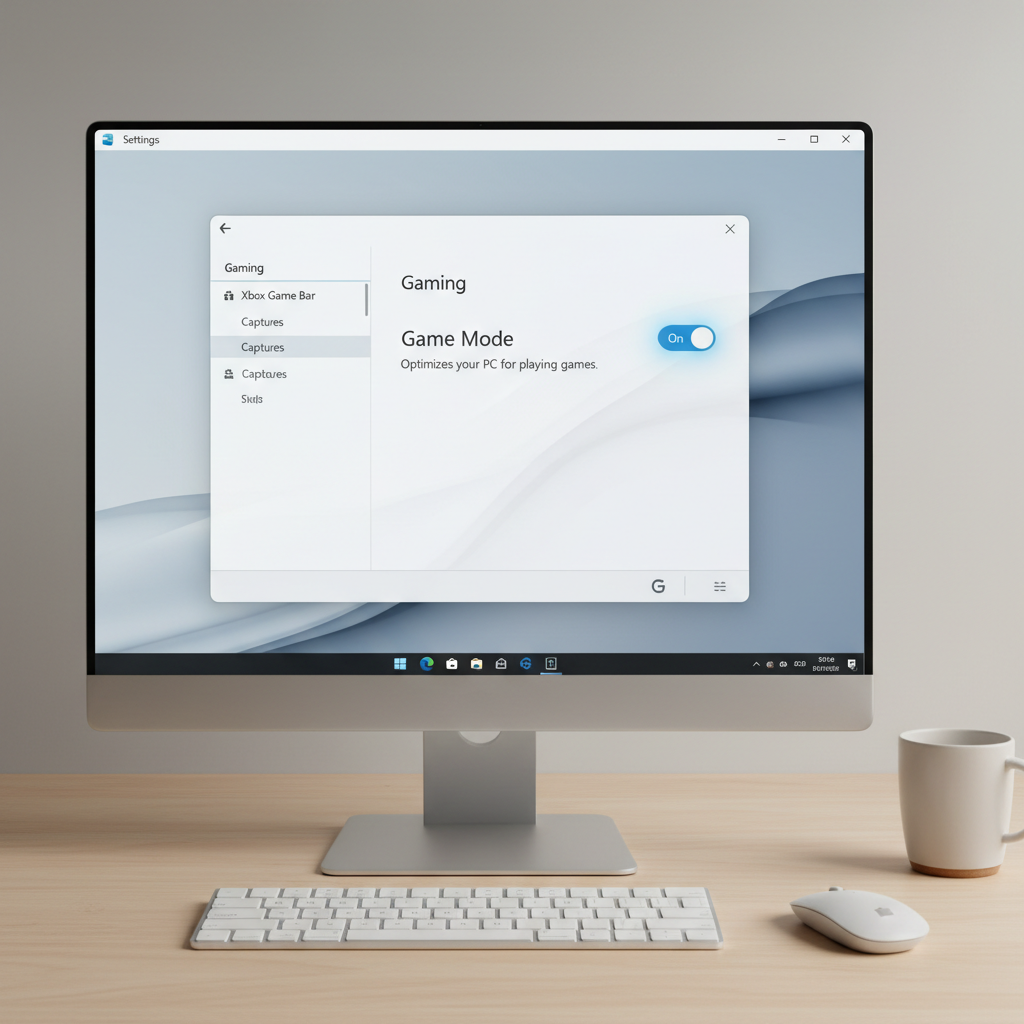
Game Mode in Windows 11 is meant to prioritize your game when you’re playing, so fewer resources get pulled away by background activity. In plain English, Windows tries to “stay out of your way” a bit more.
Typically, Game Mode can help with:
- Reducing background process interruptions while a game runs
- Keeping gameplay steadier when other apps are open
- Preventing some system tasks from being too aggressive during play
What it usually won’t do: fix a weak GPU/CPU, cure bad drivers, or solve network lag. If your issue is ping spikes, that’s a different lane.
According to Microsoft Support, Game Mode helps Windows optimize your PC for gameplay by prioritizing game processes and reducing background activity.
Enable Game Mode in Windows 11 (step-by-step)
Here’s the straightforward path most people need.
Turn Game Mode on
- Open Settings (Windows key + I)
- Go to Gaming
- Select Game Mode
- Toggle Game Mode to On
If you were searching how to enable game mode windows 11 because a specific title is acting up, do this first, then test the same in-game area for a fair comparison (same map, same scene, same graphics preset).
Quick check: how to tell if Game Mode is actually working
Windows doesn’t always flash a big “Game Mode: ON” banner, so you verify it indirectly.
- Confirm the toggle stays on: go back to Settings and make sure it didn’t revert after a reboot.
- Compare consistency, not peak FPS: many people see fewer dips rather than higher averages.
- Watch background load: close extra launchers, browsers, or overlays and see whether stutters improve further.
If nothing changes at all, that doesn’t automatically mean Game Mode failed. It often means your bottleneck is elsewhere (drivers, thermals, disk, overlays, or game settings).
Game Mode vs. other Windows 11 gaming settings (what to prioritize)
People fixate on the Game Mode switch, but Windows 11 has a few adjacent options that can matter just as much depending on your PC.
Here’s a practical cheat sheet:
| Setting | Where to find it | When it helps | Common downside |
|---|---|---|---|
| Game Mode | Settings → Gaming → Game Mode | Background activity causing stutter | May be neutral on high-end rigs |
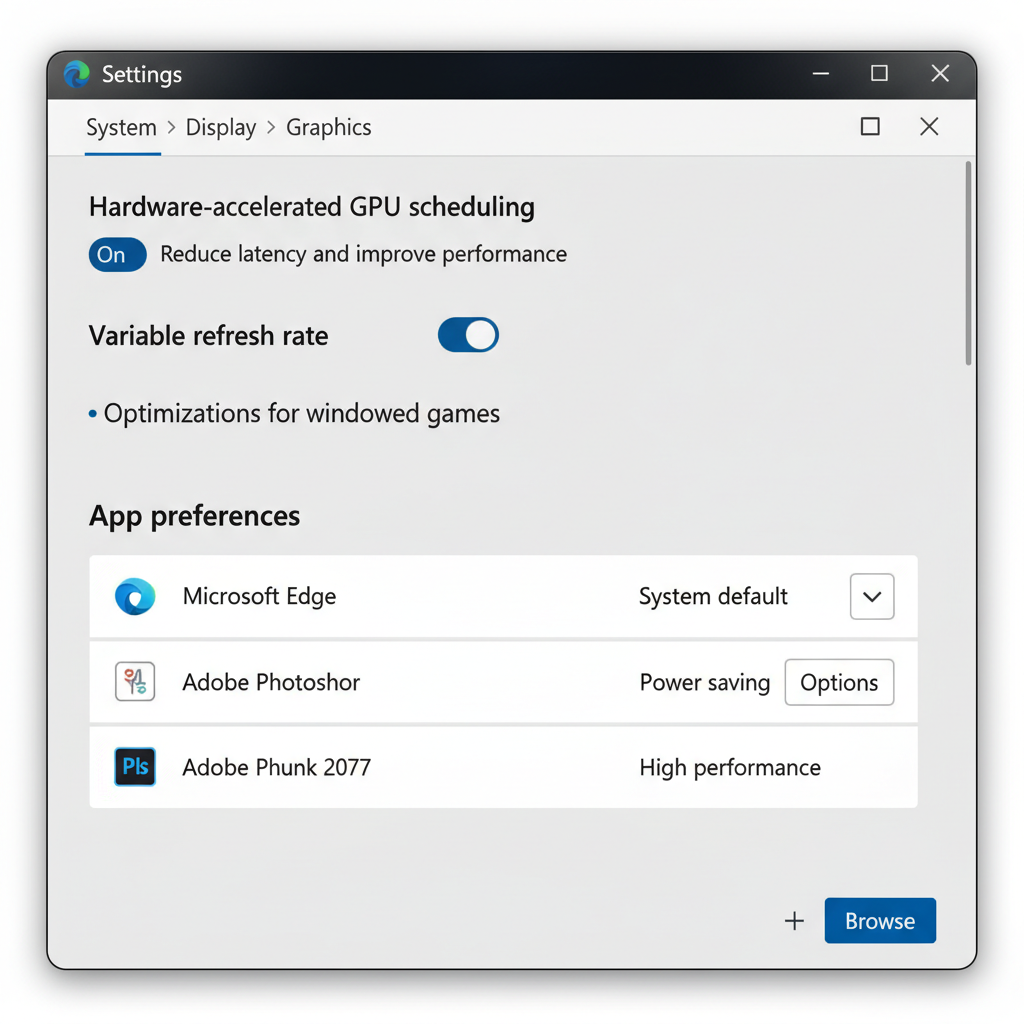
| Hardware-accelerated GPU scheduling (HAGS) | Settings → System → Display → Graphics → Default graphics settings | Some systems see smoother frame pacing | Can cause issues in certain driver/game combos |
| Graphics preference per app | Settings → System → Display → Graphics | Laptops with iGPU + dGPU, wrong GPU being used | Needs per-game setup |
| Xbox Game Bar / overlays | Settings → Gaming | Convenience features, capture tools | Overlays can add overhead or conflicts |
According to Microsoft Support, graphics-related settings in Windows can affect performance and which GPU an app uses, especially on systems with more than one GPU.
Troubleshooting when Game Mode doesn’t help (common real-world causes)
When enabling Game Mode changes nothing, the cause is often more basic than people want it to be.
1) Your game is running on the wrong GPU (common on laptops)
- Go to Settings → System → Display → Graphics
- Find your game (add it if needed)
- Select Options → choose High performance (your discrete GPU)
This is one of those “quiet” problems: everything looks fine until you notice your dGPU barely wakes up.
2) Overlays and recorders are fighting each other
- Try disabling Xbox Game Bar capture features you don’t use
- Temporarily turn off Discord overlay, Steam overlay, GeForce Experience overlay, etc.
- Retest, then add back one overlay at a time
3) Driver or Windows updates are pending (or recently changed)
- Update your GPU driver from NVIDIA/AMD/Intel (or your PC manufacturer if required)
- Reboot after installs, even if Windows says it’s optional
- If performance got worse right after a driver update, a clean reinstall can sometimes help
4) Storage and shader compilation stutter
Some games stutter when compiling shaders or streaming assets, especially after patches. Game Mode won’t fix that. A faster SSD, updated drivers, or simply letting the game finish background compilation can matter more.
Practical setup checklist for smoother gaming on Windows 11
If you want a quick “do this, then test” routine, this covers the settings that most often move the needle.
- Enable Game Mode and reboot once, just to clear any stuck states.
- Set the correct GPU for the game in Windows Graphics settings (especially on laptops).
- Use Fullscreen Exclusive if the game supports it and you’re chasing the lowest input latency.
- Keep overlays lean; use one capture/overlay tool, not three.
- Cap FPS if frame pacing feels rough (in-game cap is often cleaner than driver-level caps, but it varies).
- Check power mode: on laptops, ensure you’re not in a battery-saver plan while plugged in.
Key point: if you change five things at once, you never learn what helped. Pick one or two, test, then move on.
When to get more help (or dig deeper)
If performance issues persist after you confirm how to enable game mode windows 11 and you’ve tested the basic checklist, it may be time for deeper diagnostics.
- Crashes or black screens: consider vendor driver support (NVIDIA/AMD/Intel) or your PC maker, because this can be driver, PSU, or hardware stability.
- High temps and throttling: if fans ramp hard and FPS drops after a few minutes, you may be thermal-limited; cleaning, airflow improvements, or a technician assessment can be appropriate.
- Consistent 100% disk usage during gameplay: storage health checks might help, and a professional can advise if you see warning signs.
For any hardware changes or BIOS tweaks, proceed cautiously and consider professional help if you’re not comfortable. Stability matters more than squeezing out a tiny gain.
Conclusion: the simplest way to get the benefit
Game Mode is worth turning on for most players because it’s low effort and low risk, and in many setups it reduces annoying background interruptions more than it boosts raw FPS.
If you want one clean next step, enable Game Mode, confirm your game uses the high-performance GPU, then run the same in-game scene twice and compare consistency. That quick A/B test tells you more than any setting debate.