
Best desk organizers for tech gadgets aren’t about making your workspace look like a catalog, they’re about keeping cables, chargers, earbuds, hubs, and small accessories reachable without turning your desk into a drawer dump.
If you work from a laptop, juggle multiple devices, or just keep buying “one more” cable, the mess usually grows faster than you expect. The right organizer setup reduces friction, you plug in faster, you lose fewer dongles, and your desk stops feeling noisy.
This guide helps you pick organizers that match real tech habits, like hot-swapping devices, carrying gear in a bag, or keeping a hybrid-work station tidy. You’ll also get a quick-fit checklist, a comparison table, and a few setup plans you can copy in 20 minutes.
What makes a desk organizer “tech-friendly” (and why some fail)
A normal desk organizer can hold pens and sticky notes, but tech has different pain points: cable bulk, heat, frequent access, and lots of small parts that look identical.
- Fast access beats perfect storage: if you need to open a box every time you charge, you’ll stop using it.
- Cable routing matters: organizers without pass-through slots often create new tangles.
- Right-size compartments: USB-C adapters and microSD cards disappear in deep bins.
- Surface protection: watch chargers, hubs, and portable SSDs slide around; a grippy liner helps.
- Heat and airflow: power bricks and docks can run warm, so sealed compartments may be a bad match.
According to OSHA, good housekeeping reduces hazards and improves safety in work areas. For desk tech, that often translates into fewer snags, fewer trip risks from dangling cords, and less accidental yanking of devices.
Quick self-check: which desk-clutter pattern are you?
Before buying anything, be honest about what actually creates mess. Most people don’t need “more storage,” they need the right kind of storage in the right place.
Pick the best match
- The Cable Nest: multiple chargers and cords pile up near one outlet or power strip.
- The Dongle Graveyard: adapters, USB drives, SD cards, and SIM tools vanish weekly.
- The Multi-Device Shuffle: phone, tablet, headphones, and a work laptop rotate all day.
- The Creator Stack: mics, camera batteries, card readers, lights, and external drives share one surface.
- The Hot Desk / Hybrid: you clear everything often, then rebuild the setup again tomorrow.
If you recognized two or more, aim for a system (tray + cable control + vertical space), not a single “hero organizer.”
Types of organizers that work well for gadgets
When people search for the best desk organizers for tech gadgets, they’re usually deciding between a few common form factors. Here’s how they differ in day-to-day use.
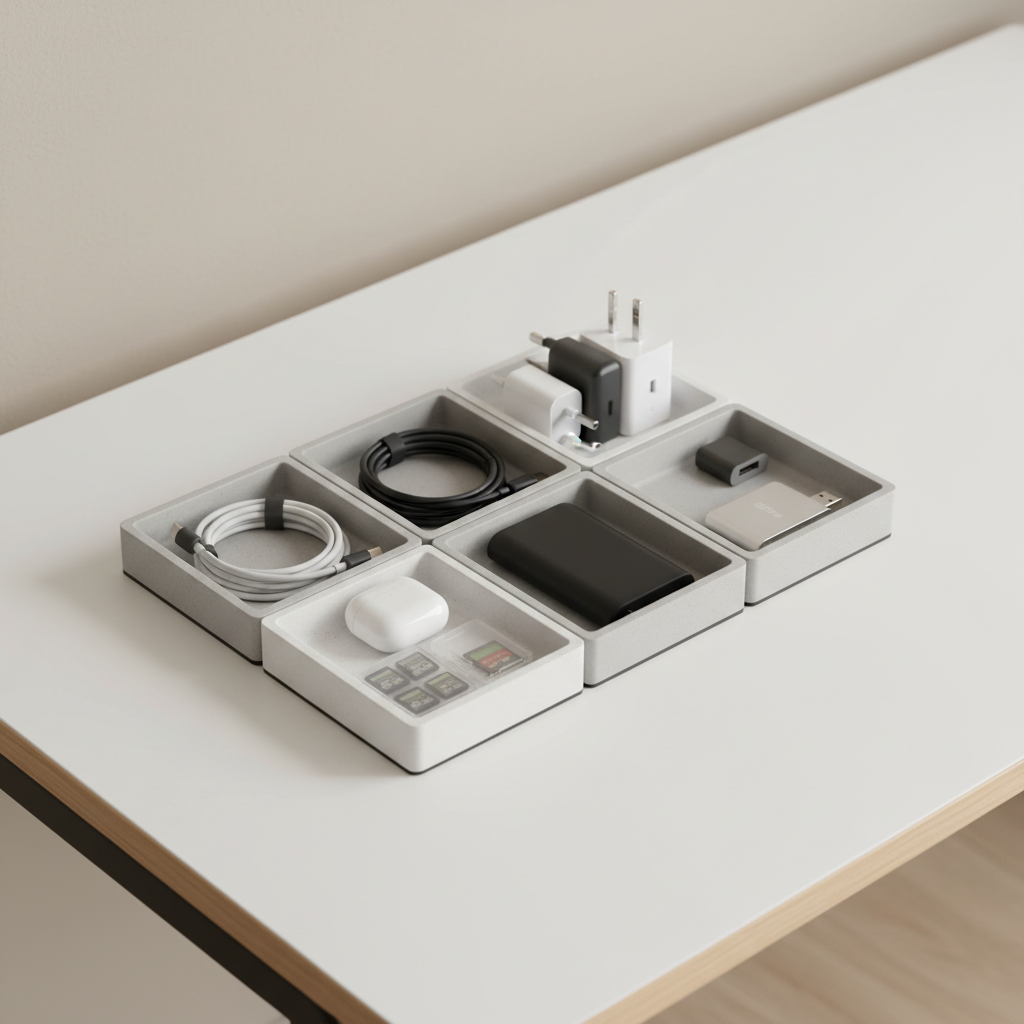
1) Modular trays (the “default win”)
Shallow trays with movable dividers keep small items visible. They’re forgiving, easy to reconfigure, and you can expand later by adding another tray.
- Best for: dongles, cables, USB drives, styluses, AirTag/Tile, small tools
- Look for: non-slip base, divider system, stackable or side-by-side layout
2) Charging stations and docks
A dock can tidy charging, but it can also become a bottleneck if it’s incompatible with cases, watch bands, or device rotations. Wireless charging is convenient, but sometimes slower and pickier about alignment.
- Best for: multi-device households, shared desks, night-and-day charging routines
- Look for: cable exit channels, stable weight, space for thick phone cases
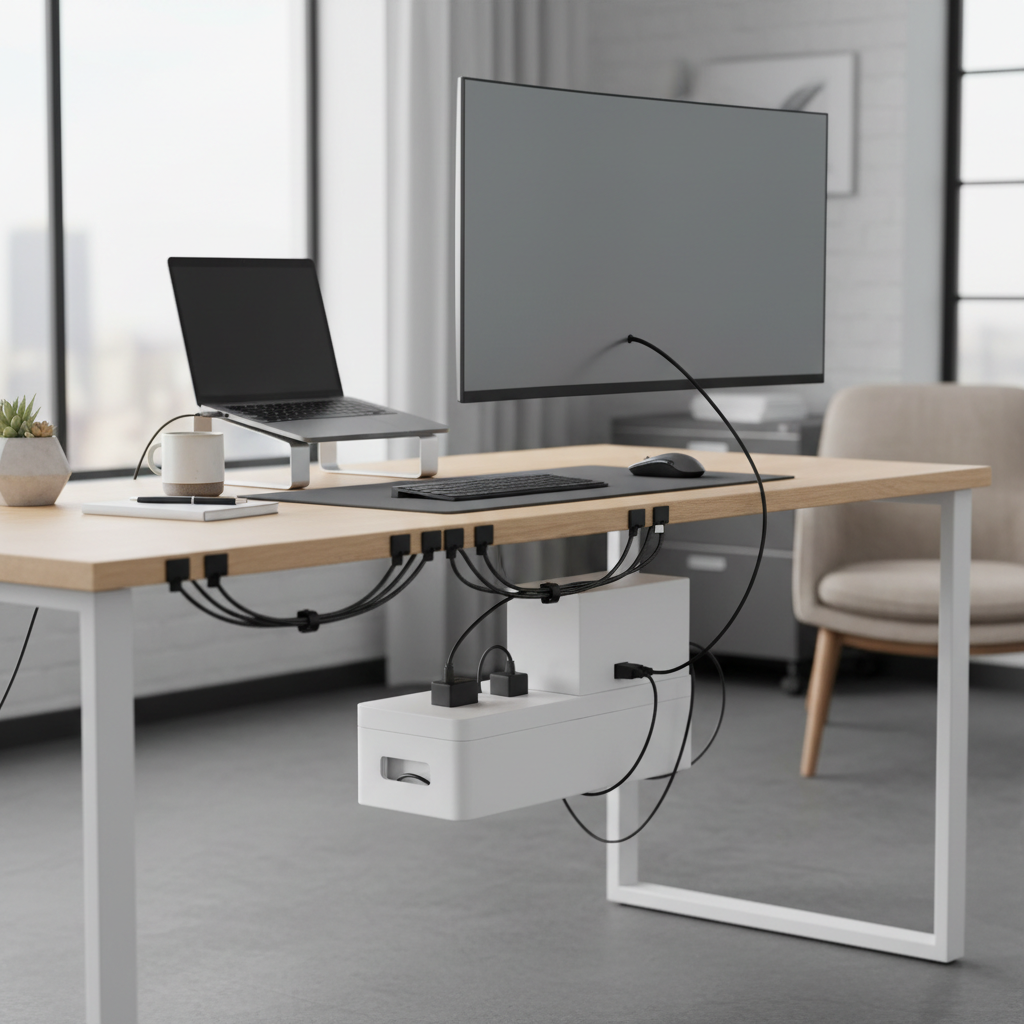
3) Cable management (clips, sleeves, boxes)
This is the unglamorous part that makes everything else feel “organized.” Clips keep daily cables in the same spot, sleeves reduce visual mess, and a cable box hides power strips when you must.
- Best for: cable nests, standing desks, visible power strips
- Look for: adhesive that won’t peel finish, wide slots for USB-C heads
4) Vertical organizers and monitor risers
Going vertical clears the surface fast. A monitor riser with compartments can store hubs and drives while keeping them reachable.
- Best for: small desks, creator stacks, dual-monitor setups
- Look for: ventilation gaps, sturdy load rating, clean cable routing
5) Small-part cases (micro storage)
If you own a lot of tiny items, a dedicated SD card case or adapter wallet stops the constant “where did it go” loop. The trick is keeping it where you actually use it.
- Best for: photographers, IT pros, anyone with many adapters
- Look for: labeled slots, hard shell, bright interior for visibility
Comparison table: choose the right organizer for your setup
Use this as a quick decision aid. The “best” choice changes based on whether you need speed, minimalism, or high capacity.
| Organizer type | Solves best | Watch-outs | Ideal for |
|---|---|---|---|
| Modular tray | Small-item visibility, daily grab-and-go | Can look busy if overfilled | Most desks, mixed gadgets |
| Charging dock/station | One-place charging, fewer loose cables | Compatibility, heat, slower wireless charging | Multi-device users |
| Cable clips/sleeves | Stops cable sprawl, keeps cords anchored | Adhesive wear, difficult re-routing | Standing desks, visible cords |
| Monitor riser with storage | Creates space, hides hubs/drives | Ventilation, height ergonomics | Compact desks, dual monitors |
| Small-part case | Prevents losing adapters/cards | Easy to misplace if not assigned a home | Creators, travelers |
How to build a desk organization system in 20–30 minutes
You don’t need a full makeover. A small reset with the right zones usually sticks longer than a dramatic re-org.
- Zone 1: “Daily use” within arm’s reach: phone cable, earbuds, one fast charger, your main dongle.
- Zone 2: “Weekly use” slightly farther: spare cables, backup mouse, portable SSD, extra power brick.
- Zone 3: “Rare use” off-desk: legacy adapters, duplicate chargers, old remotes.
Then do this sequence:
- Pick one tray and commit to it as the home for small items, shallow compartments help you see what you own.
- Anchor 2–3 cables with clips where they naturally fall, one for laptop power, one for phone, one optional for accessories.
- Decide on charging style: either a single dock, or “cables live at the edge,” mixing both often recreates clutter.
- Label the tiny stuff (even a simple tag): USB-C to HDMI vs USB-C to USB-A looks the same in a rush.
Key point: if an item doesn’t have a “home” you can name in one second, your desk will drift back to chaos, even if the organizers look great.
Common mistakes that waste money (and what to do instead)
- Buying a big organizer first: large bins invite dumping. Start with a tray and cable anchors, then expand.
- Hiding everything: out of sight can mean “lost.” For gadgets, “visible but tidy” usually works better.
- Too many charging options: a dock plus three loose chargers often turns into four messy charging spots.
- Ignoring outlet reality: if your only outlet is across the desk, the mess returns. Adjust cable length or relocate the power source if possible.
- Over-optimizing: if the system is fragile, one rushed day breaks it. Aim for sturdy habits, not perfection.
According to The Verge, cable management is less about hiding everything and more about making cables predictable and easy to access when you need to swap devices. That mindset tends to keep setups usable, not just pretty.
When you might need extra help (ergonomics, safety, or specialized setups)
If your setup includes heavy monitor arms, a sit-stand desk with moving cables, or you notice frequent neck/wrist discomfort, organization overlaps with ergonomics. According to OSHA, proper workstation setup helps reduce strain risks; if discomfort persists, it may be worth talking to an ergonomics professional or your healthcare provider.
For safety, avoid overloading power strips, keep ventilation around power bricks, and replace frayed cables. If you’re unsure about electrical load or wiring, a qualified electrician is the right person to ask.
Conclusion: what to buy first if you want results fast
For most people, the best desk organizers for tech gadgets come down to three moves: a modular tray for small items, cable clips to stop daily cord sprawl, and either a single charging station or a simple “charging edge” with one cable per device.
If you want an easy next step, clear one square foot of desk space, set up a tray as your “tech pocket,” and anchor your two most-used cables today. That small win is usually what makes the rest stick.
FAQ
- What are the best desk organizers for tech gadgets in a small apartment?
Prioritize vertical space, like a monitor riser with storage and a compact tray. Small desks do better with fewer, smarter pieces rather than one large organizer. - Is a charging station better than separate chargers?
It depends on how many devices you rotate. A station helps when you charge multiple items daily, but separate chargers can be simpler if you only plug in one or two things. - How do I organize USB-C hubs, dongles, and adapters so they don’t disappear?
Use shallow compartments and consider a labeled mini case for the smallest pieces. Visibility beats “deep storage” for items you grab often. - What’s the easiest way to keep cables from falling behind the desk?
Cable clips on the desk edge work well because they keep cables anchored where your hand expects them. The key is placing them where the cable naturally rests. - Do cable management boxes cause overheating?
They can if you pack them tightly with large power bricks. Leave breathing room and avoid covering devices that run warm, if heat is a concern, choose a ventilated option. - How many organizers do I actually need?
Usually two or three pieces cover most setups: one tray, one cable solution, and optionally one charging solution. If you’re buying a fourth item, pause and check what problem it truly solves. - What if my desk gets messy again after a week?
That’s common. The fix is often reducing “decision points,” keep one default drop zone for small tech and one default charging spot, then reset for two minutes at day’s end.
If you’re trying to pick between a few organizer styles and want a setup that matches your devices, desk size, and charging habits, a quick layout plan can save you from buying items that look good but don’t get used.