
pc sleep mode fix usually comes down to one of three things: a device that keeps waking the PC, an app or driver that blocks sleep, or a Windows power setting that looks right but behaves wrong.
If your computer won’t go to sleep, wakes up instantly, or only sleeps sometimes, it’s more than an annoyance, it can drain laptop battery, keep fans running overnight, and in some cases cause heat wear over time. The good news is you can narrow it down without reinstalling Windows.
This guide focuses on practical checks that work for most Windows 10/11 PCs: quick “is it hardware or software” tests, the exact commands that reveal what’s preventing sleep, and fixes that don’t break your setup.
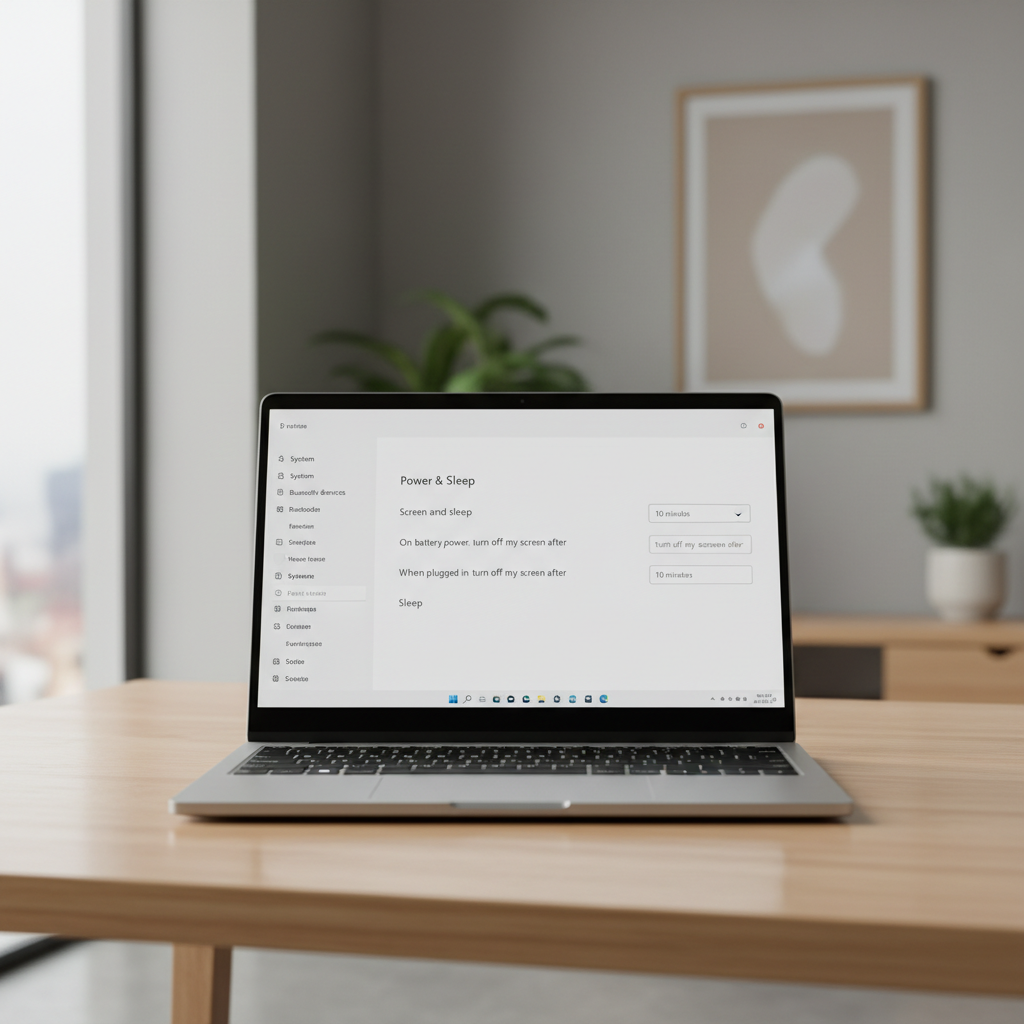
Why sleep mode fails on a PC (real-world causes)
Most “sleep not working” issues aren’t a single bug, they’re a conflict between power policy and something insisting the machine stay awake.
- USB devices waking the system: mice, keyboards, USB hubs, game controllers, and some docking stations can trigger wake events.
- Network wake features: Wake-on-LAN or “wake on magic packet” can wake a desktop, and sometimes a laptop, even when you didn’t ask.
- Drivers that don’t sleep nicely: display, Wi‑Fi, Bluetooth, storage, and chipset drivers can keep the system in a “busy” power state.
- Apps requesting wake locks: backup tools, media players, conferencing apps, virtual machines, and some launchers can prevent sleep.
- Modern Standby quirks: on some newer laptops, “S0 Low Power Idle” behaves differently from classic S3 sleep, and it can feel like sleep is broken when it’s really “connected standby” staying semi-awake.
According to Microsoft, Windows can stay awake when apps or drivers make “power requests,” and you can inspect those requests with built-in tools. That’s the fastest way to stop guessing.
Quick checklist: which sleep problem do you actually have?
Before you change a bunch of settings, match your symptom to the likely culprit.
| What you see | Most common cause | Best next step |
|---|---|---|
| PC won’t sleep at all | Power request from app/driver | Run powercfg /requests |
| Sleeps, then wakes immediately | USB/network wake event | Check powercfg /lastwake and Device Manager wake permissions |
| Sleeps randomly, unreliable | Driver/BIOS power management | Update chipset/BIOS, reset power plan |
| Wakes in the middle of the night | Scheduled tasks, updates, maintenance | Review wake timers and Task Scheduler |
| “Sleep” looks like screen off but fans keep running | Modern Standby (S0) behavior | Check sleep states with powercfg /a |
Find what’s preventing sleep (two commands that save hours)
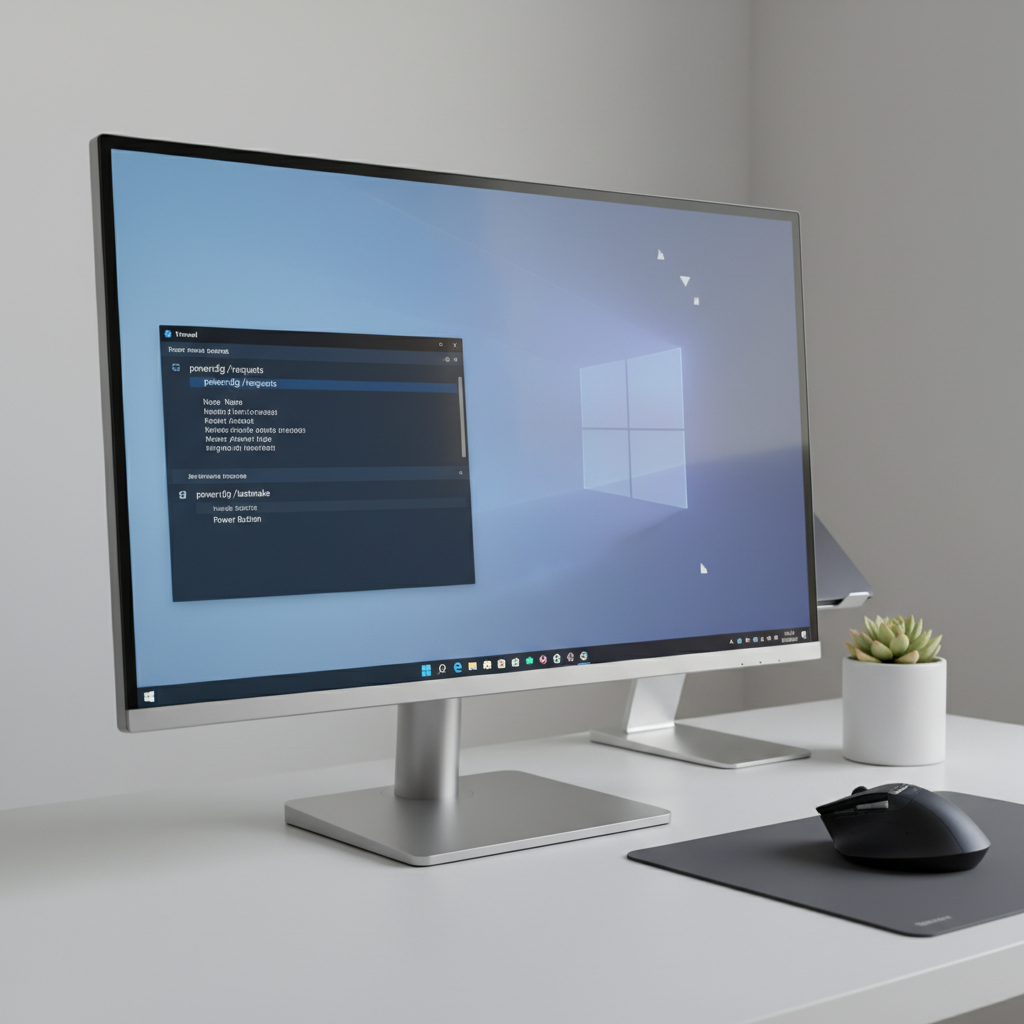
Open Command Prompt (Admin) or Windows Terminal (Admin) and run these. They’re the backbone of a reliable pc sleep mode fix.
1) See active power requests
powercfg /requests
- If you see an entry under DISPLAY, SYSTEM, or AWAYMODE, that item can block sleep.
- Common examples: audio streams, conferencing apps, driver services, game launchers.
2) See what woke the PC last time
powercfg /lastwake
- If it names a device, you’ll typically fix it by disabling that device’s “wake” permission.
- If it points to a timer, you’ll look at wake timers and scheduled tasks.
Fixes that work most often (start here)
When people try a pc sleep mode fix, they often jump to random toggles. These steps target the usual blockers with the least collateral damage.
Reset the power plan (without wiping your PC)
- Go to Control Panel → Power Options.
- Select your active plan → Change plan settings → Restore default settings for this plan.
- If you’ve customized a lot, consider switching to Balanced temporarily to test.
Turn off “Fast startup” (especially for desktops)
This can reduce weird wake/sleep behavior on some systems.
- Control Panel → Power Options → Choose what the power buttons do
- Click Change settings that are currently unavailable
- Uncheck Turn on fast startup
Update the drivers that matter (not every driver)
Prioritize drivers most tied to power states: chipset, graphics, Wi‑Fi/Bluetooth, and storage. In many cases, the OEM site (Dell/HP/Lenovo/ASUS) is more reliable than a random driver tool.
According to Microsoft, keeping Windows updated helps deliver fixes for power and reliability issues, but drivers still often come from your PC maker or component vendor.
Check BIOS/UEFI updates if sleep has never been stable
If the machine has had sleep issues since day one, firmware updates can help, but follow the vendor instructions carefully. If you’re unsure, asking IT or a repair shop is safer than guessing.
Stop devices from waking your PC (mouse, keyboard, Wi‑Fi)
If your PC sleeps but wakes instantly, device wake is a prime suspect.
Disable wake permission for specific devices
- Open Device Manager
- Expand Mice and other pointing devices, Keyboards, and Network adapters
- Right-click the device → Properties → Power Management
- Uncheck Allow this device to wake the computer
Tip: don’t disable wake for your keyboard if you rely on keyboard wake daily. Many people disable it for an external mouse first and see if the problem stops.
List wake-capable devices (so you don’t miss one)
powercfg /devicequery wake_armed
This shows devices currently allowed to wake the system. If you see a USB receiver or network adapter you don’t need for wake, that’s a good candidate.
Fix wake timers and scheduled tasks (the “wakes at 3 AM” issue)
Night-time wakeups often come from maintenance tasks or wake timers. The trick is turning off the right thing without breaking updates.
Disable wake timers (carefully)
- Control Panel → Power Options → Change plan settings → Change advanced power settings
- Sleep → Allow wake timers → set to Disable (test it for a day or two)
If you depend on overnight backups or scheduled jobs, disabling wake timers may be inconvenient. In that case, focus on identifying the specific task instead of globally disabling timers.
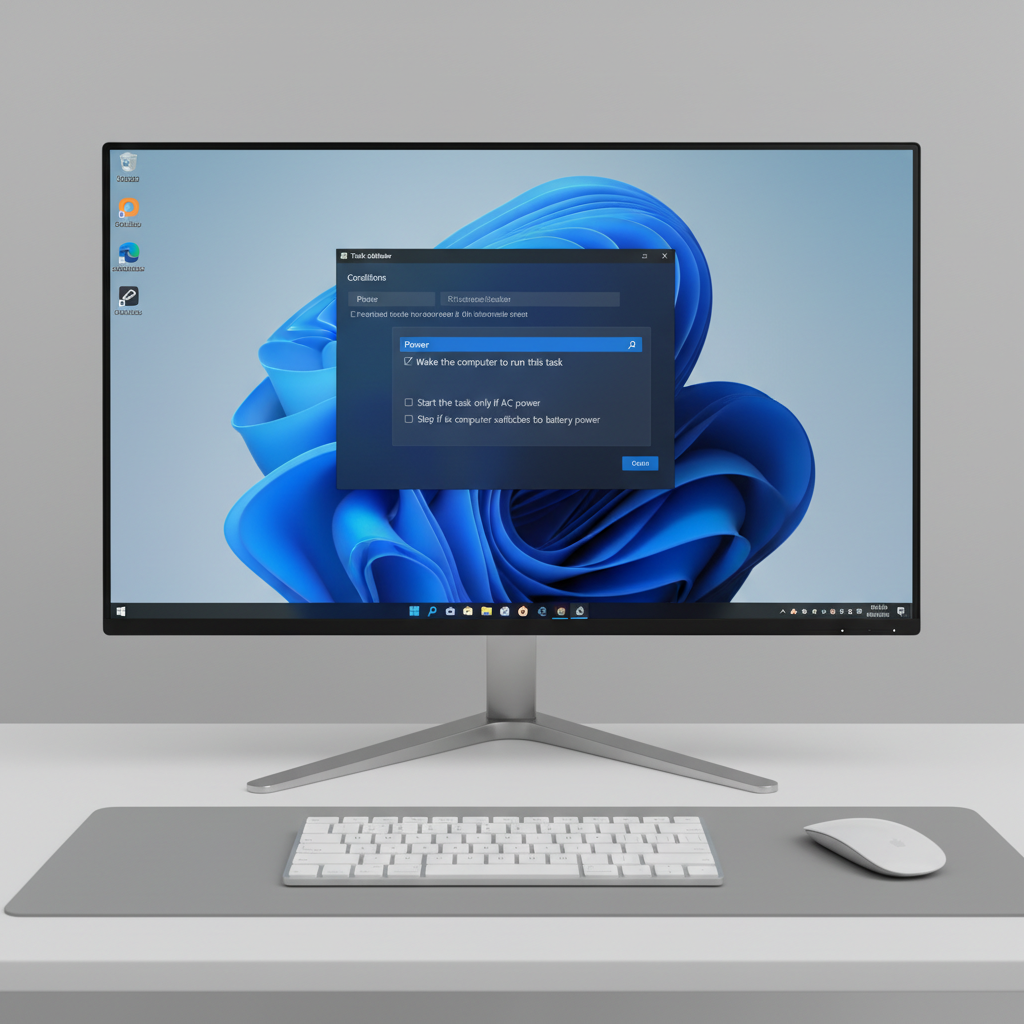
Check Task Scheduler for “Wake the computer”
- Open Task Scheduler → Task Scheduler Library
- Look for tasks with triggers overnight, then open Conditions
- Untick Wake the computer to run this task where it’s not needed
Modern Standby (S0) vs classic sleep: know what your PC supports
Some laptops don’t support the older S3 sleep state, so “sleep” can behave like a low-power connected mode. That can look like the PC never truly sleeps, especially if the device runs warm in a bag.
Check available sleep states
powercfg /a
- If you see Standby (S0 Low Power Idle), your PC uses Modern Standby.
- If you see Standby (S3), you have classic sleep available.
According to Microsoft, Modern Standby is designed to keep the system responsive while managing background activity, but behavior varies by hardware design and driver quality. If your laptop runs hot during sleep, consider using Hibernate for travel and bags.
Practical “do this now” sequence (10–20 minutes)
If you want a single path to follow, this usually gets you to a working pc sleep mode fix without over-tweaking.
- Run powercfg /requests, close or uninstall the app that shows up (or update it) and retest sleep.
- Run powercfg /lastwake, then disable wake permission for that device in Device Manager.
- Reset your active power plan to defaults, then retest.
- Update chipset + Wi‑Fi/Bluetooth + graphics drivers from the PC maker site, then retest.
- If wake-at-night continues, disable wake timers temporarily and check Task Scheduler for “Wake the computer.”
Common mistakes that waste time
- Changing five settings at once: if sleep starts working, you won’t know which change fixed it, and it’s easy to break something else.
- Blaming Windows before checking devices: a “bad” USB hub or a sensitive mouse can wake a system repeatedly.
- Using sketchy driver updaters: they can install mismatched drivers and make power management worse.
- Ignoring heat with Modern Standby: if a laptop stays warm while sleeping in a backpack, switch to hibernate for safety.
When to escalate (IT support or a repair shop)
If sleep issues started after hardware changes, liquid damage, or random shutdowns, or you suspect battery swelling or overheating, stop experimenting and get professional help. Also escalate if BIOS updates fail, if the system won’t wake consistently, or if you see repeated blue screens around sleep/wake events.
For business devices managed by an employer, your org may enforce power policies via management tools. In that case, some settings will revert, and it’s better to work with IT than fight the policy.
Conclusion
A reliable pc sleep mode fix is less about one magic toggle and more about identifying what’s keeping the machine awake, then removing that one blocker. Start with powercfg /requests and powercfg /lastwake, then tighten device wake permissions and update the drivers that control power states.
If you want one action today, run those two commands and write down what they report, it instantly turns “sleep is broken” into a specific target you can fix.
FAQ
Why does my PC sleep mode not work even after changing Power & Sleep settings?
Because the slider settings don’t override power requests from apps, drivers, or devices. Check powercfg /requests to see what’s actively blocking sleep and address that item directly.
How do I stop my mouse from waking my computer?
In Device Manager, open your mouse properties and uncheck Allow this device to wake the computer. If you use a USB receiver, check that device too, not just the mouse entry.
What is the best pc sleep mode fix for waking up randomly at night?
Start with powercfg /lastwake, then review wake timers and Task Scheduler tasks that have “Wake the computer” enabled. Random wakeups often trace back to one scheduled task or a network adapter.
Is it better to use Sleep or Hibernate on Windows 11?
Sleep is faster to resume, hibernate is safer for long periods and travel since it writes memory to disk and fully powers down. If your laptop stays warm in sleep, hibernate is often the more practical choice.
Can Windows Update prevent sleep?
Sometimes. Updates, maintenance, or reboot reminders can keep the system active, and certain tasks can use wake timers. It’s usually more effective to identify the specific wake source than to disable updates.
How do I know if my PC uses Modern Standby?
Run powercfg /a. If you see Standby (S0 Low Power Idle), that’s Modern Standby. Behavior depends heavily on hardware and drivers, so fixes may involve OEM driver updates and using hibernate when needed.
My PC sleeps but won’t wake up—what should I do?
That can be driver, firmware, or hardware related. Update chipset and graphics drivers, check for BIOS/UEFI updates, and test unplugging external peripherals. If it persists, getting hands-on support is reasonable because repeated failed wakes can risk data loss.
If you’re trying to fix sleep issues on a specific Windows laptop model or a custom desktop with lots of peripherals, it can help to share what powercfg /requests and powercfg /lastwake show, then you can zero in on the one setting or device worth changing instead of chasing every checkbox.