
How to set up vpn on home router safely usually comes down to two things: using a router method you can trust, and tightening the settings people skip when they just want it “working.” If you do it right, every device on your Wi‑Fi benefits, including smart TVs and game consoles that can’t run VPN apps.
The catch is that router VPN setups can fail quietly, you might think you’re protected while traffic leaks outside the tunnel, or you weaken your home network by exposing the router admin page, using old firmware, or copying random “one-click” scripts.
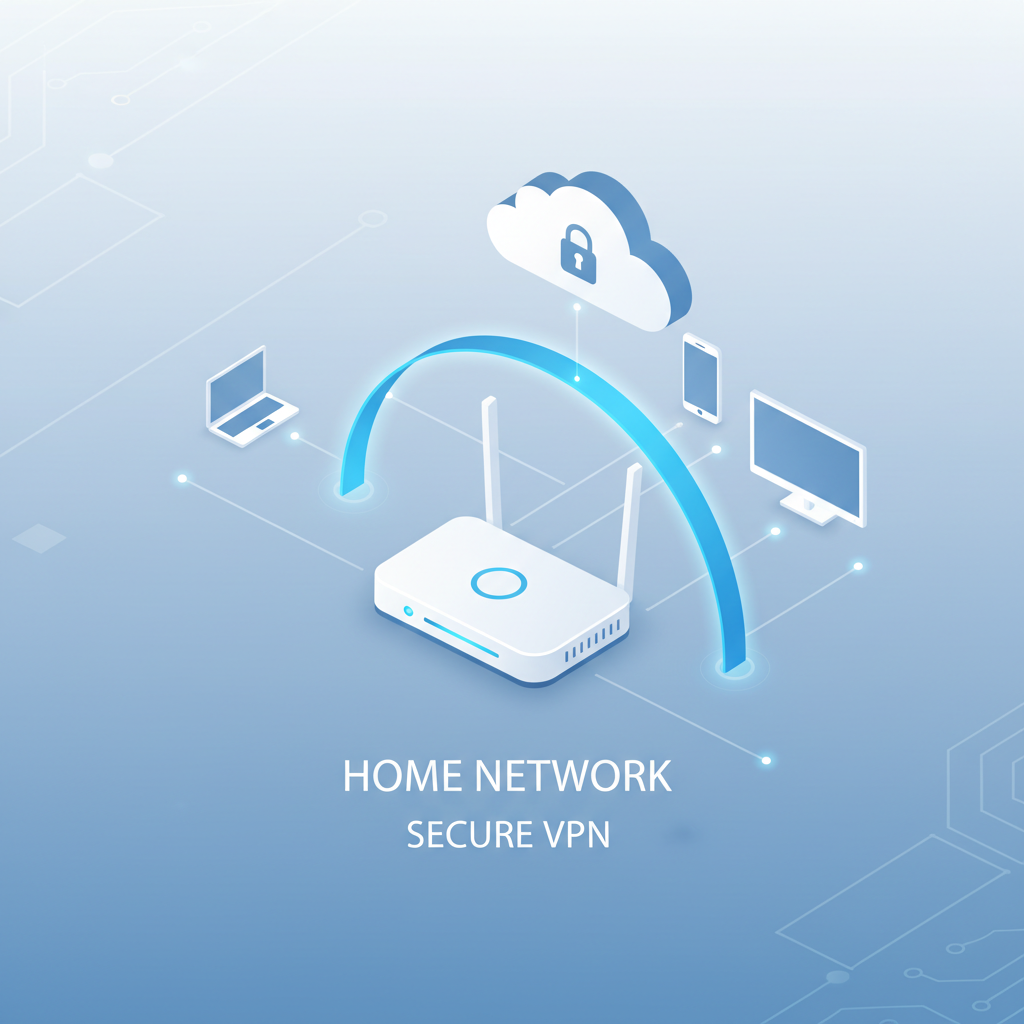
This guide focuses on practical safety, not just configuration screens. You’ll see which setup approach fits your router, a quick self-check to avoid common exposure risks, and a step-by-step flow that reduces downtime and surprises.
Choose the safest router VPN approach (and why it matters)
Before touching settings, decide where the VPN “lives”. This choice affects reliability, speed, and your risk of misconfiguration.
- Router as VPN client (recommended for most homes): Your router connects to a VPN provider, and devices behind it route through the tunnel. Best for whole-home coverage.
- Router as VPN server: You connect back into your home network while traveling. Useful, but it adds exposure if you open ports carelessly.
- Dedicated VPN gateway device: A small box (or spare router) runs the VPN, your main router stays simple. Often safer if your ISP router is locked down.
Many consumer routers can’t run modern VPN clients well, or they do it with limited controls. If your router struggles, it’s usually better to use a dedicated gateway than to force it.
Quick comparison table
| Option | Best for | Typical risk points | Notes |
|---|---|---|---|
| Router VPN client | Protecting all devices on Wi‑Fi | DNS leaks, weak admin security, old firmware | Prefer WireGuard if supported |
| Router VPN server | Remote access to home | Exposed ports, weak passwords, no MFA | Use strong auth, minimize open services |
| Dedicated VPN gateway | Stable VPN + flexible routing | Extra device to maintain | Keeps ISP router unchanged |
Safety checklist: confirm you’re in the “low-risk” lane
Do this before setup, it prevents most self-inflicted problems.
- You can update router firmware (and you’re willing to do it). If you can’t, consider a gateway device.
- You know how to access the router admin page locally and it’s not exposed to the public internet.
- You have a plan for recovery: you can revert settings, or you can reach the router if the VPN breaks routing.
- Your ISP router situation is clear: if you have an ISP gateway plus your own router, you might be double-NAT’ed, which affects server setups and some routing policies.
- You’re not relying on “free VPN” configs you found in a forum post. Misleading profiles are a real risk.
According to CISA (Cybersecurity and Infrastructure Security Agency), keeping devices updated and using strong authentication are key steps to reduce compromise risk. In home networking terms, that means firmware updates and locking down router admin access.
Prep work that makes the setup safer (and less painful)
This is the unglamorous part, but it’s what keeps “how to set up vpn on home router safely” from turning into an outage.
- Update firmware from the router vendor site or official admin UI, avoid third-party downloads.
- Back up your current configuration (export settings). If the VPN route breaks, restore in minutes.
- Change admin credentials: unique password, disable default usernames if the router allows it.
- Disable remote administration unless you truly need it, and if you do, restrict by IP and use HTTPS.
- Enable WPA3 (or WPA2-AES) and disable WPS. WPS “convenience” often becomes a weak link.

Also decide your “VPN policy”: do you want all devices through the VPN, or only specific devices like a streaming box? For many households, selective routing (policy-based routing) avoids unnecessary slowdowns.
Step-by-step: set up the router as a VPN client (safer default)
Exact menus vary by brand, but the safe flow stays similar.
1) Pick a protocol your router can run well
- WireGuard: often faster and simpler, fewer moving parts.
- OpenVPN: widely supported, can be stable but heavier on CPU.
If your router is older, OpenVPN performance can be disappointing. That’s not a security flaw by itself, but slow tunnels tempt people to disable the VPN “temporarily” and forget.
2) Import the VPN profile from your provider
- Use your provider’s official config files or QR/import method.
- Verify server region and expected features (kill switch equivalent, DNS settings).
- Avoid copying configs from random pastebins.
3) Set DNS deliberately (this is where leaks happen)
Many “it connects but it’s not private” cases are DNS-related. You have a few safe patterns:
- Use VPN provider DNS if they offer it, and force it at the router level.
- Use a reputable encrypted DNS option (DoH/DoT) if your router supports it, but confirm it still routes through the VPN.
- Disable ISP DNS fallback if your router has a setting like “allow DNS rebind” or “fallback DNS,” names vary.
After applying, test from a device on Wi‑Fi with a DNS leak test site and confirm the resolver matches what you intended. Don’t trust the router “Connected” label alone.
4) Apply policy-based routing (optional, but practical)
If your router supports it, route only selected devices through the VPN. Typical examples:
- VPN on: smart TV, streaming stick, guest Wi‑Fi
- VPN off: work laptop (some employers block VPN), gaming console (latency-sensitive), smart home hub (vendor dependency)
Write down device IP/MAC mappings and use DHCP reservations, otherwise policies break when IPs change.
5) Add a “fail-closed” behavior if possible
Routers rarely label this as a kill switch, but you can often approximate it:
- Block WAN access for the VPN-routed VLAN/device group unless the VPN interface is up.
- Disable “redirect gateway if tunnel down” behavior that silently falls back to ISP routing.
If you can’t implement fail-closed safely, at least set up an alert or a quick routine to check your public IP after reboots and firmware updates.
Hardening tips people skip (but attackers don’t)
Once the VPN works, lock down the basics so the router itself doesn’t become the weak point.
- Turn off UPnP unless you have a specific need. UPnP can create surprise port forwards.
- Limit admin access to LAN only, and use HTTPS for the admin UI if supported.
- Separate networks: guest Wi‑Fi for visitors and IoT devices, main SSID for laptops/phones.
- Log review: check the router’s VPN logs after a day. Frequent reconnects suggest instability.
According to NIST (National Institute of Standards and Technology), network segmentation and strong access control are common recommendations to reduce lateral movement. A guest network for IoT is a simple version of that idea.
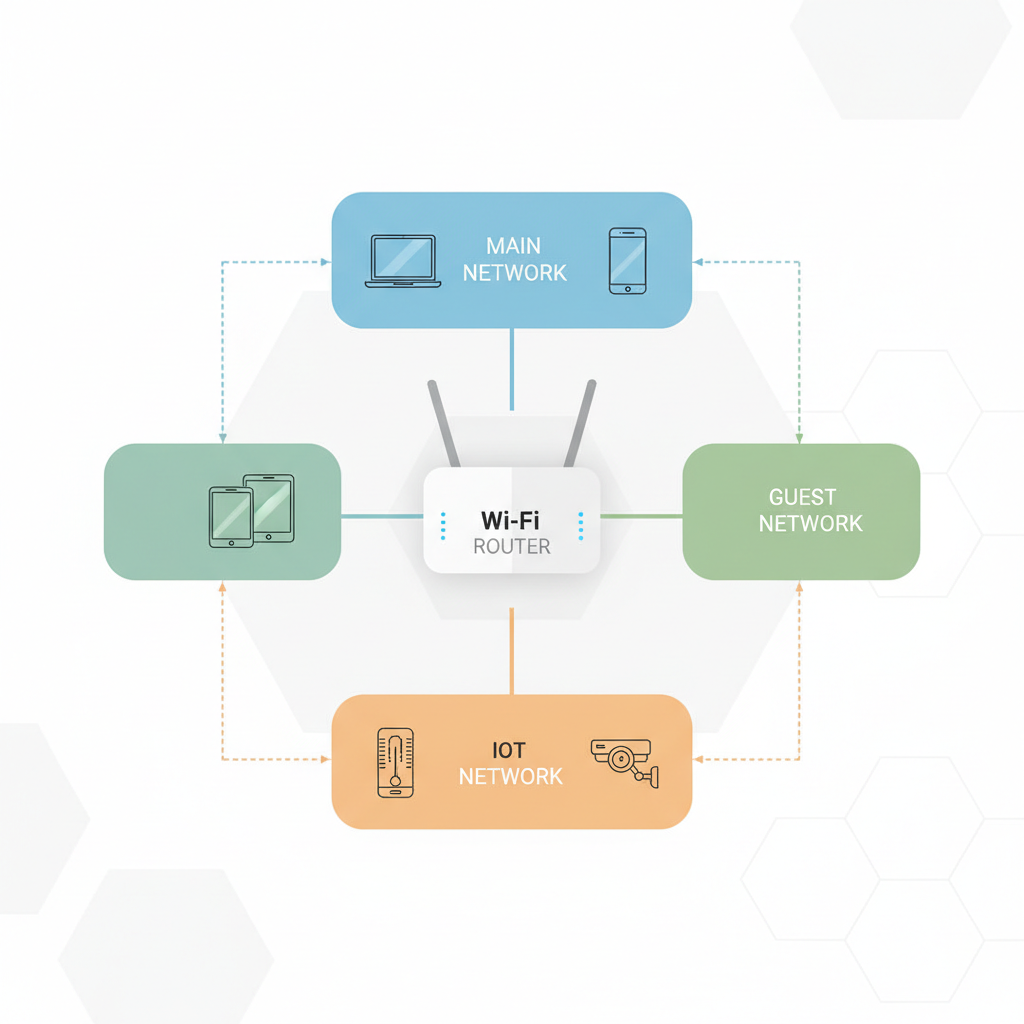
If you share your Wi‑Fi password widely, consider rotating it after you finish VPN setup. It’s not directly about the tunnel, it’s about who can sit behind it.
Verification: prove it’s safe, not just “connected”
Testing is where a safe setup becomes real.
- Public IP check: confirm your IP matches the VPN server region you selected.
- DNS leak test: verify DNS resolvers align with your VPN/provider choice.
- WebRTC leak check (browser-based): results vary by browser, but it can reveal local IP exposure in some cases.
- Reboot test: restart the router and confirm the VPN reconnects and routing rules remain correct.
- Device-by-device test: especially if you use policy routing, confirm “VPN-on” and “VPN-off” groups behave as expected.
Key takeaways to remember: router VPN safety is mostly firmware hygiene, admin access control, and leak-proof routing and DNS. The VPN tunnel is only one piece.
Common mistakes (and what to do instead)
- Mistake: enabling remote admin “just for convenience.” Instead: keep admin LAN-only, use a VPN server for remote management if needed.
- Mistake: ignoring CPU limits, then blaming the VPN provider. Instead: switch to WireGuard or use a gateway device.
- Mistake: routing everything through VPN without checking work or banking services. Instead: use split tunneling or per-device rules.
- Mistake: leaving UPnP on while also running a VPN server. Instead: manually forward only required ports, or avoid exposing services.
When to get professional help
If any of these are true, it may be worth asking a managed IT provider or a qualified network professional for a quick consult, especially if you work from home with compliance requirements.
- You need a router VPN server with secure remote access and you’re unsure about port forwarding or firewall rules.
- Your home setup includes multiple routers, mesh nodes, or VLANs and policies keep breaking.
- You suspect compromise signs: unknown admin accounts, unexpected port forwards, or settings you didn’t change.
This isn’t about fear, it’s about avoiding a DIY spiral when the environment gets complex.
Conclusion
If you want how to set up vpn on home router safely to actually hold up in daily use, treat it like a small security project: update firmware, secure admin access, set DNS intentionally, and verify with leak checks after reboots. Don’t chase perfection, chase consistency.
Your next step can be simple: pick whether you want whole-home VPN or only selected devices, then implement the client setup and run the verification checklist. If anything feels “unclear but working,” that’s usually the moment to double-check routing and DNS.
FAQ
- Can I set up a VPN on any home router?
Not always. Many ISP-provided gateways have limited VPN client support. In that case, adding your own router or a dedicated VPN gateway is often more practical. - Is WireGuard safer than OpenVPN on a router?
Both can be safe when implemented well. WireGuard is simpler and often faster, which helps routers with weaker CPUs, but availability depends on firmware and model. - Will a router VPN slow down my internet?
Usually, yes to some degree. The impact depends on router CPU, protocol, and server distance. If performance drops too much, selective routing can help. - How do I know my router VPN isn’t leaking DNS?
Run a DNS leak test from a device on your Wi‑Fi, then compare the resolver to what you configured. If you see your ISP resolver, adjust router DNS settings and disable fallback behavior. - Should I enable remote management to control my router when I travel?
In many home setups, it’s safer to avoid exposing the admin UI. If you need remote access, a properly configured VPN server into your home network is typically a better direction, but configuration details matter. - Do I need a kill switch on a router VPN?
A true kill switch is less common on routers, but you can often create fail-closed rules. If you can’t, build a habit of checking your public IP after reboots and updates. - What’s the safest way to handle smart home devices with a router VPN?
Put IoT devices on a guest network or separate SSID, then decide whether they need the VPN at all. Some devices behave unpredictably behind a VPN, so test slowly before moving everything.
If you’re trying to roll this out for a busy household and you want a more hands-off path, consider using a router or gateway that supports WireGuard and policy-based routing out of the box, it reduces the amount of fragile tweaking you’ll need to maintain over time.