
Best budget usb c docking stations are worth it when you need more ports and a cleaner desk, but you don’t want to gamble on flaky video output, slow charging, or “mystery” compatibility.
The tricky part is that “USB-C dock” can mean wildly different things: some are basically simple hubs, some add Ethernet and multi-monitor support, and some rely on laptop features many people don’t realize they even need.
This guide helps you choose with confidence: what to check on your laptop first, what features matter at a budget price, and how to avoid the common gotchas that lead to returns.
What “budget” should still include (and what can be optional)
At a lower price, you’re usually trading premium build, extra display chips, or higher wattage power delivery for “good enough” connectivity. That’s fine, as long as the basics are covered.
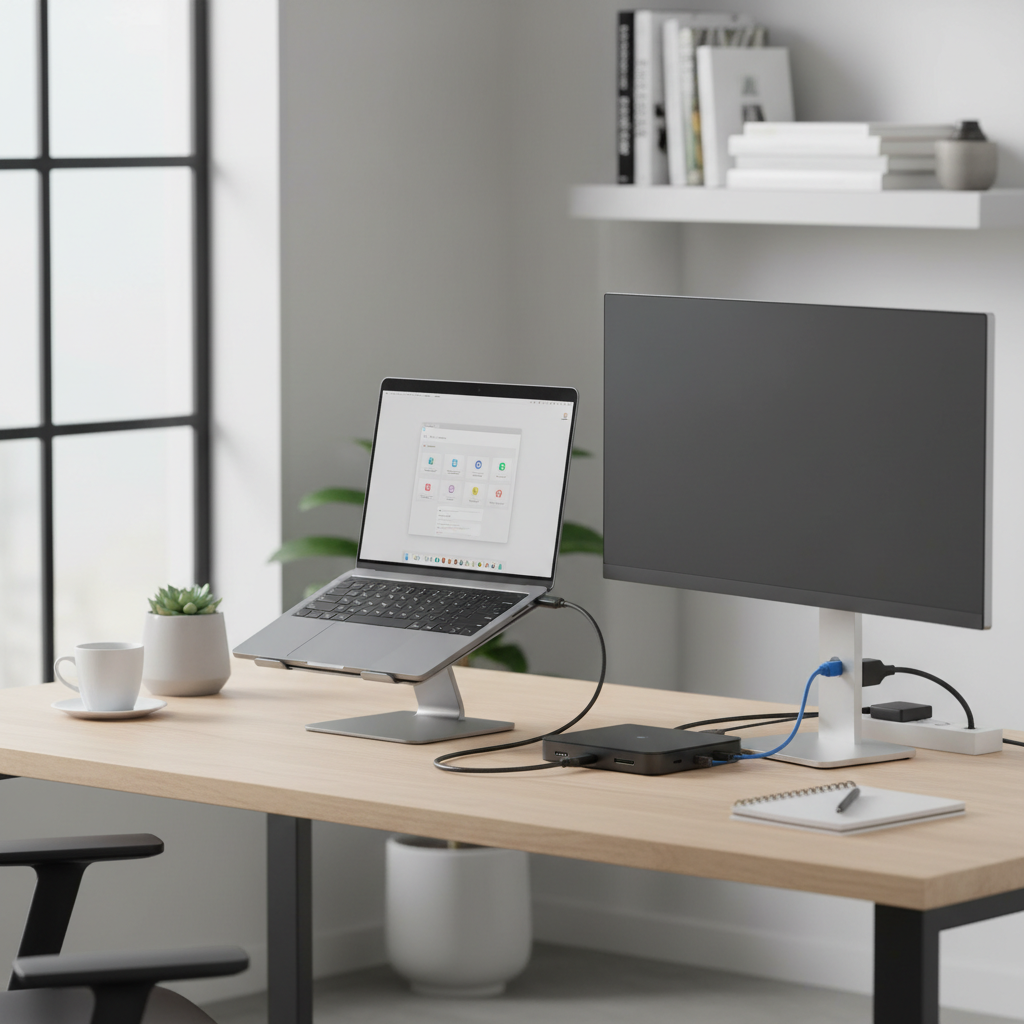
Usually non-negotiable (for most US home/office setups):
- Power Delivery (PD) passthrough: so the dock can charge your laptop while in use, often 60W–100W rated. Real-world charging may be lower due to overhead.
- Stable display output: at least 4K@30Hz or 4K@60Hz on one external monitor, depending on your needs.
- Ethernet if you work from home: it’s often the difference between “fine” Wi‑Fi and truly stable calls.
- Enough USB-A ports for keyboard, mouse, headset dongle, external drive.
Nice to have, not required in many cases:
- Two video outputs (HDMI + DisplayPort), especially if you only run one monitor.
- SD/microSD slots, unless you move photos/video often.
- Audio jack, if your laptop already handles it well.
- 100W charging, if your laptop is a 45–65W class device.
According to USB-IF, the USB-C connector is just a shape, capabilities vary by implementation, which explains why two “USB-C docks” can behave very differently on different laptops.
Quick laptop compatibility check (do this before you shop)
A lot of “this dock is trash” reviews come from a mismatch between the dock and the laptop’s USB-C capabilities. Two minutes of checking can save you hours.
Run this checklist:
- Does your USB-C port support video out? Look for “DisplayPort Alt Mode” or a DP icon near the port, or in your laptop specs.
- Thunderbolt or USB4? If yes, you have the widest compatibility and often better multi-display options.
- Work laptop with restrictions? Some managed devices limit driver installs or certain dock features.
- Mac vs Windows? Many budget docks can mirror two monitors on macOS rather than extend, unless they use DisplayLink (more on that below).
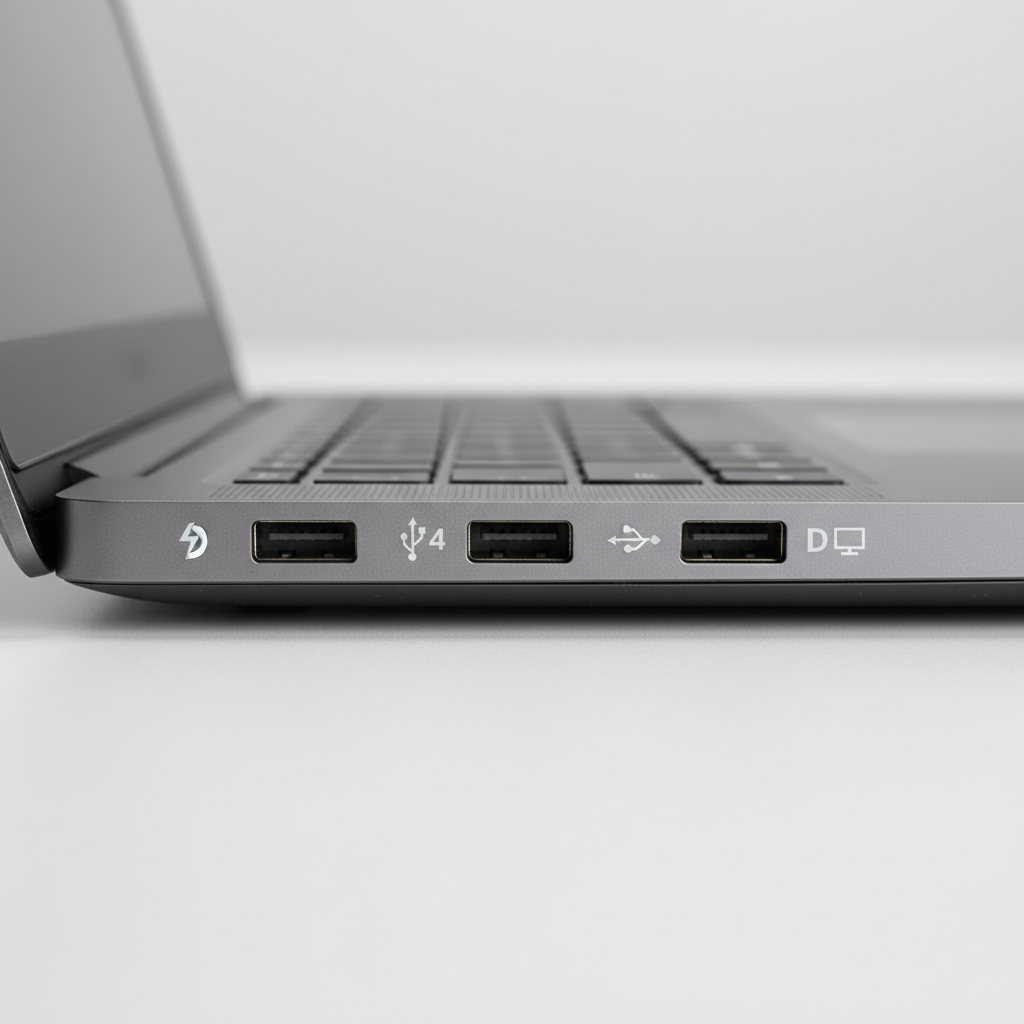
If you can’t find specs, a practical clue: if your laptop already supports a USB-C to HDMI adapter for an external monitor, you almost certainly have video-out support, which means a basic dock can work.
Port priorities that matter most on a budget
When you’re evaluating best budget usb c docking stations, ports aren’t just a count, they’re how you avoid daily friction. Here’s what tends to matter in real setups.
Video: 4K@60Hz vs 4K@30Hz
If you stare at a monitor all day, 4K@60Hz often feels noticeably smoother for cursor movement and window scrolling. For email and light admin tasks, 4K@30Hz can still be acceptable, but it may feel a little “draggy.”
Power Delivery: what the rating really means
Many docks list “100W PD,” but that’s typically the input capability. The dock may reserve power for itself and deliver less to the laptop. If your laptop came with a 65W charger, aim for a dock that supports 85W–100W input and advertises 65W+ output, when stated.
USB ports: avoid bottlenecks
Budget docks often share bandwidth across ports. That’s normal, but it matters if you connect fast storage. If you plan to edit video off an external SSD, look for USB 3.2 Gen 2 (10Gbps). If it’s mostly keyboard, mouse, printer, 5Gbps USB 3.0 is fine.
Ethernet and Wi‑Fi coexistence
Gigabit Ethernet (1Gbps) is common and usually enough. 2.5GbE is nice but less common in lower-cost options and only helps if your router/switch supports it.
Choosing the right type: basic USB-C, USB4/Thunderbolt, or DisplayLink
This is where many buyers accidentally pick the wrong category.
- Basic USB-C docks (DP Alt Mode): Great value for one external monitor, charging, and ports. Multi-monitor support varies, and some laptops limit it.
- USB4/Thunderbolt docks: Typically more expensive, but you get better bandwidth, broader compatibility, and often smoother multi-display behavior. If you catch a sale, these can be the “buy once” option.
- DisplayLink docks: They use a software driver to send video over USB. Often the easiest path to two extended displays on macOS with budget gear, but there can be tradeoffs like extra CPU use and occasional quirks with protected video content.
According to Apple, macOS support for multiple external displays depends on the Mac model and the underlying display technology, which is why two-monitor expectations can differ dramatically between Intel Macs, M1/M2 base models, and Pro/Max chips.
Comparison table: what to buy based on your setup
Instead of pretending there’s one perfect pick, match the dock type to your routine.
| Use case | What to prioritize | Dock type that usually fits | What to watch for |
|---|---|---|---|
| One monitor + charging + peripherals | 4K@60Hz (if possible), 60W+ PD, 3+ USB-A | Basic USB-C (DP Alt Mode) | Confirm your USB-C supports video out |
| Two monitors on Windows laptop | Two video ports, bandwidth, stable drivers/firmware | USB-C (if supported) or USB4/Thunderbolt | Some USB-C laptops limit dual extended displays |
| Two extended monitors on many Macs | Mac compatibility, dual extend requirement | DisplayLink (budget) or Thunderbolt (model-dependent) | Driver install, DRM/protected content quirks |
| Work-from-home reliability | Ethernet, solid PD, good heat management | Basic USB-C or USB4 | Cable quality and port strain relief |
| Fast external SSD workflow | 10Gbps USB, fewer shared bottlenecks | USB4/Thunderbolt (best), select USB-C hubs | Many budget docks slow down with multiple devices |
Practical buying steps (a quick process that works)
If you want a simple way to shop best budget usb c docking stations without getting lost in spec sheets, use this order:
- Step 1: Write down your “always connected” gear: monitor model/resolution, Ethernet yes/no, webcam, external drive, keyboard/mouse.
- Step 2: Confirm laptop port capability: DP Alt Mode vs Thunderbolt/USB4.
- Step 3: Decide your display requirement: one monitor is easy, two monitors is where you must match the dock type carefully.
- Step 4: Pick PD headroom: choose a dock that can comfortably meet or exceed your laptop’s charger wattage class.
- Step 5: Check return policy: compatibility is real-world, not theoretical, and it’s okay to plan for a test.
Key takeaway: the cheapest dock is the one you don’t have to replace after discovering your laptop can’t do what the dock promised “in general.”
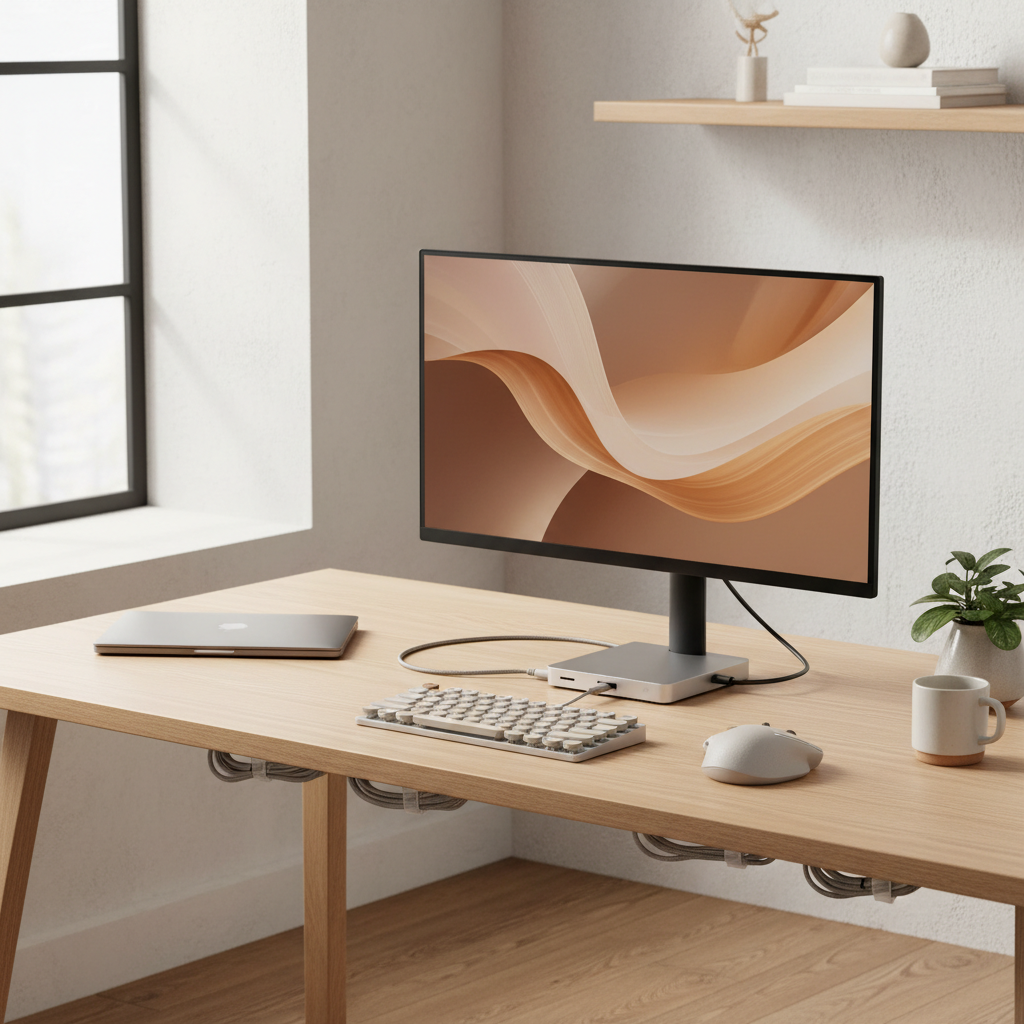
According to Microsoft, USB-C capabilities such as charging and display support depend on the device, cable, and port implementation, so verifying the laptop side is part of the purchase.
Mistakes that waste money (and how to avoid them)
A few patterns show up constantly in budget dock returns.
- Assuming every USB-C port does video: some are data-only, especially on older or lower-cost laptops.
- Buying for “two monitors” without checking macOS behavior: many non-DisplayLink docks mirror instead of extend on certain Mac models.
- Using an underpowered charger: if the dock expects a 100W USB-C charger and you plug in 45W, the laptop may charge slowly or drain under load.
- Expecting gaming-grade latency: docks are for productivity. Competitive gaming often prefers direct GPU connections.
- Ignoring heat and placement: cramped spaces can cause throttling or disconnects on some units, budget models especially.
If you’re seeing random display drops, it can also be the cable. A “charging” USB-C cable is not always a “video-capable” cable, and that mismatch causes confusing behavior.
Conclusion: a budget dock can be a smart buy if you match it to your laptop
The best budget usb c docking stations aren’t about finding a magic model, they’re about picking the right type for your laptop and monitor plan, then making sure power and ports line up with your daily routine.
If you want a low-stress next step, start by confirming whether your USB-C port supports DisplayPort Alt Mode or Thunderbolt/USB4, then choose a dock that meets your monitor count and power needs. That one check prevents most headaches.