
Tech tips are most useful when you’re stuck in the middle of work and a device suddenly slows down, your Wi‑Fi drops, or an update breaks something you need right now. This guide focuses on the fast fixes that usually work first, plus a few deeper steps when the quick stuff fails.
A lot of “device problems” aren’t mysterious, they’re just layers: a crowded startup list, weak Wi‑Fi placement, a messy storage situation, or one outdated setting quietly causing friction. The goal here is to help you isolate the layer that’s actually responsible, then act without making the situation worse.
One more thing before we get practical: if you’re troubleshooting a work laptop or a managed phone, some settings may be controlled by IT. In those cases, it’s smarter to document what you see and loop them in, rather than forcing changes that trigger security controls.
Quick triage: find the real problem in 5 minutes
When everything feels broken, the fastest win is narrowing the scope. Think in categories: device performance, network, account/login, storage, or security. That keeps you from trying random “computer tips and tricks” that waste time.

Do this quick checklist before deeper changes:
- Restart once (not five times). If the issue disappears, you likely hit a temporary process or memory glitch.
- Check one variable at a time: try a different app, another website, or a different network to see what follows the problem.
- Look for obvious bottlenecks: battery saver mode, low storage warnings, VPN on, too many browser tabs, or 50 background apps.
- Confirm the outage isn’t external: service status pages for major platforms can save you an hour of unnecessary resets.
Key takeaway: if the problem happens only in one app, treat it as an app issue. If it happens across apps, it’s usually OS, storage, network, or hardware.
Computer and laptop performance optimization (without “magic” apps)
Slow laptops are usually a mix of startup clutter, browser bloat, and not enough free disk space for the OS to breathe. Many “cleanup tools” overpromise; you’ll get more reliable results from a few targeted moves.
Practical steps that tend to help quickly:
- Trim startup items (Windows: Task Manager → Startup Apps, macOS: System Settings → General → Login Items).
- Reduce browser load: close heavy tabs, remove suspicious extensions, and restart the browser.
- Free space: aim for breathing room. Many systems behave poorly when storage is nearly full.
- Update GPU and chipset drivers if you see lag in video calls, external displays, or gaming.
If you need a decision point, here’s a simple table that maps symptoms to likely causes and fixes.
| Symptom | Likely cause | Try this first |
|---|---|---|
| Boot takes forever | Too many startup apps | Disable non-essential startup items |
| Fans loud, laptop hot | Background load, dust, heavy browser | Check Task Manager/Activity Monitor, close heavy apps |
| Apps “Not Responding” | Low RAM, storage pressure | Close apps, free disk space, reboot once |
| Video calls stutter | Wi‑Fi, CPU load, camera drivers | Switch to Ethernet or 5 GHz, close background apps |
Software update best practices matter here: performance complaints sometimes start right after an update, but rolling back isn’t always the right first move. Try a clean restart, run the newest minor patch, and check vendor notes for known issues before you undo anything.
Smartphone troubleshooting: battery drain, overheating, and “random” glitches
Phone issues are often app-driven. A single social app stuck in a background loop can mimic “bad battery health” or “failing hardware,” which is why you want evidence before you replace a device.
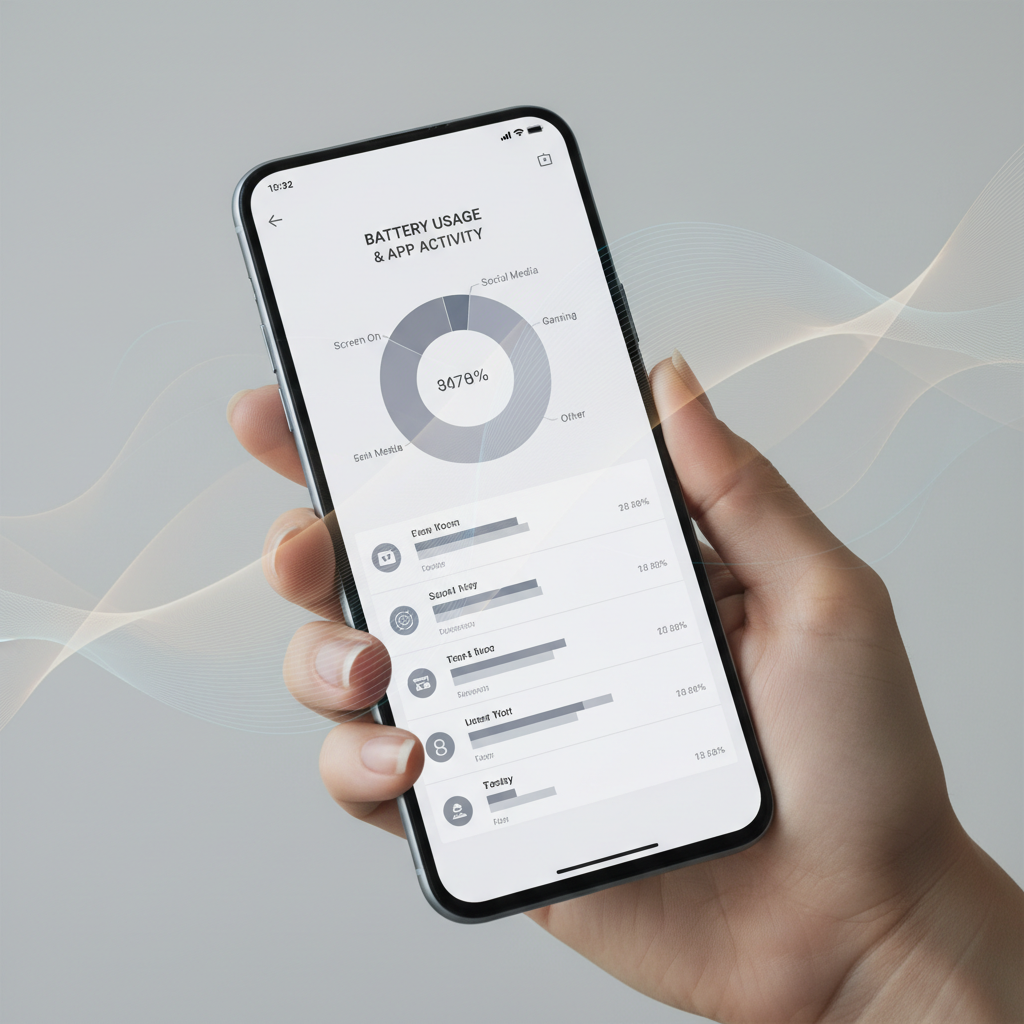
Fast checks that usually reveal the culprit:
- Battery usage by app: look for one app using an unusually high percentage.
- Background refresh: turn it off for apps that don’t need it.
- Storage headroom: low storage can cause stutters, camera failures, and update problems.
- Network resets (carefully): if messaging and browsing fail across apps, reset network settings before a full device reset.
If a phone overheats during charging, remove thick cases and avoid charging on soft surfaces. If heat persists or you see battery swelling, stop using it and consider professional inspection, because safety risk varies by situation and device condition.
Wi‑Fi optimization that actually changes your connection quality
Wi‑Fi problems are often “physics plus settings.” Router placement, congestion, and band selection can matter more than your internet plan. These technology tips tend to improve reliability without buying anything new.
What to adjust first:
- Router placement: keep it central and elevated, away from microwaves and thick walls.
- Choose the right band: 5 GHz is usually faster at short range; 2.4 GHz often reaches farther with more interference.
- Update router firmware: stability fixes are common in firmware releases.
- Use Ethernet for stationary gear: TVs, desktops, and consoles free up Wi‑Fi capacity for everything else.
According to FCC consumer guidance on home Wi‑Fi and interference, placement and environmental interference can noticeably affect signal quality, which matches what most people see in real homes with walls, appliances, and neighbors’ networks.
Quick reality check: if speed is fine next to the router but terrible two rooms away, focus on placement, mesh/extenders, or channel congestion, not your ISP.
Cybersecurity basics: stop the “easy wins” attackers rely on
Security fixes don’t need to be dramatic. Most everyday protection comes from a few boring habits done consistently, and they pair well with the rest of these tech tips because malware and account takeovers often look like “device issues.”
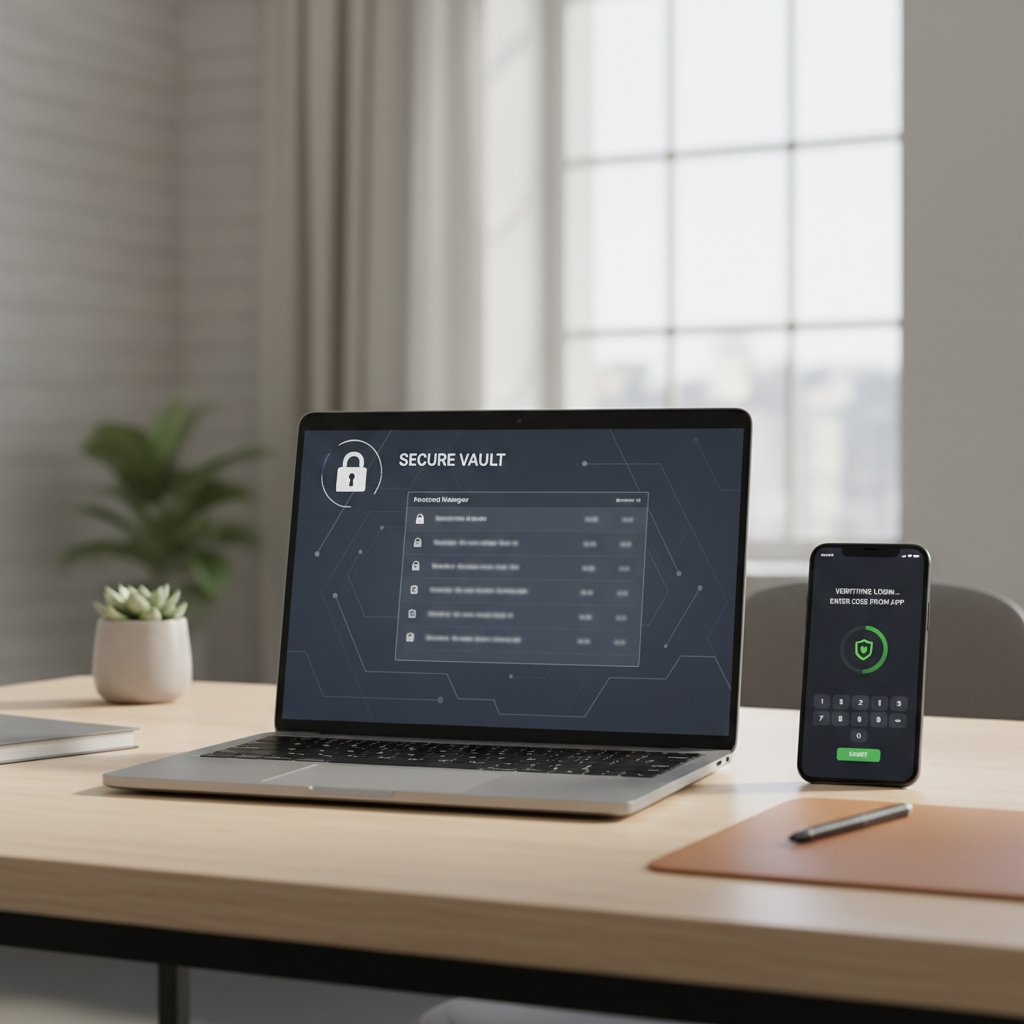
Baseline protections worth doing this week:
- Turn on multi-factor authentication for email, banking, and cloud storage.
- Use a password manager to avoid reused passwords and weak variations.
- Keep OS and browsers updated (updates often patch known vulnerabilities).
- Watch for fake update pop-ups: update through system settings or the official app store, not random prompts.
According to CISA (Cybersecurity & Infrastructure Security Agency), using MFA and timely patching are among the most practical steps individuals and organizations can take to reduce common compromise paths.
If you suspect a real compromise, don’t “clean up” blindly. Change passwords from a known-clean device, revoke unknown sessions in account settings, and consider professional support if sensitive data may be involved.
Cloud storage management and a backup-and-recovery guide you’ll actually use
People usually think about backups right after they lose something. The smoother approach is making backup small, automatic, and testable. Cloud storage helps, but it’s not always the same as a true backup if sync deletes items everywhere.
Simple setup that covers most households:
- Follow a 3-2-1 mindset when possible: multiple copies, different media, one offsite. You can scale this down based on budget.
- Separate sync from backup: keep at least one versioned backup that can restore older files.
- Turn on photo/document version history in your cloud provider if available.
- Test restores: pick one folder and restore it once, just to confirm the process.
Recovery flow when something goes wrong:
- Stop creating new files in the affected location, avoid overwriting.
- Check trash/recycle bin and cloud “deleted items.”
- Look for version history or previous versions.
- If ransomware is suspected, disconnect from the network and consider professional help; outcomes vary and rushed actions can reduce recoverability.
Productivity apps recommendations (lightweight, not overwhelming)
Most productivity stacks fail because they’re too complicated. You want a small set of apps that reduce friction: capture, plan, and retrieve. The exact choices vary by device ecosystem, but the categories stay consistent.
Pick one from each category and keep it boring:
- Notes: fast capture, good search, easy export.
- Tasks: recurring reminders, simple prioritization, cross-device sync.
- Calendar: time-blocking, shared calendars for family or teams.
- Password manager: doubles as a security and productivity tool.
If you’re always juggling files, add a lightweight “inbox” folder plus a weekly 10-minute cleanup. It sounds basic, but it prevents cloud clutter from turning into lost work.
Common mistakes that waste time (and how to avoid them)
Many fixes backfire because people skip the “what changed?” question. A driver update, new VPN, browser extension, or low storage warning is often the real story.
- Resetting everything too soon: factory resets are last resort, not step one.
- Installing random repair tools: some add ads, create conflicts, or introduce security risk.
- Ignoring update context: apply official patches, read known issues, and keep notes on what changed.
- Fixing the symptom, not the cause: closing an app helps once, but if it always returns, change the underlying setting or replace the app.
Practical habit: when a fix works, write down what you changed. Future-you will thank you when the problem returns three months later.
When it’s time to get professional help
Some issues are better handled by a technician or IT team, especially when there’s data risk, warranty concerns, or safety considerations.
- Physical symptoms: burning smell, battery swelling, liquid damage, repeated shutdowns under light load.
- Security red flags: unexpected MFA prompts, unfamiliar logins, “antivirus disabled,” or ransom notes.
- Business devices: encryption, compliance requirements, or managed profiles that you shouldn’t bypass.
If you’re unsure, a cautious route is to back up what you can, stop risky experimentation, and ask a pro to confirm the diagnosis before parts replacement or full wipes.
Conclusion: a faster way to fix issues next time
The most reliable tech tips aren’t secret tricks, they’re a sequence: isolate the category, apply a few high-signal checks, then go deeper only if evidence points that way. Keep your devices updated, keep storage under control, and make backups boring and automatic, those habits prevent most “surprise emergencies.”
Action steps for today: pick one device and clear startup clutter or unused apps, then enable MFA on your primary email account. Those two moves alone usually reduce both performance headaches and security stress.