
How to clear cache on android phone is one of the fastest ways to deal with apps that feel laggy, pages that won’t load right, or storage that seems to disappear for no reason.
Cache is basically “temporary helper files” your phone saves so apps open faster next time. The problem is, those files can pile up, get outdated, or conflict after an app update, and then you get odd behavior: sign-in loops, blank screens, or a browser that keeps showing an old version of a page.
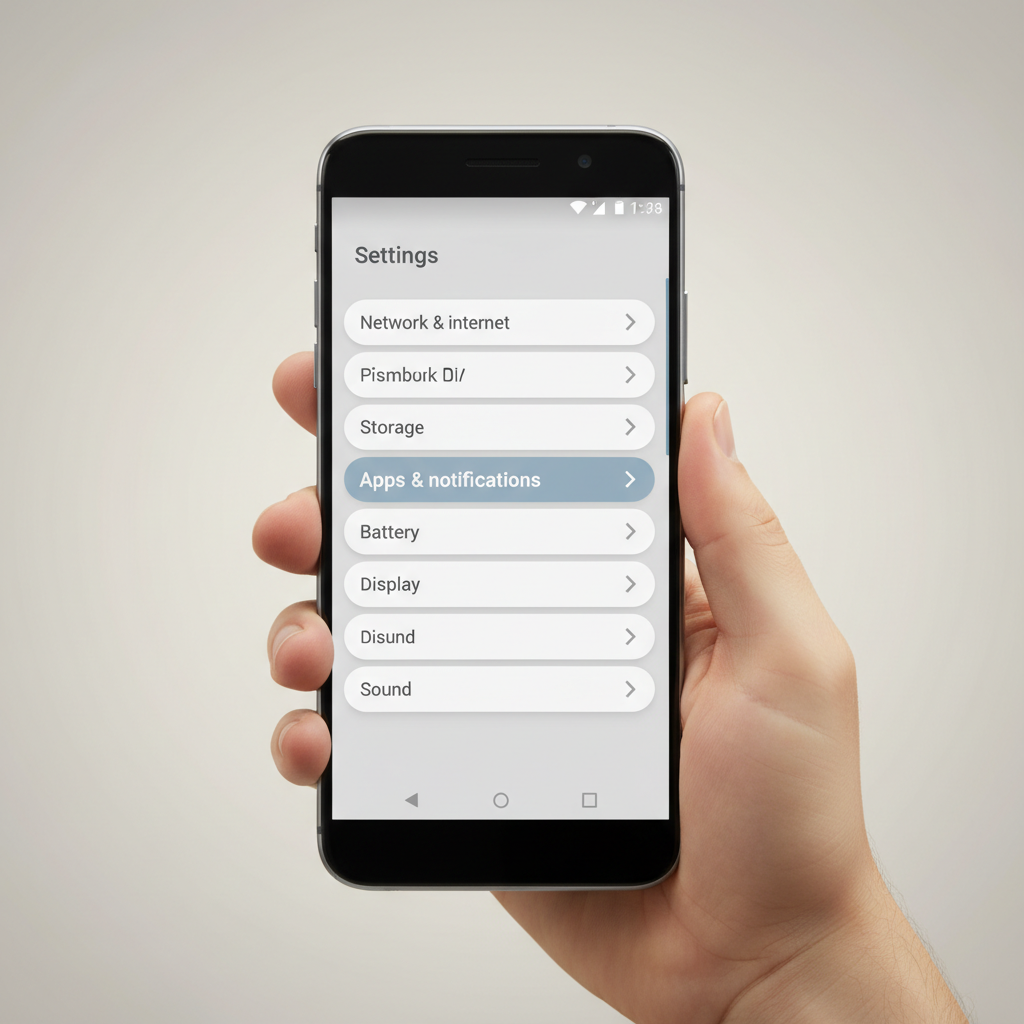
This guide walks you through the practical ways to clear app cache, browser cache, and related clutter, without accidentally deleting things you still need. I’ll also flag the moments when clearing cache is the wrong move, or when you should look for a deeper issue.
What “cache” means on Android (and what it does not do)
On Android, “cache” usually means files an app stores locally to load quicker, like thumbnails, map tiles, or previously fetched web content. Clearing it typically forces the app to rebuild those files.
Two quick boundaries matter:
- Clearing cache is not the same as deleting your account. Most apps keep logins and core data separately, though some apps may ask you to sign in again.
- Clearing cache is not the same as deleting app data. “Clear storage” or “Clear data” is the bigger reset and can remove preferences, downloads, and offline content.
According to Google (Android Help), app cache is designed to improve performance, but you can clear it when troubleshooting or freeing space, and the app can recreate cached files later.
Quick check: should you clear cache right now?
If you’re unsure whether cache is the culprit, use this quick checklist. If you check two or more, clearing cache often helps.
- An app opens, then freezes, crashes, or shows a blank screen
- A website looks “stuck” on an old version in your browser
- You have low storage, but photos and videos don’t explain it
- Streaming or social apps take unusually long to load
- You just updated an app and it started acting weird
If your phone is slow across everything, including the home screen, you may also want to check storage pressure, background processes, or a pending system update. Cache can be part of it, not always the whole story.
How to clear cache for a specific Android app (most reliable method)
This is the go-to fix when one app misbehaves. Menu names vary a bit by brand (Samsung, Pixel, OnePlus), but the path is usually close.
Step-by-step
- Open Settings
- Tap Apps (or Apps & notifications)
- Select the app you want (for example, Instagram, TikTok, Gmail)
- Tap Storage (sometimes Storage & cache)
- Tap Clear cache
After that, reopen the app and give it a minute. Many apps rebuild cache in the background, so the first launch can feel slightly slower, then it stabilizes.
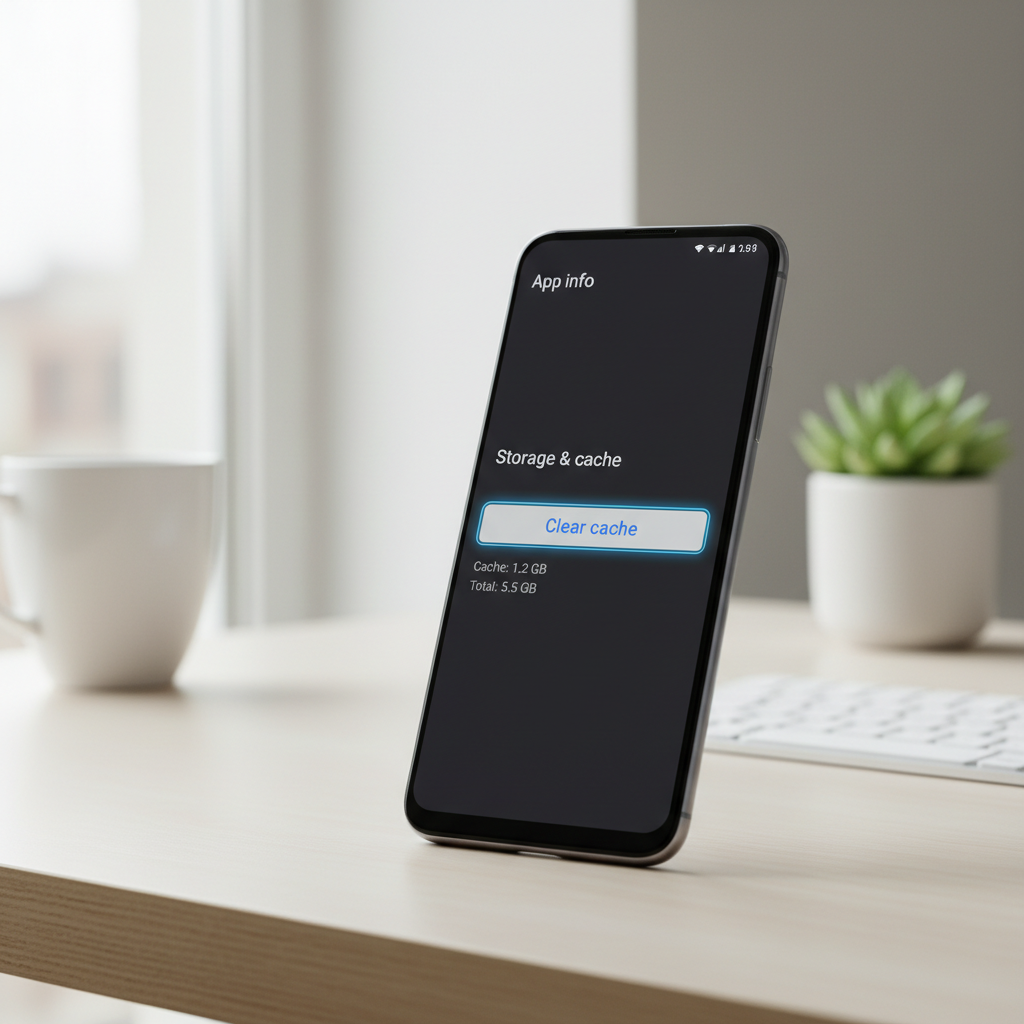
Tip: If clearing cache does nothing, the next escalation is usually force stop, then clear cache again, and only then consider “clear storage/data” (with caution).
How to clear Chrome cache on Android (and why it fixes “weird web”)
If the issue looks browser-specific, clearing Chrome cache is often more effective than clearing a random app cache. This matters for pages that refuse to update, broken logins, or layouts that look wrong.
Step-by-step in Chrome
- Open Chrome
- Tap the three-dot menu (top right)
- Tap Delete browsing data
- Select a Time range (try “Last 7 days” if you want a balanced cleanup)
- Check Cached images and files
- Tap Delete data
Be careful with toggles like cookies or saved passwords. If you’re mainly trying to fix display issues, cached images/files is the main target.
Clear cache vs. clear storage/data: what to choose (use this table)
A lot of “cache clearing” advice online quietly turns into “reset the app.” That can be fine, but it’s a bigger hammer. Here’s a practical way to choose.
| Action | What it removes | What usually happens next | Use it when |
|---|---|---|---|
| Clear cache | Temporary files | App rebuilds cache over time | Lag, glitches, display issues, small storage pressure |
| Clear storage / Clear data | App data, settings, sometimes offline downloads | App behaves like fresh install | Persistent crashes, corrupted state, login loops (after trying cache) |
| Uninstall/reinstall | App + most local app files | Cleanest reset, needs setup again | Severe bugs, app update gone wrong, suspected corruption |
Other places “cache-like” clutter hides (and safe ways to clean it)
When people search how to clear cache on android phone, they often mean “my storage is full.” App caches help, but these areas can be just as important.
Downloads folder
- Open Files (or My Files on Samsung)
- Check Downloads for old installers, PDFs, duplicates
- Delete what you recognize, leave items you still need for work/school
Messaging media (varies by app)
Apps like WhatsApp or Telegram can store a lot of media. Clearing cache may not remove large videos already saved to device storage. Look for in-app storage tools (often under Settings → Storage and data).
Photos “Trash” or “Recently deleted”
If you deleted large videos but storage didn’t recover, check the trash folder in your gallery app. Many devices keep deleted items for 15–30 days.
Key takeaways and a simple routine (so you don’t overdo it)
- Start targeted: clear cache for the specific app that glitches before doing broad cleanups.
- Browser issues: clear Chrome cached files when websites look outdated or broken.
- Escalate carefully: clear storage/data only after cache fails, because it can remove offline content and settings.
- Expect rebuild: cache comes back over time, that’s normal.
A low-effort routine that works for many people: once a month, clear cache for your top 2–3 heavy apps (social, streaming, maps) if you notice bloat, and clear Chrome cache when web pages behave oddly. If everything works fine, you can leave cache alone.
When clearing cache isn’t enough (and what to do next)
If you clear cache and problems persist, treat that as a signal, not a failure.
- App still crashes: try updating the app, then reboot the phone, then consider clear storage/data.
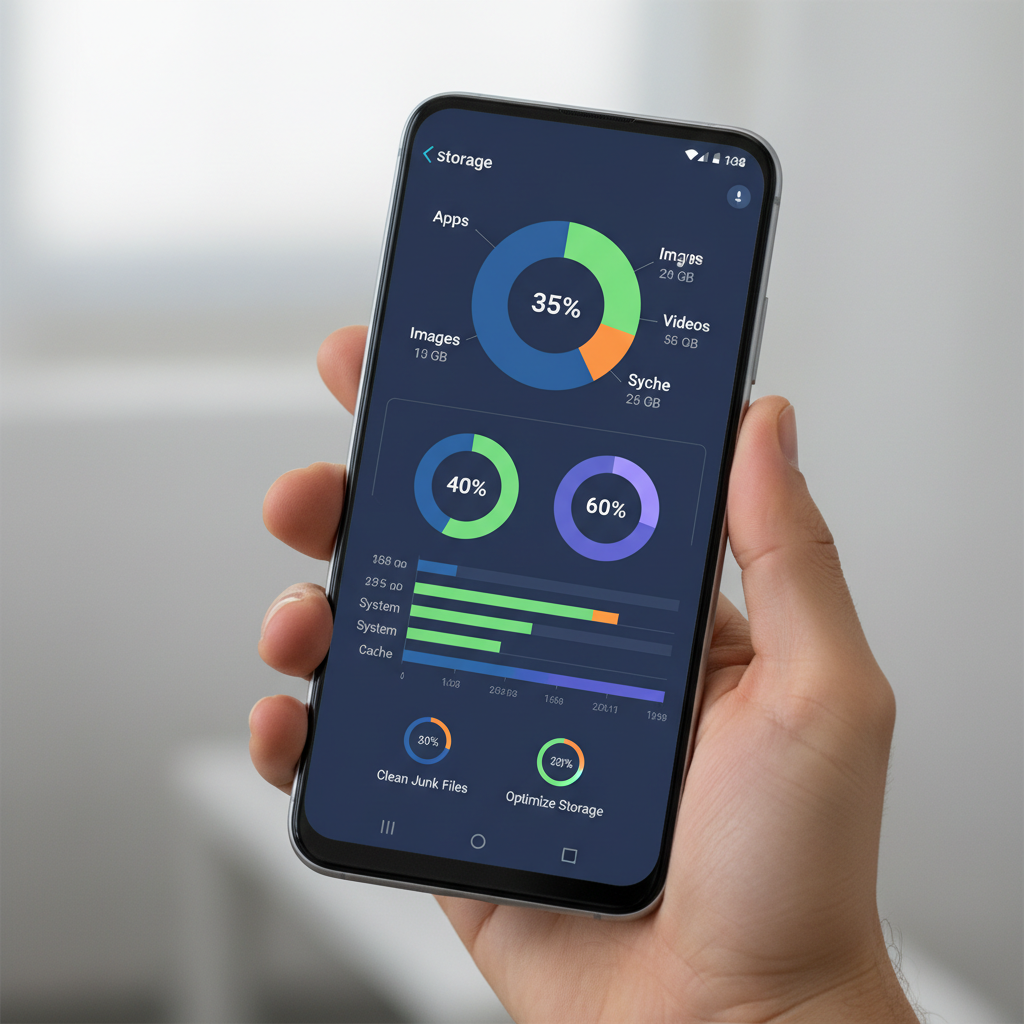
- Phone feels slow everywhere: check Settings → Storage for very low free space, and install pending system updates.
- Overheating or sudden battery drain: a misbehaving app can do it; review battery usage and uninstall suspicious apps. If the device gets hot frequently, consider asking a qualified technician for guidance.
- Storage doesn’t free up: large videos, offline downloads, and “trash” folders often explain the mismatch.
According to FTC guidance on mobile security, if you suspect a suspicious app or scam behavior, removing the app and improving account security is often safer than repeatedly “cleaning” the phone. If money or identity risk is involved, consider contacting the relevant service provider or a professional.
Conclusion: clear cache with a light touch, and target the real problem
Clearing cache is a practical, low-risk first step when an app glitches or storage feels tight, and it’s usually faster than reinstalling everything. Start with the single app that misbehaves, then handle Chrome if the problem looks web-related, and only escalate to clearing storage/data when you’re okay re-setting that app.
If you want one action to take today, pick your most annoying app, clear its cache, then check whether it behaves normally for the next day. That quick test tells you a lot.
FAQ
- Will clearing cache delete photos or messages?
Most of the time, no. Cache is temporary. But some apps store offline media in ways that feel like “cache,” so if something is important, confirm it’s backed up or saved where you can find it. - Is it safe to clear cache on Android?
In many cases, yes. The main downside is convenience: apps might load a bit slower on first launch, and you may need to re-enter a login in some situations. - How often should I clear cache on my Android phone?
Only when you notice a problem, or occasionally if storage stays tight. If your phone runs smoothly and you have enough free space, frequent cache clearing usually adds busywork. - Why doesn’t my storage increase after clearing cache?
It might increase a little, then change again as apps rebuild cached files. Also, big storage hogs often come from videos, downloads, messaging media, or “recently deleted” folders. - What’s the difference between “clear cache” and “force stop”?
Force stop closes the app immediately. Clear cache removes temporary files. When an app is stuck, force stop plus clearing cache can work better than either step alone. - How do I clear cache on Samsung vs Pixel?
The idea is the same: Settings → Apps → choose app → Storage. Samsung may label it “Storage,” Pixel often shows “Storage & cache.” If you can find the app info page, you’re close. - Should I use a cache cleaner app?
Many people don’t need one, and some cleaner apps are aggressive or ad-heavy. Built-in Android settings are usually enough unless you have a specific, trusted tool with a clear purpose.
If you’re trying to fix recurring glitches and you’d rather not hunt through menus every time, consider saving a short checklist for your device model, or asking someone tech-savvy to help you set up a simple maintenance routine that fits your apps and storage habits.